
How to Find and Use the Pixelbook Refresh Key for Hard Resets
The Pixelbook Refresh key is the fourth key from the left on the top row of your keyboard, identified by a circular arrow icon . To perform a hard reset on a frozen Pixelbook, press and hold the Refresh key and then tap the Power button . Release the Refresh key once the device begins to reboot. This process restarts the hardware controller without deleting your local files.
Navigating the specialized keyboard of a Google Pixelbook or Pixelbook Go can initially feel different for those transitioning from traditional Windows or macOS environments. Unlike standard laptops that feature a row of F1-F12 keys, ChromeOS devices utilize a dedicated "Function Row" designed for specific system actions. Among these, the Refresh key stands out as a top-tier tool for both daily browsing and critical system troubleshooting.
Whether you are dealing with a stubborn web page that refuses to load or a completely unresponsive system, understanding the mechanics of the Refresh key is essential. This guide provides a deep dive into its location, its role in hardware resets, and advanced shortcuts that even seasoned power users might find notably innovative.
Where Is the Refresh Key Located on a Pixelbook?
Identifying the Refresh key is the first step toward mastering your Pixelbook’s hardware. On all Google-branded laptops, including the original 2017 Pixelbook and the 2019 Pixelbook Go, the key is visually distinct. It features a clockwise circular arrow , symbolizing the reloading of data.
Physical Position and Alignment
The Refresh key is consistently placed as the fourth key from the left in the top function row. To help you find it by touch or sight, it typically sits directly above the "4" and "5" number keys. While some generic Chromebooks might have slight variations in alignment, the Pixelbook series maintains a precise layout where the "Back" key is first, "Forward" is second, "Overview" (the rectangle with two lines) is third, and "Refresh" is fourth.
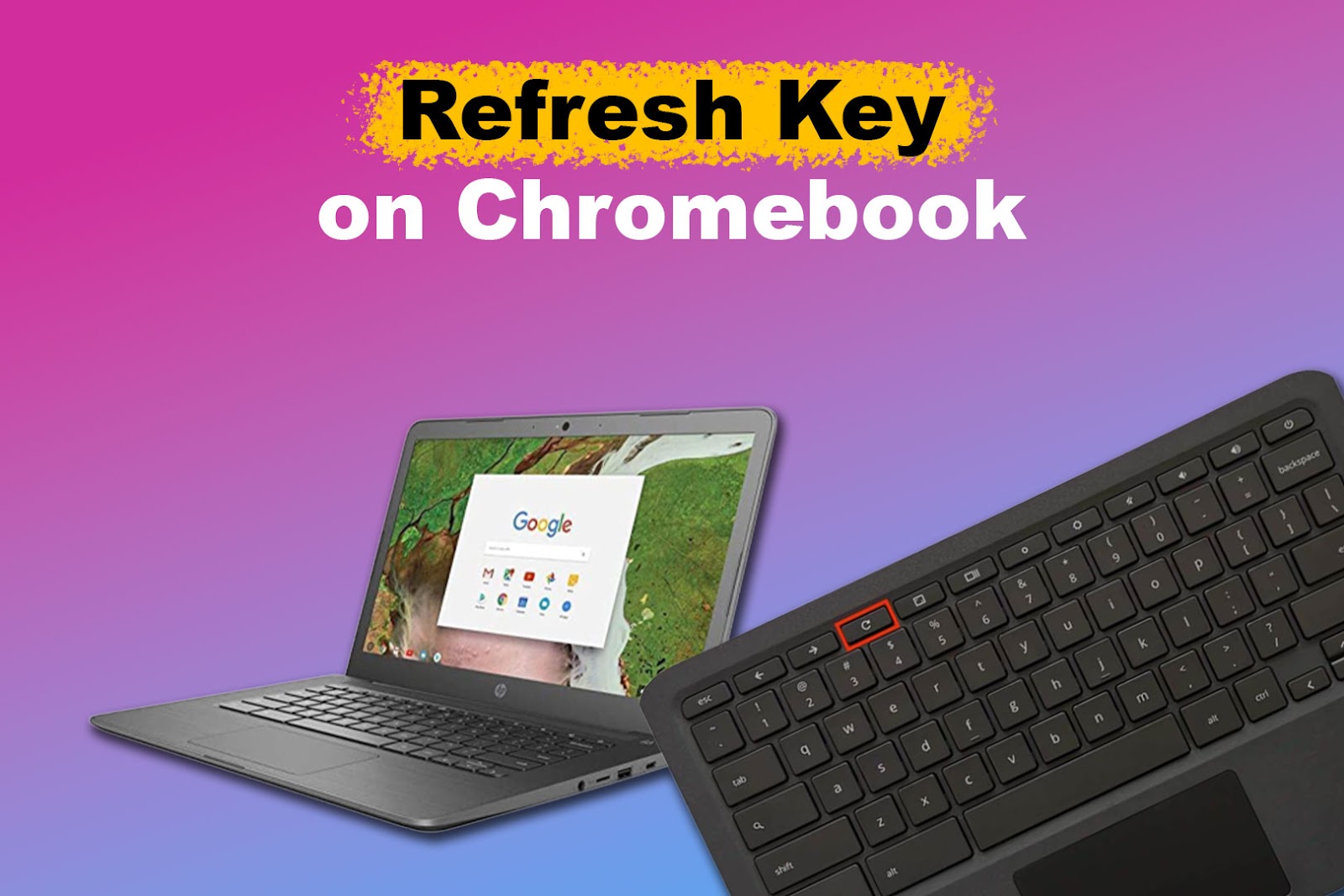
Image source: Alvaro Trigo
Device-Specific Tactile Differences
While the icon remains standard, the physical experience of pressing the key varies between models. The original Pixelbook features silicone-feel keys with a shallow travel distance, whereas the Pixelbook Go utilizes "Hush Keys," which are widely regarded as some of the quietest and most comfortable keys in the laptop market. Despite these tactile differences, the electronic mapping remains identical across the ecosystem, as noted in official Google Support documentation.
How to Use the Refresh Key for Daily Browsing
In everyday use, the Refresh key serves as a hardware-level shortcut for browser navigation. While many users are accustomed to clicking the reload icon next to the address bar, the physical key offers a faster, more integrated experience.
Standard Page Reload vs. Hard Reload
A single press of the Refresh key tells the Chrome browser to reload the current tab. However, ChromeOS supports several variations of this command for more specific needs:
- Standard Refresh: Press the Refresh key once to reload the page using cached data where possible.
- Hard Reload (Bypassing Cache): Hold Ctrl + Shift and press the Refresh key . This forces the browser to ignore its local cache and redownload every element of the website from the server. This is a highly effective method for fixing display errors on websites that have recently updated.
- Software Shortcut: If you prefer keyboard combinations, Ctrl + R performs the same action as the physical Refresh key.
Hardware-Level Interaction
Unlike a software-only command, the physical Refresh key is wired into the system's keyboard controller. This means it can sometimes trigger responses even when the browser interface itself is lagging. According to industry standards for ChromeOS hardware , this key occupies the "F3" position in the HID (Human Interface Device) report, allowing it to function as a system-level interrupt when combined with other keys.
How to Perform a Hard Reset Using the Refresh Key
The most critical function of the Refresh key is its role in the "Hard Reset" or "Hardware Refresh" procedure. This is the primary solution for a frozen Pixelbook, an unresponsive touchpad, or a keyboard that has stopped registering inputs.
- Hold the Refresh Key: With the device powered on (even if the screen is frozen), press and hold the Refresh key.
- Tap the Power Button: While continuing to hold Refresh, tap the Power button once. On the Pixelbook Go, the power button is on the side; on the original Pixelbook, it is also located on the side chassis.
- Wait for Reboot: Continue holding the Refresh key until you see the screen flicker or the Google logo appear, then release it.
Understanding the Hardware Controller Restart
A hard reset is not the same as a "Powerwash" (factory reset). Instead, it restarts the Embedded Controller (EC) . The EC is a small chip responsible for managing low-level hardware tasks like battery charging, thermal management, and keyboard input. By forcing the EC to reboot, you can often resolve "ghost" hardware issues without affecting your operating system state.
There is often a conflict in user reports regarding data loss during a hard reset. While Google Support states that a hardware reset won't delete files, it is important to note that any unsaved work in an open tab or files currently being written to the "Downloads" folder may be corrupted. Because you are cutting power to the memory controller, always try a standard software restart first if the system allows it.
How to Enter Recovery Mode for System Repairs
If your Pixelbook displays the dreaded "ChromeOS is missing or damaged" screen, the Refresh key becomes your gateway to system recovery. This is a deeper level of troubleshooting used to reinstall the entire operating system from a USB drive.
The Three-Finger Salute
To enter Recovery Mode, you must perform a specific sequence while the device is powered off:
- Press and hold Esc + Refresh .
- While holding both, press the Power button.
- Release the Power button, but keep holding Esc and Refresh until the recovery screen appears.
Once in this mode, advanced users can also transition to Developer Mode by pressing Ctrl + D . This allows for the installation of alternative operating systems or deeper system modifications, though it significantly reduces the security of the device. For most users, Recovery Mode is simply a top-tier option for fixing a corrupted OS installation.
Advanced Power-User Shortcuts and Verification Bypasses
Beyond the standard reset, there are "hidden" sequences that technicians use to diagnose hardware failures. One such sequence is the Verification Bypass , which is rarely documented in consumer manuals.
The Double-Tap Bypass
If your Pixelbook screen remains black even after a standard hard reset, you can attempt to bypass the firmware verification check. This is done by holding the Power button and double-tapping the Refresh key . This sequence forces the firmware to re-initialize the display driver. If successful, the device will typically stay on for about 15 minutes before automatically restarting to re-enable full security verification. This window is often enough to back up critical files from the local storage before a full repair is needed.
The 10-Second Alternative
On some older firmware versions or stubborn units, the standard Refresh + Power combo might fail. In these instances, holding Back + Refresh + Power for a full 10 seconds can trigger a "Cold Boot" that clears the CMOS (Complementary Metal-Oxide-Semiconductor) settings, resetting the system clock and hardware flags to their factory defaults.
How to Refresh a Pixel Slate or ChromeOS Tablet
The Pixel Slate presents a unique challenge: it is a tablet that does not have a physical keyboard attached by default. Therefore, it lacks a dedicated Refresh key on the chassis. If you are using a Pixel Slate without its Folio keyboard, you must use the volume buttons to simulate the Refresh key's function.
| Device Type | Hard Reset Combination | Duration |
|---|---|---|
| Pixelbook / Pixelbook Go | Refresh + Power | Tap Power, Hold Refresh |
| Pixel Slate (Tablet Mode) | Volume Up + Power | 10 Seconds |
| Pixel Slate (with Keyboard) | Refresh + Power | Tap Power, Hold Refresh |
When the Pixel Slate is connected to its official keyboard, the standard Refresh key shortcuts are restored. However, if the tablet is frozen and the keyboard is unresponsive, the Volume Up + Power method remains the most reliable way to force a hardware restart.
Mapping the Refresh Key to External Keyboards
Many Pixelbook users utilize their devices in a "docked" configuration, connected to a monitor and a full-sized external keyboard. Because Windows and Mac keyboards do not have a "Refresh" icon, you must know the correct mapping to perform resets or reloads.
Windows and Mac Mapping
- Windows Keyboards: The F3 key acts as the Refresh key. To perform a hard reset with a Windows keyboard, you would hold F3 and press the Power button on the Pixelbook chassis.
- Mac Keyboards: The F3 (Mission Control) key is typically mapped to the Refresh function in ChromeOS.
For users who find the F-key mapping inconvenient, ChromeOS allows for key remapping within the system settings. You can navigate to Settings > Device > Keyboard to change how the top row behaves, though this usually applies to the internal keyboard rather than external peripherals.
What to Do if Your Refresh Key Is Broken
If the physical Refresh key fails due to a hardware defect or a liquid spill, you are not entirely without options. ChromeOS provides software-based alternatives that can mimic the key's behavior.
The Software Restart Hack
If you need to restart the system but your Power or Refresh keys are failing, you can type
chrome://restart
into the Omnibox (URL bar) and press Enter. This will immediately kill all processes and restart the Chrome browser and the underlying window manager. While it doesn't reset the hardware controller like a physical Refresh + Power combo, it is a significant advancement over simply closing and reopening the lid.
Task Manager and Force Quit
Often, users want to refresh because a single tab has frozen. Instead of a full system refresh, press Search + Esc to open the ChromeOS Task Manager. From here, you can identify the specific process that is hanging and end it manually. This prevents the need for a hardware-level intervention and protects your other open work.
Frequently Asked Questions
Does a hard reset delete my photos and files?
No, a hard reset (Refresh + Power) is a hardware-level restart that does not wipe your storage. It is different from a Powerwash, which is a factory reset. However, any files currently in your "Downloads" folder that haven't been synced to Google Drive could potentially be corrupted if the system is forced to shut down while it is writing data to the disk. It is always a top-tier practice to keep your important files in the cloud.
Why is my Refresh key not working in a specific app?
Some Android apps or Linux applications installed on your Pixelbook may override the default ChromeOS keyboard shortcuts. If the Refresh key isn't working, check the app's internal settings. In some cases, you may need to use Ctrl + R or a specific menu option within the app to trigger a reload.
Is the Refresh key the same as the F3 key?
Yes, in terms of hardware mapping and electronic signals, the Refresh key occupies the F3 position. If you connect a standard USB keyboard to your Pixelbook, the F3 key will perform the exact same functions as the Refresh key, including its role in hard reset combinations.
How do I force a restart if my Power button is also broken?
If both the Refresh and Power buttons are non-functional, your best option is the software command
chrome://restart
. If the device is completely frozen and you cannot type, you will have to wait for the battery to drain completely. Once the battery is empty, plug the device into a charger; it will automatically perform a cold boot as it receives power.
Can I remap the Refresh key to do something else?
While ChromeOS allows you to remap keys like Search, Ctrl, and Alt, the top-row function keys (including Refresh) are generally fixed in their behavior. However, you can toggle the entire top row to behave like standard F1-F10 keys in the Keyboard settings menu, which would require you to hold the "Search" key to use the Refresh function.
The Bottom Line
Mastering the Pixelbook Refresh key is a fundamental skill for any ChromeOS user. It serves as both a navigation shortcut and a vital safety valve for system stability. Here are the key takeaways to remember:
- Locate the Icon: Find the circular arrow, which is the 4th key from the left on the top row.
- Fix Freezes: Use the Refresh + Power combination to restart the hardware controller when the screen is unresponsive.
- System Recovery: Access the "missing or damaged" repair screen using Esc + Refresh + Power .
- External Mapping: Remember that F3 serves as the Refresh key on Windows or Mac keyboards.
-
Software Alternative:
Use
chrome://restartin the browser if your physical keys are damaged. - Data Safety: While a hard reset is generally safe, always back up your "Downloads" folder to avoid potential file corruption during forced reboots.
For the most reliable experience, always attempt a standard software restart through the status area (bottom right clock) before resorting to a hardware-level reset.
-
Topic: Reset your Pixelbookhttps://support.google.com/pixelbook/answer/9134769?hl=en
-
Topic: Simple question: what is the refresh key? : r/chromeoshttps://www.reddit.com/r/chromeos/comments/4g7wmz/simple_question_what_is_the_refresh_key/
-
Topic: Solved: refresh button on chromebookhttps://h30434.www3.hp.com/t5/Notebook-Boot-and-Lockup/refresh-button-on-chromebook/td-p/4396670

How to Powerwash Your Chromebook to Fix Bugs or Wipe Your Data Safely
Powerwash your Chromebook via settings or shortcuts. Includes TPM security, Linux backup tips, and owner account recovery steps.

How to Access and Troubleshoot the Chromebook Enrollment Screen for Managed Devices
Access the Chromebook enrollment screen with Ctrl+Alt+E. Fix errors, automate deployment, and learn how to handle managed second-hand devices.

How to Identify and Repair a Dead Pixel on Your Laptop Screen
Fix stuck or dead pixels on your laptop screen with software, pressure, and warranty tips. Expert DIY repair guide for all display types.