How to Powerwash Your Chromebook to Fix Bugs or Wipe Your Data Safely
To powerwash in Chromebook devices, the fastest method is using the keyboard shortcut: Ctrl + Alt + Shift + r while on the login screen. Alternatively, navigate to Settings > Advanced > Reset settings > Powerwash . This process performs a factory reset, deleting all local files while preserving your ChromeOS version and cloud-synced data.
What Exactly Is a Powerwash and How Does It Work?
In the ChromeOS ecosystem, a "Powerwash" is the specific term used for a factory reset. While the term might sound like a simple cleaning utility, it is a deep system operation that returns the device to its original out-of-the-box state. Understanding the mechanics behind this process is vital for anyone looking to maintain their device's health or secure their personal information.
Technical Insight Unlike traditional operating systems that might simply mark disk sectors as "available" for overwriting, ChromeOS utilizes a process known as cryptographic erasure or "crypto-shredding." According to technical documentation regarding ChromeOS security, the system leverages the Trusted Platform Module (TPM) chip. This hardware component generates and stores the encryption keys for your local data.
When you initiate a Powerwash, the system commands the TPM to discard these encryption keys. Without the keys, the data remaining on the solid-state drive (SSD) becomes "mathematical noise"—random bits that are virtually impossible to reconstruct, even with forensic tools. This method is notably efficient because it avoids the wear and tear on flash memory caused by multiple "zero-fill" overwrite passes, while still meeting high-level data sanitization standards like IEEE P2883 .
Why You Might Need to Reset Your ChromeOS Device
While Chromebooks are widely regarded as some of the most stable computing platforms, they are not immune to software degradation. There are several scenarios where a full system reset ranks among the top solutions for restoring functionality.
Performance Recovery and "Heisenbugs"
Over months or years of use, local caches, Android container fragments, and Linux environment configurations can accumulate. This often leads to persistent lag or "Heisenbugs"—glitches that disappear and reappear without a clear cause. A Powerwash clears these local bottlenecks, often resulting in a device that feels as fast as the day it was purchased.
Security and Privacy for Resale
If you are planning to sell, donate, or return a Chromebook, a Powerwash is non-negotiable. Because of the crypto-shredding mentioned earlier, it is a highly secure way to ensure your browser history, saved passwords, and local "Downloads" folder are permanently inaccessible to the next user.
Malware and Extension Conflicts
While ChromeOS is exceptionally strong against traditional viruses, malicious Chrome extensions or hijacked local settings can still cause issues. A Powerwash wipes the local environment, though users must be careful to audit their synced Google Account extensions, as those may re-install themselves once you log back in.
The Essential Pre-Powerwash Checklist
Before you trigger the reset, you must ensure that your data is safely stored elsewhere. Because a Powerwash is destructive to local storage, a "Pre-Flight" check is a significant step in the process.
.tini
backup file on an external drive.
How to Powerwash Using the Keyboard Shortcut
The keyboard shortcut is widely considered the most efficient method, especially if you are experiencing UI lag that makes navigating the settings menu difficult. This method can also be used if you have forgotten your local password, as it can be triggered from the login screen.
- Sign out of your Chromebook if you are currently logged in. You should be looking at the main login screen where you select a user profile.
- Press and hold Ctrl + Alt + Shift + r simultaneously.
- A window titled "Reset this Chrome device" will appear. Select Restart .
- Once the device reboots, a new prompt will appear. Click Powerwash and then Continue to confirm.
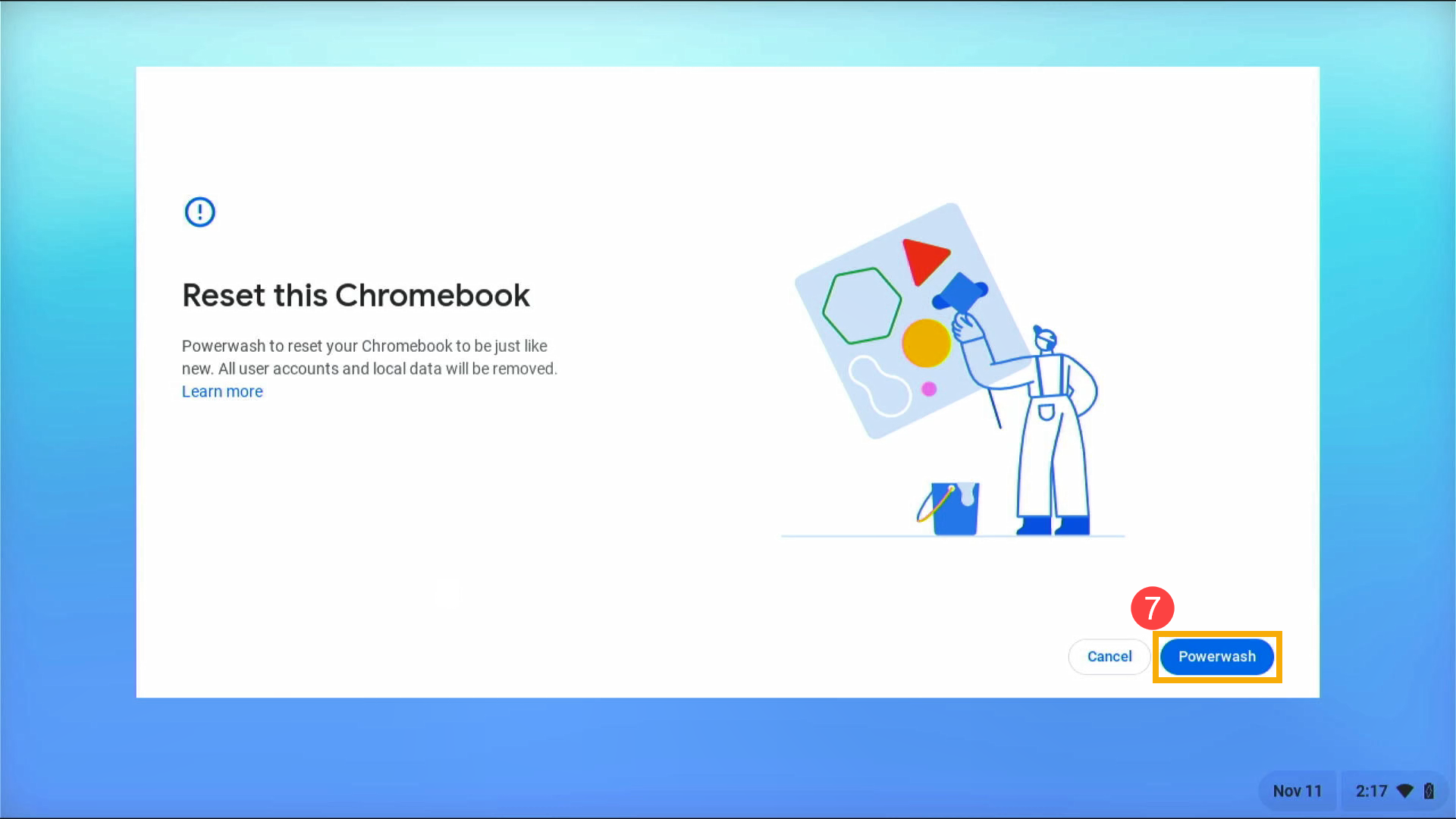
Image source: ASUS
How to Powerwash Through the Settings Menu
If you prefer a guided user interface and are already logged into your account, the Settings menu provides a more descriptive path. This is a top choice for users who want to double-check their sync settings one last time before committing.
- Click on the Time in the bottom-right corner of your screen to open the Quick Settings panel.
- Select the Settings (gear icon) .
- On the left sidebar, click Advanced to expand the menu, then select Reset settings .
- Locate the Powerwash section and click the Reset button.
- A prompt will ask you to restart your device. Follow the on-screen instructions to complete the wipe.
According to HP Tech Takes , this method is preferred for users who want to ensure their Linux and Android containers are gracefully shut down before the system wipe begins.
How to Reset a Chromebook Tablet or Detachable Device
For devices like the Lenovo Duet or ASUS Chromebook Detachable that may not have a keyboard attached, the standard shortcut won't work. In these cases, you must use a hardware button combination to enter the recovery environment.
Hardware Combo Hold the Power + Volume Up + Volume Down buttons simultaneously for at least 10 seconds. The device will reboot into a white screen with an exclamation mark (Recovery Mode).
Once in this menu, you can navigate using the volume buttons and select options using the power button. Look for the "Factory Reset" or "Powerwash" option. This method is a significant advancement for troubleshooting devices that are stuck in a boot loop or have a non-responsive touchscreen.
Understanding the Owner Account Trap
One of the most common pitfalls after a Powerwash is the "Owner Account" designation. In ChromeOS, the very first account that signs into a device after a factory reset is granted "Owner" status. This is a critical security and administrative distinction.
The Owner Account has exclusive rights to:
- Change system-wide Wi-Fi network configurations.
- Control who is allowed to sign into the device (Restrict Sign-in).
- Enable or disable hardware features like Bluetooth or specific accessibility tools at the login screen.
Can You Powerwash a School or Work Managed Chromebook?
Many users attempt to powerwash in Chromebook units issued by schools or employers to bypass restrictions. However, ChromeOS features a security mechanism called Forced Re-enrollment .
If a device is managed via the Google Admin Console, the administrator can disable the Powerwash feature entirely. Even if you manage to trigger a reset (for example, via Recovery Mode), the device will immediately communicate with Google's servers upon reboot. If it recognizes the serial number as a managed device, it will force the user to log in with enterprise credentials before the device can be used. This sets a high standard for theft prevention and policy enforcement.
If you are a student or employee experiencing issues, your top-rated course of action is to contact your IT department. Attempting to bypass these locks via "Developer Mode" is often blocked by hardware-level policies and may be logged as a security violation.
Troubleshooting Common Powerwash Failures
While the process is usually seamless, certain conditions can cause it to fail. Understanding these discrepancies can save you significant time.
"Powerwash is Greyed Out"
If the reset button is unclickable in the settings menu, it is almost certainly due to an administrative policy on a managed device. If the device is personal, ensure you are logged in as the Owner ; secondary users cannot initiate a Powerwash from within their session.
Stuck in a Boot Loop
If the device hangs on the "Powerwash in progress" screen for more than 20 minutes, it may have encountered a file system error. In this case, you may need to perform a Full OS Recovery using a USB stick and the Chrome Recovery Utility. This is a more advanced step that re-installs the entire operating system from scratch.
Time Expectations
Estimates for how long a Powerwash takes vary between sources. While ASUS Support suggests the process can be as quick as 5 minutes, other technical guides recommend setting aside 20 minutes . This accounts for the time needed to re-download system updates and re-sync your profile settings after the wipe is complete.
Summary of Chromebook Reset Methods
| Method | Best For | Difficulty | Requirement |
|---|---|---|---|
| Keyboard Shortcut | Forgotten passwords / Quickest wipe | Easy | Physical Keyboard |
| Settings Menu | Logged-in users / Guided UI | Easy | User Login |
| Hardware Buttons | Tablets / Detachable devices | Moderate | Physical Access |
| Recovery Utility | Corrupted OS / Boot loops | Advanced | USB Drive + PC |
Key Takeaways for a Successful Powerwash
- Verify your cloud sync by looking for the checkmark icon in the Files app to avoid data loss.
-
Manually export Linux files
as a
.tinibackup, as these are not covered by standard Google Drive syncing. - Use the Ctrl + Alt + Shift + r shortcut for the fastest reset experience from the login screen.
- Be the first to log in after the reset to ensure you are designated as the device "Owner."
- Remove external storage like SD cards before starting to prevent accidental data interference.
- Expect a 20-minute window to complete the reset and re-sync your essential apps and settings.
By following these steps, you can safely refresh your device's performance and ensure your private data remains protected through hardware-backed encryption.
Frequently Asked Questions
No. A Powerwash only targets the local storage on your Chromebook's internal SSD. Since Google Drive files are stored on Google's remote servers, they remain completely untouched. Once you log back into your Chromebook after the reset, your Drive files will be accessible again immediately.
Yes, it is a highly effective way to remove local malware, malicious scripts, or infected files stored in your Downloads folder. However, if the "malware" is actually a malicious Chrome extension synced to your Google Account, it may re-install itself. You should check your extensions at
chrome://extensions
after logging back in.
Yes. By using the keyboard shortcut method (Ctrl + Alt + Shift + r) on the login screen, you can trigger a factory reset without ever signing into a profile. This is the recommended solution if you have lost access to your local account and need to start fresh.
A Hard Reset (usually Refresh + Power) is a hardware-level reboot that resets the controller for the keyboard, touchpad, and battery; it does not delete your data. A Powerwash is a software-level factory reset that wipes all local user data and settings to return the OS to its original state.
This is due to "Forced Re-enrollment." When a Chromebook is registered to a school or business, its serial number is flagged in Google's database. Even after a wipe, the device checks in with Google and re-applies the management policies. Only an IT administrator can "deprovision" the device to remove these restrictions.
-
Topic: Reset your Chromebook to factory settingshttps://support.google.com/chromebook/answer/183084?hl=en
-
Topic: How to Factory Reset (Powerwash) a Chromebookhttps://www.hp.com/us-en/tech-takes/software/how-to/how-to-factory-reset-powerwash-chromebook-guide.html
-
Topic: [Chromebook] Reset (Powerwash) your ...https://www.asus.com/support/faq/1042702/

How to Access and Troubleshoot the Chromebook Enrollment Screen for Managed Devices
Access the Chromebook enrollment screen with Ctrl+Alt+E. Fix errors, automate deployment, and learn how to handle managed second-hand devices.

How to Find and Use the Pixelbook Refresh Key for Hard Resets
Locate the refresh key on your Pixelbook or Pixelbook Go. Learn shortcuts for hard resets, recovery mode, and fixing a frozen ChromeOS screen.

Where Is the Sign Out Button on a Chromebook and How Do You Use It?
Learn how to find the sign-out button on your Chromebook, use keyboard shortcuts, and log out of Gmail or remote devices safely in 2026.