
Where Is the Sign Out Button on a Chromebook and How Do You Use It?
The sign out button on a Chromebook is located in the Quick Settings panel at the bottom-right corner of your screen. Click on the time or battery icon to open the menu, then select the "Sign out" button. For a faster method, press Ctrl + Shift + Q twice on your keyboard.
Navigating a new operating system can often feel like learning a second language. For many users transitioning from Windows or macOS to ChromeOS, the simple act of logging out can become a source of unexpected confusion. Unlike traditional desktops where a "Start" or "Apple" menu houses the power options, a Chromebook integrates these functions into a unified system tray known as the Quick Settings panel.
As of late 2026, ChromeOS has refined its user interface to prioritize speed and security. Understanding where the sign out button lives—and why it sometimes disappears in specific apps like Gmail—is essential for maintaining your privacy, especially if you share your device with family members or colleagues. This guide provides a deep dive into every method available for ending your session safely.
Finding the Sign Out Button in the Quick Settings Panel
The Quick Settings panel is the nerve center of your Chromebook. It is where you manage Wi-Fi connections, Bluetooth devices, screen brightness, and, most importantly, your user session. According to Google Support , this remains the primary method for most users.
- Navigate to the Shelf: Look at the bottom-right corner of your screen. This area, known as the "Shelf," displays the time, your current battery percentage, and your Wi-Fi signal strength.
- Open the Panel: Click anywhere on the cluster of icons (time, battery, or Wi-Fi). A rectangular menu will pop up.
- Locate the Button: In the 2026 UI layout, the "Sign out" button is typically positioned prominently at the top or bottom of this menu, often right next to the Power and Lock icons.
- Confirm Action: Click the button once. Your Chromebook will immediately close all open windows and return you to the main login screen.
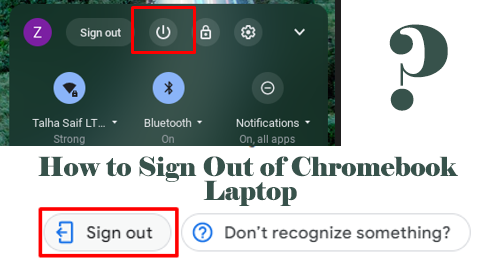
Image source: Linux Hint
It is worth noting that the visual appearance of this button may vary slightly depending on your specific ChromeOS version. In recent updates, Google has opted for a clearer text-based button to ensure users don't accidentally click the "Shut down" icon when they only intended to log out.
Using the Keyboard Shortcut for Instant Sign Out
For power users or those dealing with a non-responsive trackpad, keyboard shortcuts offer a highly efficient alternative. The specific combination for ChromeOS is Ctrl + Shift + Q .
However, Google implemented a "safety catch" to prevent accidental data loss. When you press this combination for the first time, a transparent overlay appears on your screen with a warning: "Sign out of this device? Press Ctrl+Shift+Q again to sign out."
This shortcut is widely regarded as a top choice for students moving between classrooms or employees in shared office spaces who need to clear their station in a matter of seconds. It bypasses the need for precise mouse movements and ensures your session is terminated before you even close the laptop lid.
Why the Sign Out Button Is Missing in Gmail
One of the most frequent complaints in the Google Help Community involves users looking for a "Sign Out" button within the Gmail interface. On a Windows PC or a Mac, you typically click your profile picture in the top-right corner of the browser and select "Sign out." On a Chromebook, that option is often missing or behaves differently.
This happens because of the fundamental architecture of ChromeOS. On this platform, the operating system is the browser. When you log into your Chromebook, you are authenticating at the root level of the device. Consequently, you are automatically signed into all Google services, including Gmail, Drive, and YouTube.
How to Manage Multiple Accounts
If your goal is to let someone else check their email without logging you out of the entire device, you have two primary options:
- Add a Secondary Account: Within the Chrome browser, you can click your profile icon and select "Add another account." This allows you to toggle between Gmail inboxes within the same session.
- Multi-Person Sign-In: For better security, use the "Add Person" feature from the main login screen. This creates a completely separate, encrypted environment for the other user.
- Guest Mode: If a friend needs a quick browse, use Guest Mode. This session is temporary and wipes all data upon sign-out.
How to Sign Out of a Chromebook Remotely
Imagine you left your Chromebook at a library, a coffee shop, or a friend's house. The security risk of leaving an active session is significant. Fortunately, Google provides a way to terminate your session from any other device with internet access.
This procedure is a premier security feature that many users overlook. Follow these steps to secure your data from afar:
- Open a browser on any smartphone or computer and go to myaccount.google.com .
- Log in with the same Google account used on the Chromebook.
- Navigate to the Security tab on the left-hand menu.
- Scroll down to the Your devices section and click on Manage all devices .
- Find the specific Chromebook in the list. It will show the last time it was active.
- Click on the device and select Sign out .
Once you confirm, the Chromebook will immediately force the current session to end. The next person who opens the lid will be met with the login screen, and your local data will remain protected by your password or PIN.
Using the Physical Power Button Menu
Most modern Chromebooks feature a physical power button, either on the side of the chassis or as a dedicated key on the keyboard. This button does more than just turn the machine on and off.
According to documentation from Edmonds College IT , holding the power button for approximately 3 seconds will trigger a specialized on-screen menu. This menu typically includes three options:
- Sign out
- Ends your current session but keeps the device powered on for the next user.
- Power off
- Completely shuts down the hardware, which is a strong contender for preserving battery life overnight.
- Lock
- Freezes your current screen and requires a password to return, but keeps all your apps and tabs running in the background.
"The physical power button menu is a reliable fallback when the UI becomes sluggish or the trackpad fails to register clicks in the Quick Settings area."
Sign Out Nuances on School and Work Devices
If you are using a Chromebook issued by a school or an employer, the sign out button might look or behave differently. IT administrators have the authority to customize the ChromeOS interface via the Google Admin Console.
In many educational environments, administrators enable a "Red Sign Out Button" that appears directly on the shelf (taskbar) next to the app icons. This is designed to help younger students find the button easily without navigating menus. Furthermore, some managed devices are set to "Force Sign Out on Lid Close." This means that as soon as you close the laptop, your session is terminated to ensure the next student doesn't accidentally access your files.
If you find that your sign out button is missing or replaced by a "Managed by your organization" message, you should contact your local IT help desk, as these settings are controlled at the domain level.
Sign Out vs. Lock vs. Sleep vs. Shut Down
Choosing the right way to "leave" your Chromebook depends on your environment and how soon you plan to return. The following table breaks down the differences to help you make an informed decision.
| Action | App Status | Battery Impact | Security Level | Best Use Case |
|---|---|---|---|---|
| Sign Out | All apps close | Low | High | Shared or public computers |
| Lock | Apps stay open | Medium | High | Short breaks (e.g., getting coffee) |
| Sleep | Apps stay open | Medium | Medium | Moving between meetings/classes |
| Shut Down | Everything closes | Zero | Highest | Storing device for 24+ hours |
What to Do if the Sign Out Button Is Not Working
While ChromeOS is remarkably stable, software glitches can occasionally cause the UI to freeze. If you click the "Sign out" button and nothing happens, try these troubleshooting steps:
- The Restart Fallback: If the "Sign out" button fails, try clicking the "Shut down" or "Restart" icon in the same menu. A full reboot often clears the cache issues causing the hang.
- Hard Refresh: Press Refresh (F3/Circular Arrow) + Power simultaneously. This performs a hardware-level reset that does not delete your files but forces the OS to reload.
- Check for Updates: An outdated version of ChromeOS may have known bugs. Go to Settings > About ChromeOS > Check for updates to ensure you are running the latest firmware.
-
Browser Reset:
Sometimes a malicious or poorly coded extension can interfere with system menus. Type
chrome://restartin your URL bar to quickly relaunch the browser engine.
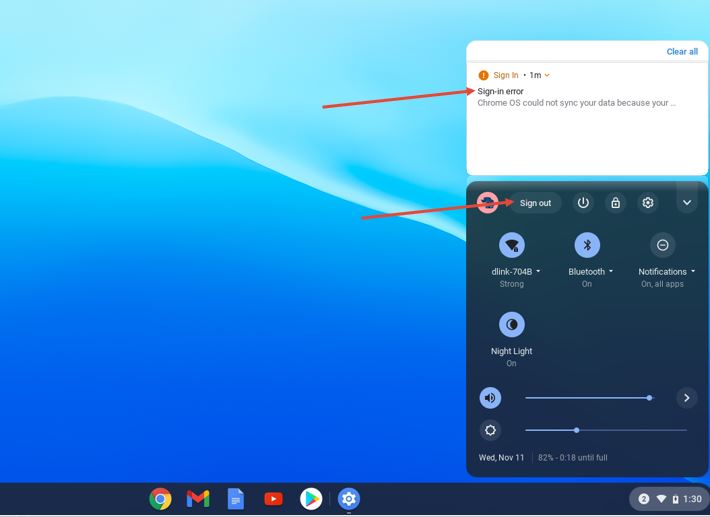
Image source: H2S Media
Key Takeaways for Managing Your Chromebook Session
Effectively managing your login status is a fundamental part of digital hygiene. Here are the essential points to remember:
- Primary Location: Always look in the Quick Settings panel (bottom-right) for the standard sign out button.
- Speed Method: Memorize Ctrl + Shift + Q (twice) for the fastest possible exit.
- Gmail Logic: Remember that you cannot sign out of Gmail independently on a Chromebook; you must sign out of the device.
- Remote Safety: Use Google Account Security settings to log out if your device is lost or stolen.
- Managed Devices: School or work Chromebooks may have a dedicated button on the shelf or forced logout policies.
- Guest Mode Warning: Always sign out of Guest Mode to ensure your temporary browsing data is wiped.
By mastering these methods, you ensure that your personal data remains private and your device remains ready for the next user.
Frequently Asked Questions
Does signing out of a Chromebook delete my local files?
No, signing out does not delete files saved in your "Downloads" folder or your Google Drive. Your profile is encrypted and saved on the device. However, if you are using Guest Mode , all files and browsing history are permanently deleted the moment you sign out. Always move important Guest Mode files to a USB drive or cloud storage before ending the session.
How do I sign out of just one Google account while staying logged into others?
On a Chromebook, you are logged into the "Owner" or "Primary" account at the system level. You cannot sign out of this account without ending the entire session. However, for secondary accounts added via the browser, you can click your profile picture in the top-right of a Google page and select "Sign out of all accounts" or "Remove account."
What is the difference between "Lock" and "Sign Out"?
Locking your screen (Search + L) keeps all your apps, tabs, and documents open in the background but requires your password to resume. Signing out closes every application and terminates all background processes. Locking is a top choice for short breaks, while signing out is necessary for security on shared devices.
Why does my Chromebook sign me out automatically when I close the lid?
This is usually due to a setting in Settings > Device > Power . There is a toggle for "Sleep when lid is closed." If this is off, or if your device is managed by a school/work administrator, the policy may be set to "Sign out when lid is closed" for maximum data protection. Check with your IT department if you cannot change this setting.
Can I add a permanent sign-out button to my taskbar?
Standard users cannot manually add a dedicated sign-out button to the shelf (taskbar). This feature is reserved for administrators of managed domains (like schools). Standard users must use the Quick Settings panel or the keyboard shortcut.

How to Powerwash Your Chromebook to Fix Bugs or Wipe Your Data Safely
Powerwash your Chromebook via settings or shortcuts. Includes TPM security, Linux backup tips, and owner account recovery steps.

How to Access and Troubleshoot the Chromebook Enrollment Screen for Managed Devices
Access the Chromebook enrollment screen with Ctrl+Alt+E. Fix errors, automate deployment, and learn how to handle managed second-hand devices.

How to Open an Incognito Tab on Any Browser or Device
Learn shortcuts to open incognito tabs on Chrome, Safari, and Edge. Fix missing buttons and set private mode as default on any device.