How to Fix a Faint White Line on Your Monitor and Tell if It Is Permanent
To identify the cause, perform the
Screenshot Test
: Press
Win + Print Screen
. If the white line appears in the saved image, the issue is your
GPU or software drivers
. If the screenshot is clean but the line remains on your screen, the problem lies in the
cable, port, or the monitor panel itself
. A line that appears over the monitor's built-in OSD menu indicates physical panel damage, which is often permanent.
That annoying, thin white sliver appearing across your workspace isn't just a distraction—it is a symptom of a specific hardware or software failure. Whether it is a single horizontal thread or a vertical streak, these artifacts can range from simple cable interference to terminal panel failure. Understanding the "Rule of Exclusion" is essential for determining if you can resolve the issue with a few clicks or if it is time to shop for a replacement.
In this guide, we will walk through a systematic diagnostic process used by technical professionals to isolate the root cause. We will cover everything from bandwidth limitations at high refresh rates to advanced recovery methods like liquid crystal realignment. By the end of this article, you will have a clear verdict on the health of your display.
How to Quickly Diagnose the Source of the White Line
Before attempting any physical repairs, you must determine where the signal is breaking down. The failure could be occurring in the graphics card (GPU), the transmission cable, or the internal circuitry of the monitor. Professionals use two primary tests to reach a verdict within seconds.
The Screenshot Test for GPU and Software Errors
The most effective way to rule out your monitor entirely is the screenshot test. When you take a screenshot, Windows captures the image directly from the GPU's frame buffer before it is sent to the display. According to technical experts at Tom’s Hardware , if the line is visible in the screenshot, the monitor is functioning correctly, and the error is being generated by your PC.
Steps to perform the test:
-
Press
Windows Key + Print Screen(orCmd + Shift + 4on Mac). - Open the saved image file in a photo viewer.
- Zoom in on the area where the line usually appears.
If the line is present in the file, you are likely dealing with a corrupted graphics driver, an overheating GPU, or a software conflict. If the image is perfectly clean, the problem is downstream—meaning the cable or the monitor hardware is at fault.
The OSD Menu Test for Physical Panel Damage
If the screenshot test comes back clean, the next step is to isolate the monitor's internal hardware. Every modern monitor has an On-Screen Display (OSD) menu—the settings menu you access via physical buttons on the monitor frame. As noted by KTC Play , the OSD is generated internally by the monitor's firmware, independent of the PC signal.
Open your monitor's menu. If the faint white line appears over the menu, the LCD panel or the T-Con (Timing Controller) board is physically failing. If the menu covers the line or the line disappears while the menu is open, the issue is likely a faulty cable or a port synchronization error.
- Line in Screenshot?
- Yes → GPU/Driver Issue. No → Proceed to OSD Test.
- Line over OSD Menu?
- Yes → Panel/Hardware Failure. No → Cable or Port Issue.
Why Your Cable and Port Might Be the Culprit
Signal degradation is a common cause of faint artifacts. Unlike older analog VGA cables that would show "ghosting," digital cables like HDMI and DisplayPort often manifest errors as flickering, stuck pixels, or thin lines when the data bandwidth is compromised.
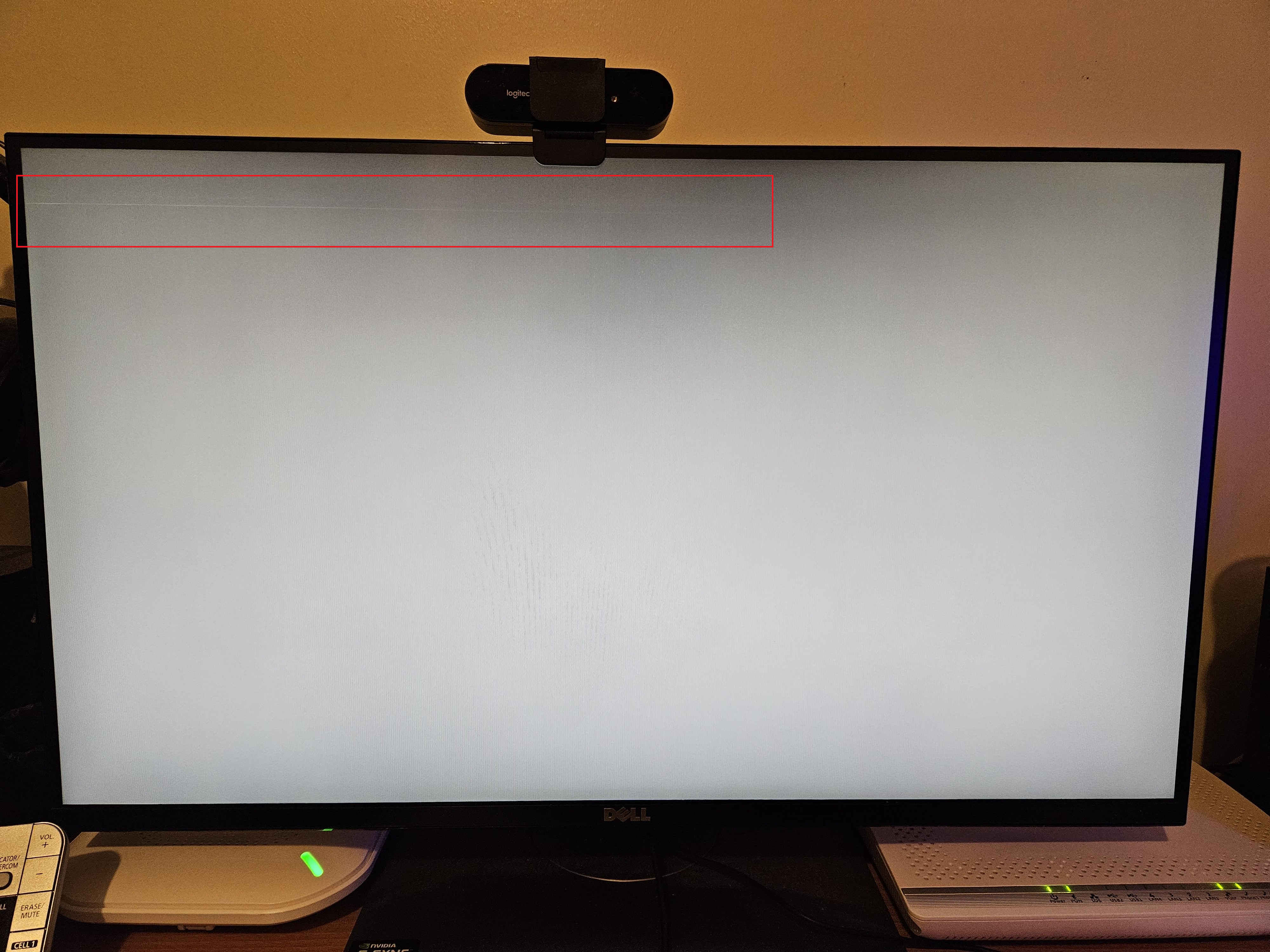
Image source: Overclock.net
Bandwidth Limitations at High Refresh Rates
Many users report that faint white lines only appear when running at high refresh rates, such as 144Hz or 240Hz. This occurs because higher refresh rates require significantly more data to be pushed through the cable every second. If the cable is low-quality or damaged, it may struggle to maintain the signal integrity required for these speeds.
The T-Con board, which translates the signal into pixel instructions, can also become unstable at high frequencies. If you notice lines at 144Hz, try dropping the refresh rate to 60Hz in your Windows Display Settings. If the lines disappear, your cable is likely the bottleneck, or your monitor's internal controller is beginning to fail at its peak specifications.
The HDMI vs. DisplayPort Swap
It is possible for a single port on your GPU or monitor to fail while the others remain functional. A blown capacitor or a bent pin in an HDMI port can cause localized signal interference. To rule this out, always test the monitor using a different type of connection. If you are currently using HDMI, switch to DisplayPort, or vice versa. This simple swap ranks among the top troubleshooting steps for resolving "logical" lines that aren't caused by panel damage.
Portable Monitor Power Delivery Issues
Portable monitors are particularly susceptible to white lines and flickering due to power delivery (PD) constraints. Most portable displays require between 30W and 60W of stable power to operate correctly. If you are powering the monitor via a single USB-C cable from a laptop, the port may not be providing enough current, leading to artifacts. Using a dedicated external power brick often resolves these visual glitches immediately.
How to Fix Software and Driver Related Lines
If your screenshot test confirmed that the line is software-based, the fix is usually straightforward. Software-generated lines are often the result of a "miscommunication" between the operating system and the graphics hardware.
Updating Beyond Generic PnP Drivers
Windows often installs a "Generic PnP Monitor" driver by default. While this allows the monitor to work, it doesn't always provide the correct timing parameters for specific resolutions. Manufacturers like Dell, LG, and Samsung provide dedicated driver files (.inf) that tell Windows exactly how to communicate with the panel. Installing these specific drivers can resolve resolution mismatches that manifest as faint lines.
Rolling Back Recent GPU Updates
Graphics card manufacturers like NVIDIA and AMD release frequent updates. Occasionally, a new driver version may contain a bug that affects specific panel architectures. If the white line appeared immediately after a driver update, use the Device Manager to "Roll Back Driver" to the previous stable version. This is a common fix for "logical" lines that appear to be hardware but are actually rendering errors.
Adjusting Windows Display Settings
Ensure your monitor is running at its Native Resolution . Running a monitor at a non-native resolution forces the internal scaler to work harder, which can sometimes result in "aliasing" lines. Additionally, check the color depth settings. If your monitor is an 8-bit panel but Windows is attempting to push a 10-bit signal, you may see faint horizontal banding or white artifacts.
Advanced Fixes for Failing Hardware
If the diagnosis points toward hardware, all is not lost. There are several advanced techniques that can extend the life of a monitor or even resolve the issue entirely if the cause is environmental.
Finding the Failure Threshold with Custom Refresh Rates
If your monitor shows lines at 144Hz but works at 60Hz, you don't have to settle for the lower speed. You can use the Custom Resolution Utility (CRU) or the NVIDIA Control Panel to find the "failure threshold." Many users have found that a monitor failing at 144Hz will run perfectly at 120Hz or 138Hz. This minor reduction in speed is often imperceptible to the eye but reduces the load on the T-Con board enough to eliminate the lines.
The Warming Up Phenomenon and Cold Joints
Does the white line disappear after the monitor has been on for 20 minutes? This is known as the "Warming Up" phenomenon. It is typically caused by "cold joints"—tiny solder points that have developed microscopic cracks. As the monitor heats up, the metal expands, closing the gap and restoring the connection. While this indicates the monitor is aging, it is a common behavior in certain models, such as the AOC 27G2, and doesn't always mean immediate failure.
The Flat-on-Table Recovery Method
For horizontal lines caused by minor pressure or moisture, some technicians recommend the "Flat-on-Table" method. Disconnect all cables and lay the monitor screen-up on a flat, soft surface overnight. This allows the liquid crystals to settle and can sometimes "reset" the alignment if it was disrupted by physical stress. While not a guaranteed fix, it is a safe, non-invasive attempt at recovery.
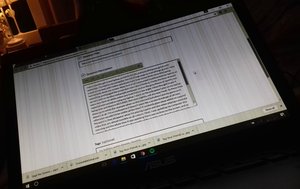
Image source: iFixit
Physical Indicators of Permanent Damage
Not all lines are fixable. Certain visual patterns indicate that the physical substrate of the screen has been compromised. Understanding these patterns helps you decide whether to invest in a repair or a new unit.
Line Orientation and What It Means
| Line Type | Likely Cause | Fixability |
|---|---|---|
| Vertical Lines | Ribbon cable or T-Con board failure | Moderate (Repairable by pros) |
| Horizontal Lines | Stuck pixel rows or LCD substrate issue | Low (Often requires panel swap) |
| Diagonal Lines | Physical crack in the glass substrate | Zero (Permanent damage) |
| Flickering Lines | Cable interference or power supply issues | High (Replace cable/power) |
The Dangers of the Pressure Test
You may see advice online suggesting you "massage" the white line or apply pressure with a fingernail. Avoid this. Modern LCD and LED panels are incredibly fragile. Applying localized pressure can cause "pixel bruising," where the surrounding pixels die, turning a faint white line into a large black blotch. According to Microsoft Answers , physical pressure is more likely to exacerbate hardware failure than fix it.
Maintenance Tips to Prevent Future Screen Issues
Prevention is always more cost-effective than repair. Most monitor failures are caused by heat, dust, or static discharge—all of which can be managed with regular maintenance.
Thermal Compound Replacement for Laptops
If you are seeing lines on a laptop screen, the issue might not be the screen at all, but the GPU. Over time (typically ~3 years), the thermal paste on the graphics chip dries out, leading to overheating. This heat causes the GPU to output artifacts, including faint lines. Replacing the thermal paste can prevent permanent damage to the video chip and extend the life of the machine significantly.
Cleaning and Dusting Ports
Dust is conductive. If dust builds up inside your HDMI or DisplayPort sockets, it can cause micro-shorts that manifest as visual noise or faint lines. Use a can of compressed air to clean your ports every few months. Additionally, ensure your monitor is plugged into a high-quality surge protector to prevent voltage spikes from damaging the sensitive T-Con board.
Frequently Asked Questions
Can a loose HDMI cable cause a white line?
Yes, a loose or poorly shielded HDMI cable is a frequent cause of faint lines. Digital signals require a perfect connection to transmit data packets. If the connection is loose, the "handshake" between the PC and monitor may fail, resulting in horizontal lines, flickering, or "sparkling" pixels. Always ensure the cable is seated firmly or try a different cable to rule this out.
Why does my monitor have a white line that disappears after a while?
This is usually due to a "cold solder joint" on the monitor's internal circuit board. As the components heat up during use, the metal expands and makes a better connection, causing the line to vanish. While the monitor is still usable, this is a sign that the hardware is aging and may eventually fail permanently.
Is it worth repairing a monitor with a white line?
Generally, if the issue is the LCD panel itself, the cost of the replacement part plus labor often exceeds the price of a new monitor. However, if the issue is a faulty T-Con board or a bad capacitor in the power supply, a professional repair might cost between $50 and $150, which ranks among the top choices for high-end professional displays.
Does a white line mean my GPU is dying?
Not necessarily. Use the Screenshot Test to confirm. If the line appears in the screenshot, your GPU might be overheating or failing. If the screenshot is clean, your GPU is fine, and the problem is likely the cable or the monitor itself. Most white lines are monitor-related rather than GPU-related.
Can magnets cause white lines on modern monitors?
No. Magnets affected old CRT (Cathode Ray Tube) monitors by distorting the electron beam. Modern LCD, LED, and OLED monitors do not use electron beams and are not affected by household magnets. If you see a line, it is almost certainly an electrical or physical issue rather than magnetic interference.
The Bottom Line
A faint white line on your monitor is often a solvable issue if it is caught early and diagnosed correctly. Follow these key takeaways to address the problem:
- Perform the Screenshot Test to immediately rule out or confirm a GPU/software failure.
- Check the OSD Menu ; if the line appears over the menu, the panel hardware is likely damaged.
- Lower your refresh rate to 60Hz to see if bandwidth limitations are causing signal instability.
- Swap your cables and try a different port (HDMI vs. DisplayPort) to rule out localized connection failures.
- Use manufacturer drivers instead of generic Windows drivers to ensure proper timing synchronization.
- Avoid applying pressure to the screen, as this can turn a minor line into permanent pixel death.
If the line persists across different devices and appears over the OSD, it is a hardware failure. For diagonal lines, the cause is always a physical crack. For most other cases, a simple cable upgrade or a refresh rate adjustment will restore your display to full functionality.
-
Topic: Faint white horizontal line showing on desktop screenhttps://www.reddit.com/r/techsupport/comments/10n94vn/faint_white_horizontal_line_showing_on_desktop/
-
Topic: What can I do if my monitor suddenly had vertical white ...https://www.quora.com/What-can-I-do-if-my-monitor-suddenly-had-vertical-white-lines-throughout-the-whole-screen
-
Topic: What is the cause of a horizontal white line on an LCD ...https://superuser.com/questions/710321/what-is-the-cause-of-a-horizontal-white-line-on-an-lcd-monitor

How to Diagnose and Fix White Lines on Your Screen
Diagnose and fix white lines on your phone, laptop, or monitor. Use the screenshot test to see if it's a hardware or software issue.


How to Fix Horizontal Lines on Your Monitor and Save Your Screen
Learn how to diagnose and fix horizontal lines on your monitor. Test your GPU, cables, and refresh rates to see if your screen is dying or fixable.
How to Diagnose and Fix a Vertical Line on Your Monitor Screen
Troubleshoot vertical lines on your monitor. Learn to fix hardware issues, driver glitches, and power problems with our expert diagnostic guide.