How to Fix a Pink PC Screen and Identify Hardware Failure
If your screen is pink, perform these two checks immediately:
- The External Monitor Test: Connect your PC to a TV. If the TV is also pink, the issue is your Graphics Card (GPU) or Software . If the TV looks normal, your Laptop Screen or Monitor is failing.
- The Boot Logo Test: Restart your PC. If the manufacturer logo (Dell, HP, etc.) is pink, it is a Hardware Failure . If the logo is white but the desktop is pink, it is a Windows Setting .
Seeing your PC screen suddenly turn a shade of pink or magenta can be alarming. For many users, the immediate fear is a virus or a total system meltdown. However, technical experts like those at Dave’s Computers note that a pink screen is almost never caused by malware. Instead, it is typically the result of a misconfigured color profile, a loose cable, or a specific hardware component reaching the end of its lifespan.
This guide will walk you through a systematic troubleshooting process. By the end of this article, you will know whether you are facing a simple five-minute software adjustment or if you need to budget for a professional hardware repair.
Use the 2-Minute Test to Isolate the Problem
Before diving into complex settings, you must determine where the fault lies. Troubleshooting software when you have a broken LCD panel is a waste of time. Use these two industry-standard tests to narrow down the culprit.
Step 1: The External Monitor Check
This is the most effective way to separate your computer's "brain" (the GPU and OS) from its "eyes" (the screen). Connect your laptop or desktop to an external monitor or a television using an HDMI or DisplayPort cable.
- If the second screen is also pink: The problem exists within the video signal itself. This points toward corrupted graphics drivers, incorrect Windows color settings, or a failing Graphics Processing Unit (GPU).
- If the second screen looks normal: Your computer is generating the correct colors, but your primary display cannot show them. This confirms the issue is localized to your laptop's LCD panel or the internal ribbon cable connecting the screen to the motherboard.
Step 2: The Boot Logo Observation
Software and drivers only load after the initial "boot" phase. By watching your computer as it starts up, you can bypass Windows entirely to see if the hardware itself is compromised.
Restart your computer and look closely at the manufacturer logo (such as the Dell, HP, or Lenovo splash screen). If that logo—which should be white or silver—appears pink, the hardware is physically incapable of producing the green color channel. If the logo looks perfectly normal but the screen turns pink the moment you reach the Windows login screen, you are dealing with a software or configuration glitch.

Image source: MakeUseOf
How to Fix Software and Setting Issues in Windows 11 and 10
If your boot logo was white but your desktop is pink, the hardware is likely healthy. Windows 11, in particular, introduced several advanced color management features that can occasionally malfunction, leading to a magenta or pink cast over the entire interface.
Check the Windows 11 Auto Color Management Bug
A specific issue identified in Microsoft community discussions involves a feature called "Automatically manage color for apps." While intended to improve color accuracy for HDR displays, it can cause grey and white areas to shift toward a pinkish hue on certain hardware, particularly Dell Inspiron models.
To check this setting:
- Open Settings and navigate to System > Display .
- Select Advanced display .
- Look for Automatically manage color for apps . If it is toggled "On," turn it off and see if the screen returns to normal immediately.
Disable Night Light and Blue Light Filters
Windows includes a "Night Light" feature designed to reduce eye strain by filtering out blue light. When functioning correctly, this creates a warm orange glow. However, if the color profile becomes corrupted or if you are using third-party software like f.lux, the filter can glitch, resulting in a distinct pink or purple tint. Try toggling the Night Light off in the Quick Settings menu (Windows Key + A) to see if the tint disappears.
Remove Manufacturer Display Bloatware
Many laptops ship with proprietary color calibration software. While these tools aim to enhance the viewing experience, they often conflict with Windows' own color management. Common culprits include:
- Dell True Color / PremierColor
- HP Display Control
- ASUS Splendid Video Enhancement
Check your system tray (the icons near your clock) for any of these utilities. Right-click them and select "Exit" or "Disable." If the pink tint vanishes, you may want to uninstall the software entirely to prevent the issue from recurring.
Update or Roll Back Graphics Drivers
The graphics driver is the translator between your software and your hardware. If this "translator" becomes confused, it may fail to send the signal for the green color channel, leaving you with only red and blue (which combine to make pink). Use the Device Manager to either update your driver to the latest version or "Roll Back" to a previous version if the pink tint appeared immediately after a recent update.
Troubleshooting Physical Connections and Cables
In the world of analog and digital video, colors are created by mixing Red, Green, and Blue (RGB). If the "Green" signal is lost due to a physical connection issue, the resulting image will be a mix of Red and Blue—otherwise known as magenta or pink.
The "Missing Green" Phenomenon
This is particularly common with VGA cables, which use specific pins for each color. If Pin 2 (the Green video pin) is bent, broken, or not making full contact, the monitor simply won't receive the green data. While HDMI and DisplayPort are digital and less prone to "single color loss," a frayed internal wire can still cause similar signal degradation.
If you are using a laptop, gently tilt the screen back and forth. If the pink tint flickers, disappears, or changes intensity as the hinge moves, you have a damaged internal ribbon cable. This cable passes through the hinge and is subject to wear and tear every time you open the lid.
Reseating and Replacing Cables
Before assuming your monitor is broken, perform these steps:
- Unplug and Replug: Disconnect both ends of your video cable (at the PC and the monitor) and plug them back in firmly.
- Inspect the Pins: If using VGA or DVI, look for bent pins. You can sometimes gently straighten them with a pair of tweezers.
- Swap the Cable: Test with a known working cable. Internal wire fraying is often invisible from the outside, and a $10 cable replacement is a top-tier first step before seeking professional repair.
Identifying Hardware Failure in Laptops and Monitors
If software fixes and cable swaps fail, you are likely looking at a hardware failure. Depending on the age and type of your display, the cause of the pink tint will vary.
Failing CCFL Backlights
If you are using an older LCD monitor (typically manufactured before 2012), it likely uses CCFL (Cold Cathode Fluorescent Lamp) backlighting. As these lamps age and approach the end of their life, they often undergo a chemical shift that causes the light to turn pink or red before the bulb burns out completely. This is a clear sign that the monitor needs a new backlight or, more realistically, replacement.
GPU Artifacting and VRAM Failure
When a Graphics Card begins to fail, it often produces "artifacts." These are visual glitches that don't look like a uniform tint but rather like blocks, lines, or even random numbers appearing on the screen. A specific type of failure involves the Video RAM (VRAM). If the VRAM is failing or improperly seated, you may see a pink screen covered in repeating characters. This usually indicates that the GPU is physically degrading due to heat or age.
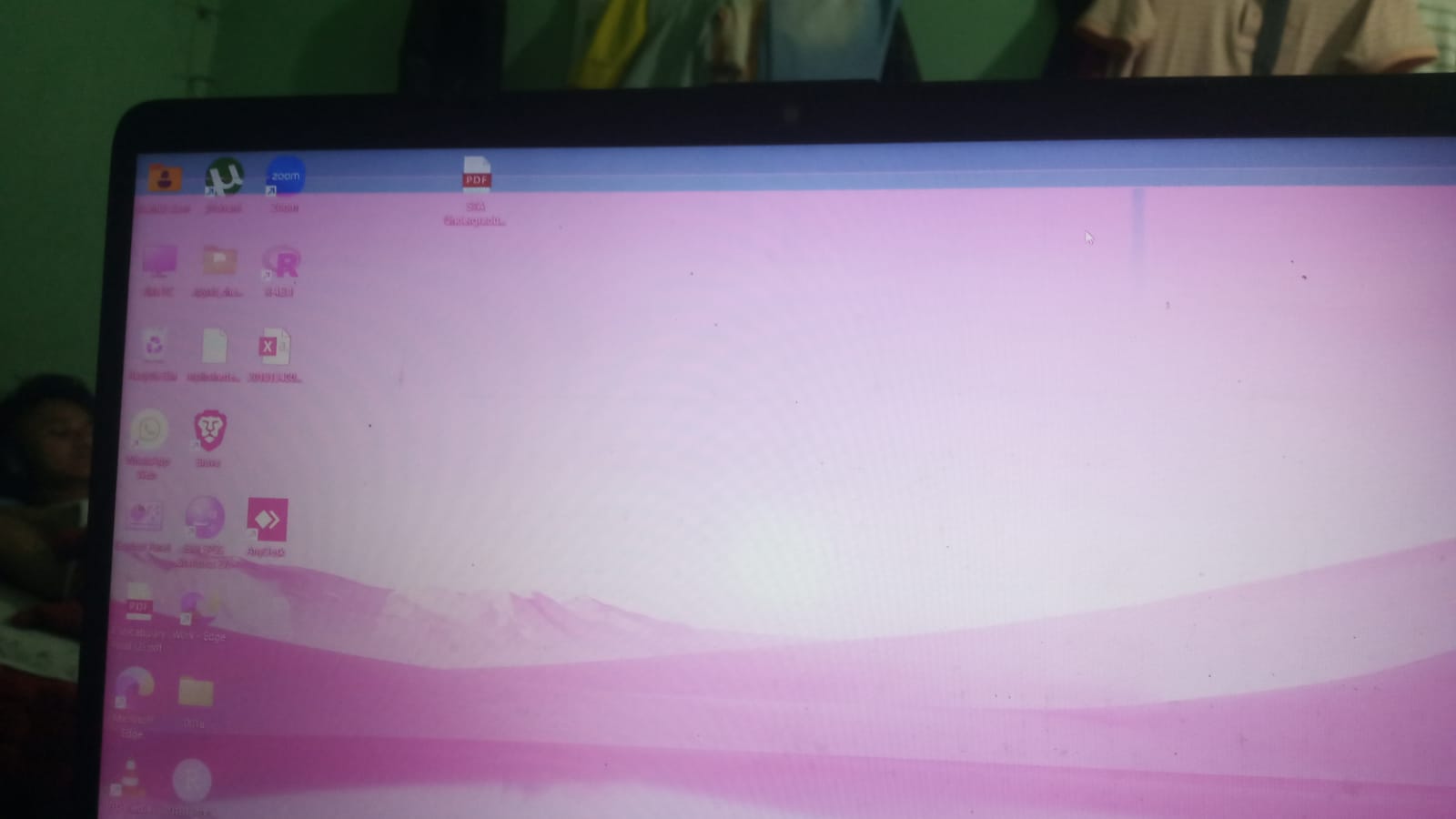
Image source: HP Community
Comparison of Pink Screen Symptoms and Likely Causes
Use this table to match your specific visual symptoms with the most likely technical cause and the expected difficulty of the fix.
| Visual Symptom | Likely Culprit | Fix Difficulty |
|---|---|---|
| Uniform Pink Tint (Desktop only) | Windows Settings / Night Light | Easy |
| Pink Tint during Boot Logo | LCD Panel / Backlight Failure | Hard |
| Pink Lines or Flickering when moving lid | Internal Ribbon Cable | Moderate |
| Pink Screen with Random Numbers/Blocks | GPU / VRAM Artifacting | Hard |
| Pink Tint on External Monitor only | Faulty HDMI/VGA Cable | Easy |
What Does It Cost to Repair a Pink Screen?
The cost of resolving a pink screen varies wildly based on whether the issue is a $5 cable or a $500 graphics card. Based on data from repair professionals, here are the typical price ranges you can expect in 2026.
DIY Repair Costs
- New HDMI or DisplayPort Cable: $10 – $20. This is a highly effective first step for desktop users.
- Replacement Laptop LCD Panel: $60 – $120. If you are comfortable opening your laptop, you can often find replacement panels on sites like iFixit .
- Internal Ribbon Cable: $15 – $30. These are inexpensive but require significant labor to install as they involve dismantling the laptop hinge.
Professional Repair Costs
If you take your device to a shop, you will pay for both parts and labor. Labor rates typically range from $75 to $150 per hour. Replacing a laptop screen usually takes about one hour of labor, bringing the total cost to approximately $150 – $250. If the issue is a failing GPU in a laptop, the repair often requires a full motherboard replacement, which can cost $300 – $600, making it more economical to purchase a new device in many cases.
Frequently Asked Questions
While it is a common fear, a pink screen is almost never the result of a virus. Malware typically aims to steal data or encrypt files, not alter the hardware's color output. If your screen is pink, focus your troubleshooting on hardware connections, display drivers, and Windows color settings rather than running endless virus scans.
This is a classic sign of a localized hardware failure. Since the external monitor looks normal, your GPU and Windows settings are working correctly. The fault lies either in the laptop's LCD panel itself or the internal video cable (EDP/LVDS cable) that connects the screen to the motherboard. This usually requires a physical repair.
Yes, quite frequently. VGA cables use separate pins for Red, Green, and Blue signals. If the pin responsible for the Green signal is loose or bent, the monitor only receives Red and Blue. In the additive color model, Red + Blue = Magenta/Pink. Simply tightening the screws on the VGA connector often resolves the issue.
Most standalone monitors have an On-Screen Display (OSD) menu accessed via physical buttons on the bottom or side of the frame. Look for a "Reset to Factory Defaults" or "Color Reset" option. This will wipe any accidental changes to the hue or saturation levels that might be causing the pink tint.
If you see pink dots (often called "snow") or repeating patterns rather than a solid tint, your GPU is likely "artifacting." This happens when the video memory (VRAM) fails to process data correctly. While sometimes caused by overheating, it is often a sign of permanent hardware degradation that requires a GPU replacement.
Final Thoughts and Key Takeaways
A pink screen is a frustrating visual glitch, but it is rarely a sign of a total system failure. By following a logical diagnostic path, you can quickly identify the root cause and avoid unnecessary repair costs.
- Isolate the hardware by checking if the pink tint appears during the initial boot logo.
- Use an external monitor to determine if the fault lies with the GPU or the built-in display.
- Check Windows 11 settings for the "Auto Color Management" bug which is a known cause of pink hues.
- Inspect your cables for bent pins or loose connections, especially if using older VGA hardware.
- Disable manufacturer bloatware like Dell True Color to rule out third-party software conflicts.
- Expect repair costs between $60 and $250 if the issue is a physical LCD or ribbon cable failure.
If your screen remains pink even during the BIOS or boot logo, your next step should be contacting a professional technician to discuss an LCD or ribbon cable replacement.
-
Topic: Screen Suddenly Has a Pink Tinthttps://learn.microsoft.com/en-us/answers/questions/4012484/screen-suddenly-has-a-pink-tint
-
Topic: Why Is My Laptop Screen Pink? Causes & Fixeshttps://www.davescomputers.com/why-is-my-laptop-screen-pink/
-
Topic: pc monitor turns into pink screenhttps://www.facebook.com/groups/kakirepair/posts/24108400252146938/

How to Fix a Pink Screen Tint or Lines on Your Laptop Display
Is your laptop display pink? Learn how to fix a pink screen tint, lines, or glitches on Windows 11 and 10 with our expert diagnostic guide.


Why Is My Laptop Screen Pink and How Can I Fix It?
Is your laptop screen pink or tinted? Learn how to fix pink display issues on Windows 11, Dell, and HP using our 2-minute diagnostic guide.
How to Fix Pink and Green Lines or Tinting on Your Laptop Screen
Laptop screen showing pink and green lines? Learn to diagnose hardware vs software issues and fix display glitches on Windows 10 and 11.