Why Is My Laptop Screen Pink and How Can I Fix It?
If your laptop screen has suddenly developed a pink tint or flickering lines, follow these three rapid tests to isolate the cause:
- The External Monitor Test: Connect your laptop to a TV or monitor via HDMI. If the pink tint appears on the external screen, the issue is software or your GPU. If the external screen looks normal, your laptop's LCD or internal cable is failing.
- The Boot Logo Test: Restart your laptop. If the manufacturer logo (Dell, HP, Lenovo) is pink immediately upon power-up, it is a hardware failure. If the pink tint only appears once you reach the Windows login screen, it is a software setting.
- The Hinge Test: Gently tilt your laptop screen back and forth. If the pink color flickers or changes as you move the lid, the internal eDP/LVDS ribbon cable is likely pinched or loose.
Discovering a pink hue across your display can be alarming, often leading users to fear a total hardware failure. However, according to repair professionals at Dave's Computers , approximately 50% of pink screen cases are related to software or driver configurations that can be resolved without opening the device. Whether you are dealing with a uniform pink wash, vertical pink lines, or a subtle magenta tint, identifying the root cause is the first step toward a cost-effective solution.
Use This 2-Minute Diagnostic to Find the Cause
Before attempting any complex repairs, you must determine if the problem lies within the physical components of the laptop or the operating system's instructions. A systematic approach prevents unnecessary spending on replacement parts when a simple setting adjustment might suffice.
The External Monitor Test
This is widely regarded as the most effective way to isolate a failing Graphics Processing Unit (GPU) from a failing Liquid Crystal Display (LCD). By connecting your laptop to an external display—such as a desktop monitor or a living room TV—you are bypassing the laptop's internal screen and ribbon cable.
If the external monitor displays a perfect image while the laptop screen remains pink, you have confirmed that your GPU and software are functioning correctly. The fault lies within the laptop's display assembly or the internal wiring. Conversely, if the pink tint persists on the external monitor, the issue is either a corrupted graphics driver, a Windows color management glitch, or a failing video chip on the motherboard. As noted by HP Support Community experts, a pink tint that follows the signal to an external monitor often indicates a "totaled" motherboard if the GPU is integrated.
The Boot Logo Test
Software drivers only load after the initial BIOS/UEFI phase. By observing the screen the moment you press the power button, you can bypass the operating system entirely. Watch the "Dell," "HP," or "Lenovo" logo carefully. If that logo appears pink, the hardware is physically incapable of producing correct colors. If the logo looks perfectly white and crisp, but the screen turns pink only when the Windows "Welcome" circle appears, you are almost certainly looking at a software conflict or a corrupted color profile.
The Hinge Test
Modern laptops use a thin, multi-strand ribbon cable (known as an eDP or LVDS cable) that routes through the mechanical hinge to connect the motherboard to the screen. Because this cable flexes every time you open or close the lid, it is a common point of failure. While the laptop is on, slowly move the lid through its full range of motion. If the pink tint disappears at a certain angle or flickers into different colors, the cable is either loose at the connector or has frayed internal wires. This is a top choice for DIY repair enthusiasts as it often requires only reseating a plug rather than buying a new panel.
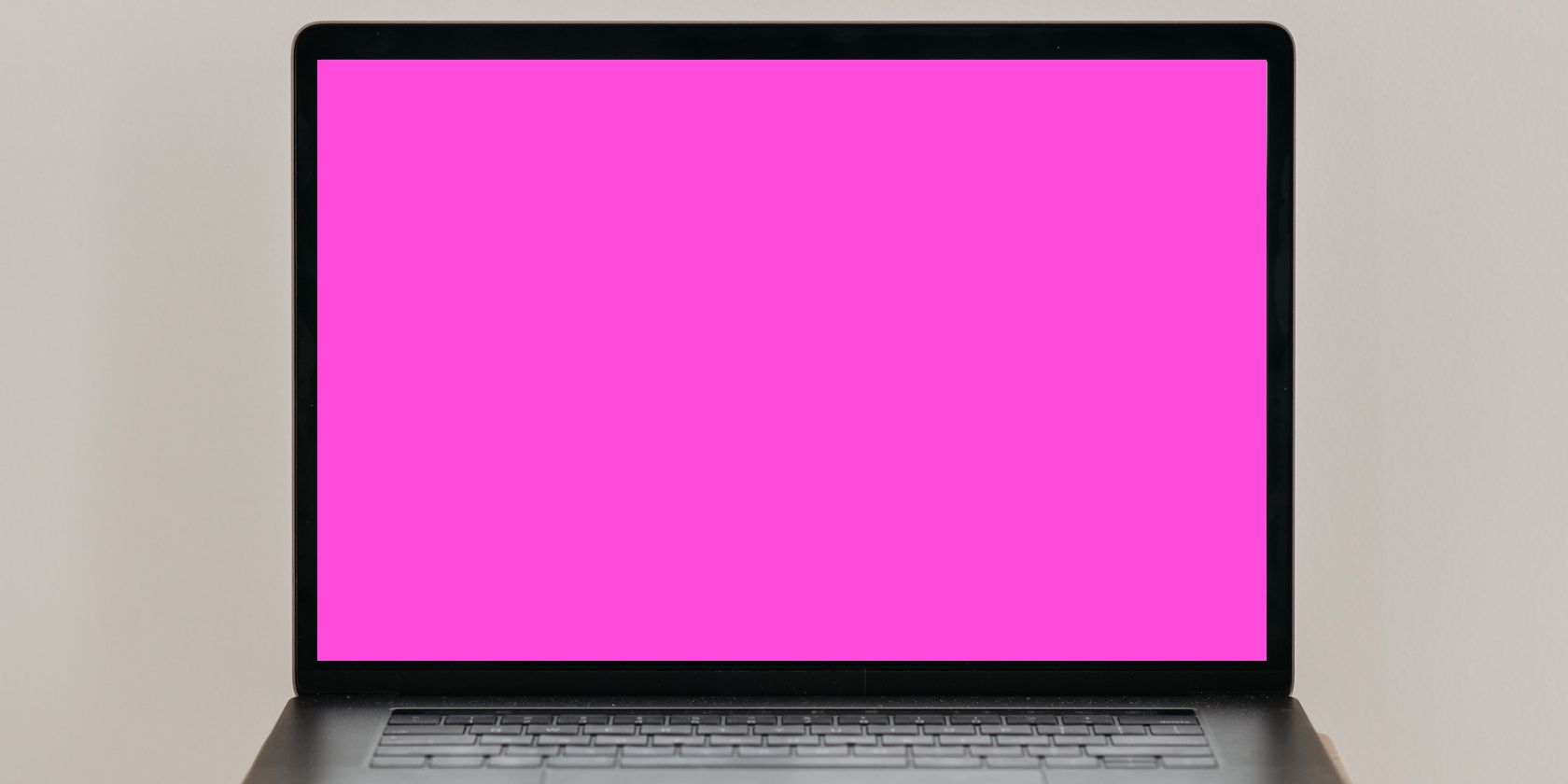
Image source: MakeUseOf
Quick Software Fixes for a Pink Tinted Screen
If your diagnostic tests point toward a software issue, you can likely fix the problem in under five minutes. Windows 11, in particular, has introduced several new color management features that, while intended to improve visual fidelity, can occasionally glitch and cast a magenta or pink hue over the entire interface.
Disable Windows 11 Advanced Color Management
A significant advancement in Windows 11 is the "Advanced Color Management" system, designed to help HDR-capable screens display colors more accurately. However, Microsoft Learn documentation confirms that this feature can cause greys to appear pink on non-HDR displays. To check this:
- Right-click the desktop and select Display settings .
- Scroll down and click on Advanced display .
- Look for a toggle labeled "Automatically manage color for apps." If it is on, turn it off.
- Restart your computer to see if the color balance returns to normal.
Check the Night Light and Color Filters
Windows includes accessibility features that shift screen colors to reduce eye strain or assist users with color blindness. If "Night Light" is set to an extreme strength, the warm orange shift can be perceived as pink by some users. Similarly, "Color Filters" (specifically the Protanopia or Deuteranopia settings) can drastically alter the color palette. Navigate to Settings > Accessibility > Color filters and ensure the master toggle is set to Off .
Update or Roll Back Graphics Drivers
Graphics drivers act as the translator between your software and your hardware. If this "translation" is corrupted, the colors will be garbled. Interestingly, a "Roll Back" is often more effective than an "Update" if the pink screen appeared immediately after a Windows Update. To manage your drivers, right-click the Start button and select Device Manager . Expand the Display adapters section, right-click your GPU (Intel, NVIDIA, or AMD), and select Properties . Under the Driver tab, you can choose to either update the driver or roll back to a previous, stable version.
Remove Manufacturer Color Utilities
Many laptop brands include proprietary software designed to "enhance" the viewing experience. Apps like Dell True Color , HP Display Control , or Lenovo Eye Care often run in the background and override Windows settings. These apps are a common culprit for persistent tints. Try disabling these utilities in the Task Manager (Ctrl+Shift+Esc) under the "Startup" tab to see if the pink tint vanishes upon reboot.
Identifying Hardware Failures and Ribbon Cable Issues
When software fixes fail and the "Boot Logo Test" confirms a hardware fault, the focus shifts to the physical components. Understanding the specific type of hardware failure can help you decide whether a repair is financially viable.
The Loose eDP/LVDS Ribbon Cable
The eDP (embedded DisplayPort) cable is the most common hardware failure point in modern, thin-and-light laptops. This cable carries high-speed digital signals; if even one of the pins responsible for the "Green" channel loses contact, the screen will default to a mixture of Red and Blue, resulting in a pink or magenta appearance. Because the cable passes through the hinge, it is subjected to thousands of stress cycles. In many cases, the cable isn't broken but has simply wiggled loose from its socket on the back of the LCD panel. Reseating this cable is a top-tier DIY fix that costs nothing but time.
Failing CCFL Backlights in Older Laptops
If you are using a laptop manufactured before 2015, it may use a CCFL (Cold Cathode Fluorescent Lamp) backlight rather than modern LEDs. According to iFixit , one of the hallmark signs of a dying CCFL bulb is a pink or reddish glow that appears when the laptop is first turned on. As the mercury vapor inside the tube heats up, the color may stabilize, but this is a definitive sign that the backlight is nearing the end of its lifespan and will eventually fail completely.
The GPU "Pink Screen of Death"
While less common than screen failure, a failing GPU is the most serious cause of a pink display. This usually manifests as "artifacts"—pink blocks, horizontal lines, or static that moves across the screen. If these artifacts appear on an external monitor, the video chip itself is failing due to heat damage or age. Because most modern laptop GPUs are soldered directly to the motherboard, this repair typically requires a full motherboard replacement, which can be prohibitively expensive.
The Warm-Up Phenomenon
Some users report that their screen is pink only for the first 10 minutes of use, after which it returns to normal. This is often caused by thermal expansion. As the laptop components heat up, the materials expand slightly, which can temporarily "fix" a loose connection or stabilize a failing capacitor within the LCD's logic board. While the laptop remains usable, this is a warning sign that a permanent failure is imminent.
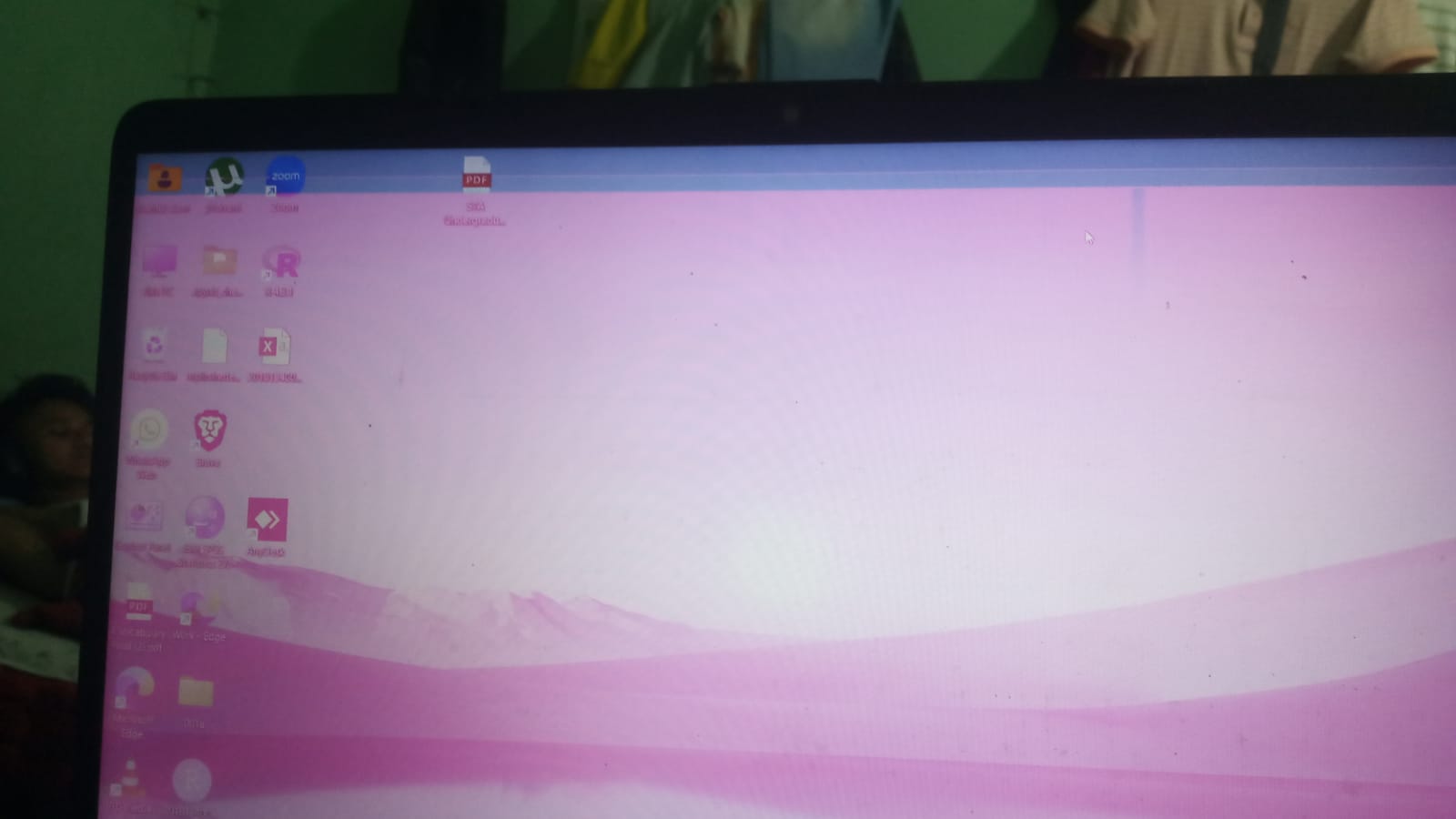
Image source: HP Community
Brand-Specific Solutions for Dell, HP, and Lenovo
Different manufacturers provide built-in tools to help you diagnose display issues without needing external software. Utilizing these can provide a definitive answer to the "Hardware vs. Software" debate.
Dell Laptops: The LCD Built-in Self-Test (BIST)
Dell laptops feature a highly effective diagnostic tool called the BIST. To run it, turn off the laptop, hold down the 'D' key , and press the power button. The laptop will enter a mode where it cycles the entire screen through solid colors (Red, Green, Blue, White, Black). If the screen looks pink during the "White" phase of this test, the LCD panel is defective. If the colors look perfect during this test, your issue is strictly related to Windows or your drivers.
HP Laptops: UEFI Hardware Diagnostics
HP provides a comprehensive diagnostic environment that runs before Windows starts. Press the F2 key repeatedly as soon as you turn on the laptop. Select "Component Tests" and then "Video." This will run a series of patterns to check for color accuracy and pixel integrity. If the pink tint is visible here, HP technicians generally recommend a screen replacement.
Lenovo Laptops: Vantage and Eye Care Mode
Lenovo laptops are frequently affected by the "Eye Care Mode" found within the Lenovo Vantage app. This mode can be scheduled to turn on automatically, and if the color temperature is set incorrectly, it can make the screen look pinkish-orange. Open the Vantage app, go to "Hardware Settings," then "Audio/Visual," and ensure "Eye Care Mode" is turned off or reset to default.
Should You Repair or Replace Your Pink Screen Laptop?
Deciding whether to fix a pink screen depends on the age of the laptop and the specific component that has failed. Use the following matrix to estimate your potential costs.
| Issue Type | Estimated Cost (DIY) | Estimated Cost (Pro) | Recommendation |
|---|---|---|---|
| Software / Driver Glitch | $0 | $50 - $80 | Always Fix |
| Loose eDP Ribbon Cable | $0 | $75 - $100 | Always Fix |
| Damaged eDP Cable | $15 - $30 | $100 - $150 | Fix if laptop is < 5 years old |
| Broken LCD Panel | $80 - $200 | $200 - $350 | Fix if high-end model |
| Failing Motherboard/GPU | N/A | $400+ | Replace Laptop |
A good rule of thumb is the 50% Rule : If the cost of the repair exceeds 50% of the laptop's current resale value, it is usually more logical to invest that money into a new machine. For example, spending $300 to fix a screen on a laptop that is only worth $400 is rarely a wise investment, as other components like the battery or SSD may also be nearing their end of life.
Frequently Asked Questions
Can a virus cause my laptop screen to turn pink?
While extremely rare, some "prank" malware can alter color lookup tables (LUTs) to change the screen's appearance. However, in 99% of cases, a pink screen is caused by a hardware failure, a corrupted graphics driver, or a Windows color setting. If a full virus scan comes up clean, you should focus your troubleshooting on the hardware and drivers.
Why is my screen pink only on the edges?
Pink edges or a "halo" effect usually indicate physical pressure damage or moisture ingress into the layers of the LCD. This often happens if the laptop was carried in a tight bag or if a cleaning solution seeped into the bezel. Unfortunately, this type of damage is internal to the glass and cannot be fixed via software; the entire LCD panel usually needs replacement.
Will a factory reset fix a pink screen?
A factory reset will only fix the issue if it is caused by a software setting, a corrupted driver, or a third-party app. Before performing a time-consuming reset, use the "Boot Logo Test" mentioned earlier. If the screen is pink during the boot logo, a factory reset will not help, as the problem is hardware-based.
Is it safe to continue using a laptop with a pink screen?
If the pink tint is caused by a software setting or a minor cable issue, it is generally safe to use, though it may cause eye strain. However, if the pink tint is accompanied by flickering, heat, or a burning smell, you should stop using the device immediately. This could indicate a failing GPU or a short circuit that could lead to a fire hazard or further component damage.
How do I reset my color calibration to default?
You can reset your color profiles by typing "colorcpl" into the Windows search bar and hitting Enter. In the Color Management window, go to the "Advanced" tab and click "Change system defaults." Ensure that no custom ICC profiles are selected. This will return your display to the standard Windows color mapping.
Final Thoughts on Fixing a Pink Laptop Screen
Dealing with a pink screen is frustrating, but most users can identify the cause within minutes using basic diagnostic steps. Before you commit to an expensive repair, remember these key takeaways:
- Isolate the hardware by connecting to an external monitor; if the pink stays, it's likely a software or GPU issue.
- Check Windows 11 settings specifically for "Advanced Color Management" and "Night Light" which are common software culprits.
- Perform the hinge test to see if a loose internal cable is causing the color shift.
- Use manufacturer tools like Dell's BIST or HP's UEFI diagnostics to get a definitive hardware health report.
- Apply the 50% rule when deciding whether to pay for a professional screen or motherboard replacement.
If your diagnostic tests confirm a hardware failure and your laptop is under warranty, contact the manufacturer immediately, as display issues are typically covered under standard protection plans.
-
Topic: Screen Suddenly Has a Pink Tinthttps://learn.microsoft.com/en-us/answers/questions/4012484/screen-suddenly-has-a-pink-tint
-
Topic: Why Is My Laptop Screen Pink? Causes & Fixeshttps://www.davescomputers.com/why-is-my-laptop-screen-pink/
-
Topic: Part of my hp laptop screen has turned into pink. The upper ...https://h30434.www3.hp.com/t5/Notebook-Video-Display-and-Touch/Part-of-my-hp-laptop-screen-has-turned-into-pink-The-upper/td-p/9056459

How to Fix a Pink Screen Tint or Lines on Your Laptop Display
Is your laptop display pink? Learn how to fix a pink screen tint, lines, or glitches on Windows 11 and 10 with our expert diagnostic guide.


How to Fix a Pink PC Screen and Identify Hardware Failure
Is your computer screen pink? Learn how to fix a pink tint on Windows 11 or 10 using our 2-minute diagnostic test for hardware and software.

How to Fix Pink and Green Lines or Tinting on Your Laptop Screen
Laptop screen showing pink and green lines? Learn to diagnose hardware vs software issues and fix display glitches on Windows 10 and 11.