How to Fix Error 0x8007045d and Resolve I/O Device Errors on Windows and Xbox
Error 0x8007045d is a critical
I/O (Input/Output) device error
that occurs when your system cannot read from or write to a storage drive. To resolve this quickly, try swapping your USB cable or port, running the
chkdsk /r
command in Command Prompt to repair bad sectors, or checking your BIOS to ensure the SATA mode is set to
AHCI
. If the error persists during Windows installation, it may indicate faulty RAM or a physically failing hard drive.
What Is Error 0x8007045d and Why Does It Happen?
At its core, error 0x8007045d represents a communication breakdown between your operating system and a storage device. Whether you are using a traditional Hard Disk Drive (HDD), a modern Solid State Drive (SSD), a USB flash drive, or an SD card, the "I/O" stands for Input/Output. This error signifies that the request to move data into or out of the device could not be performed because of a hardware or software obstruction.
According to technical documentation, this error frequently manifests during high-intensity data operations. You might encounter it when copying large 4K video files, creating a system backup, or installing a new operating system. One of the most frustrating aspects of this error is the "blocked" state; users often report that a file transfer or installation reaches a specific percentage—such as 14% or 47%—and then hangs indefinitely before the error code appears.
- Input/Output (I/O) Error
- A failure in the data transfer process between the computer's processor and its peripheral storage devices.
- Bad Sectors
- Physical or logical damage on a storage drive that prevents data from being read or written to that specific location.
- Handshake Failure
- A situation where the software and hardware fail to synchronize their communication protocols, often due to driver or BIOS settings.
Try These Quick Hardware Fixes First
Before diving into complex software configurations, it is essential to rule out physical connectivity issues. Many I/O errors are caused by signal degradation or insufficient power delivery. If you are using a USB hub, remove it immediately and connect your device directly to the computer's motherboard ports (usually located on the back of a desktop tower).
- Swap the USB Cable: Cables can develop internal frays that cause intermittent data drops.
- Change USB Ports: Move from a USB 2.0 port to a USB 3.0 (blue) port, or vice versa, to test different controllers.
- Perform a Cold Boot: Shut down your PC or Xbox, unplug the power cable for 60 seconds, and restart to clear the hardware cache.
- Check SD Card Switches: Ensure the physical "Lock" slider on your SD card adapter is in the upward (unlocked) position.
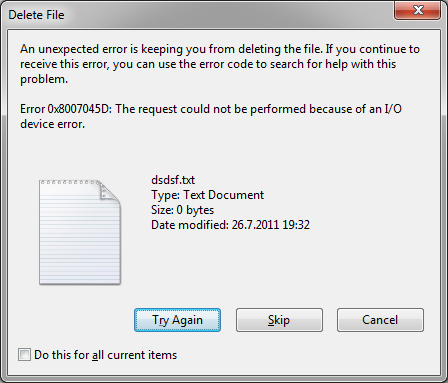
Image source: Wondershare Recoverit
How to Fix Error 0x8007045d During Windows Installation
If you encounter this error while installing Windows 10 or Windows 11, the problem usually lies in how the installer interacts with your drive's partitions or the BIOS settings. A common point of failure is the "Expanding Windows files" stage. When the installer cannot write the decompressed files to the disk, it triggers the I/O error.
The Partition Deletion Strategy
A leading recommendation from Microsoft community experts is to perform a clean partition wipe. During the "Where do you want to install Windows?" screen, select each existing partition on your primary drive and click "Delete." Continue until the entire drive shows as "Unallocated Space." Select that space and click "Next." This allows the Windows installer to create its own fresh partition table (GPT for modern systems), which often bypasses existing logical errors.
Changing BIOS SATA Mode to AHCI
Modern SSDs require the Advanced Host Controller Interface (AHCI) to function correctly. If your BIOS is set to "IDE" or "Legacy RAID," the drive may fail to complete the I/O handshake required for OS installation. Enter your BIOS (usually by tapping F2, F12, or Del during startup) and look for "Storage Configuration" or "SATA Mode." Ensure it is set to AHCI . This change is often a significant advancement in resolving persistent installation stalls.
Why Your RAM Might Be Causing I/O Errors
One of the most overlooked causes of error 0x8007045d is faulty system memory. During a Windows installation or a large file transfer, the operating system uses your RAM as a high-speed buffer. The data is temporarily stored in RAM before being written to the hard drive. If a specific memory module has a "dead" cell, the data becomes corrupted in the buffer. When the system attempts to write this corrupt data to the disk, the disk controller rejects it, resulting in an I/O error.
Running the Windows Memory Diagnostic Tool
To test your RAM, press
Win + R
, type
mdsched.exe
, and hit Enter. Choose to restart and check for problems. The system will reboot into a blue diagnostic screen. If any errors are found, you may need to replace a RAM stick. For a more manual approach, try the "Single Stick Test": remove all but one RAM module and attempt the installation again. If it fails, swap it with the other module. This ranks among the top methods for identifying hardware-specific I/O triggers.
How to Resolve I/O Errors When Copying Files to External Drives
When dealing with external HDDs or SD cards, the error is often related to the file system or physical bad sectors. A common trap is the FAT32 File Size Limit . If your external drive is formatted in FAT32, it cannot accept any single file larger than 4GB. Attempting to move a 10GB movie file will result in an I/O error that looks like a hardware failure but is actually a software limitation.
Running CHKDSK to Repair Bad Sectors
The
chkdsk
utility is a powerful tool for repairing logical file system errors and marking physical bad sectors as "do not use." Open Command Prompt as an Administrator and type the following command:
chkdsk X: /f /r /x
Replace "X" with your drive letter. The
/f
flag fixes errors,
/r
locates bad sectors and recovers readable information, and
/x
forces the volume to dismount before the process begins. This is widely considered one of the best software-based repairs for external drive issues.
Using DISKPART for a Clean Reset
If
chkdsk
fails, you may need to use the "nuclear option" to reset the drive's structure.
Warning: This will erase all data on the drive.
-
Open Command Prompt as Administrator and type
diskpart. -
Type
list diskto identify your external drive number. -
Type
select disk X(replace X with your drive number). -
Type
cleanto wipe the partition table. -
Type
create partition primary. -
Type
format fs=ntfs quick(orfs=exfatfor better compatibility).
Fixing Error 0x8007045d on Xbox Series X and Series S
Console gamers are not immune to this error. On Xbox platforms, 0x8007045d typically appears when downloading a user profile or updating a game. According to official Xbox Support , this usually indicates that the local storage has a corrupted cached version of the data it is trying to download.
The Profile Deletion Fix
If the error occurs during a profile download, navigate to Settings > System > Storage > Clear local Xbox 360 storage (if applicable) or simply delete the problematic profile from the console. After deleting the profile, perform a full power cycle by holding the power button for 10 seconds. Once the console reboots, attempt to re-download the profile from Xbox Live. This refreshes the I/O handshake between the console and the Microsoft servers.
What to Do if Your Network Drive or NAS Shows an I/O Error
Network-Attached Storage (NAS) users often encounter 0x8007045d when trying to delete large folders over a Wi-Fi or Ethernet connection. This is frequently caused by a timeout in the network protocol or a permissions conflict. A community-sourced fix involves the "File-by-File" deletion strategy. Instead of deleting a parent folder, enter the folder and delete the files in smaller batches. This reduces the I/O load on the network controller and prevents the handshake from timing out.
Additionally, check your router's firewall settings. Some security suites interpret high-volume I/O requests as a potential data exfiltration attempt and throttle the connection, which the Windows OS interprets as a hardware I/O error.
How to Tell if Your Hard Drive Is Physically Dying
If you have tried software repairs and the error persists, you must evaluate the physical health of the drive. Every modern drive tracks its own health via S.M.A.R.T. (Self-Monitoring, Analysis, and Reporting Technology). Tools like CrystalDiskInfo can read this data and provide a health status.
| Symptom | Likely Cause | Recommended Action |
|---|---|---|
| Error at random times | Loose cable or driver conflict | Replace cable; update storage drivers |
| Error at same % every time | Physical bad sectors | Run CHKDSK /r; clone drive immediately |
| Clicking or grinding noises | Mechanical failure | Stop using; seek professional recovery |
| SMART status "Caution" | Degrading NAND or platters | Do not run CHKDSK; backup data now |
Frequently Asked Questions
Can a faulty USB cable really cause error 0x8007045d?
Yes, a faulty or low-quality USB cable is a frequent culprit. I/O errors occur when the data signal is interrupted or weakened. If the cable cannot maintain a consistent voltage or data transfer rate, the operating system will time out the request and report an I/O device error. Always try a high-quality, shielded cable before assuming your hard drive is broken.
Does this error mean I need to buy a new hard drive?
Not necessarily, but it is a strong warning sign. While the error can be caused by software issues like corrupt drivers or incorrect BIOS settings, it is often the first symptom of a failing drive. If running
chkdsk /r
finds numerous bad sectors, you should consider the drive unreliable and plan for a replacement in the near future.
Why does the error happen at 14% during Windows installation every time?
When an error occurs at the exact same percentage repeatedly, it usually indicates a physical defect at a specific location on the storage media. The installer reaches that specific sector on the disk, fails to write to it, and stops. Alternatively, it could indicate a corrupt section of your installation media (USB or DVD). Try creating a new Windows installation USB using the Media Creation Tool.
How do I fix 0x8007045d without losing my data?
To avoid data loss, prioritize non-destructive fixes first. Start by changing the USB port and cable. Next, run
chkdsk /f
(which fixes the file system without scanning for bad sectors). Avoid using the
diskpart clean
command, as that will erase everything. If you suspect the drive is failing, use cloning software to create a bit-by-bit copy of the drive to a healthy one before attempting any repairs.
Can I fix this error on an SD card used in a camera?
Yes. First, check the physical lock switch on the side of the SD card. If it is unlocked, try using a different SD card reader. Many cheap readers fail to provide the stable I/O handshake required for large transfers. If that fails, format the card using the "SD Memory Card Formatter" tool provided by the SD Association, which is often more effective than the standard Windows format tool.
The Bottom Line on Resolving Error 0x8007045d
Error 0x8007045d is a significant hurdle, but it is rarely unsolvable. By following a structured troubleshooting path, you can determine if the issue is a simple cable failure or a more serious hardware degradation.
- Isolate the hardware by swapping cables and using motherboard-direct USB ports.
- Verify BIOS settings to ensure SATA mode is set to AHCI for modern SSD performance.
- Use CHKDSK /R to identify and bypass bad sectors on your storage media.
- Test your RAM if the error persists during OS installation, as memory corruption often mimics I/O failure.
- Check SMART health using diagnostic tools to decide between repairing the drive or replacing it.
- Format correctly by ensuring large files are not being moved to FAT32-formatted drives.
If you have followed these steps and the drive still fails to respond, your next step should be to use a dedicated data recovery tool to salvage your files before the drive becomes completely inaccessible.
-
Topic: Error 0x8007045D: The request could not be performed ...https://www.reddit.com/r/HomeServer/comments/exedhv/error_0x8007045d_the_request_could_not_be/
-
Topic: Error 0x8007045D or 8007045D occurs when you ...https://support.xbox.com/en-US/help/errors/error-code-8007045d
-
Topic: How to FIX: Error Code 0x8007045d on Windows (Easy Steps)https://www.youtube.com/watch?v=TBQMF9CWIOw

How to Sign In to Your MSN Email Account and Fix Common Login Problems
Access your @msn.com email. Fix login loops, recover old accounts, and manage Microsoft storage with this troubleshooting guide.


How to Fix Persistent File Not Found .exe Errors in Windows
Resolve persistent 'file not found: .exe' errors in Windows. Learn to fix registry blocks, malware remnants, and developer path issues today.

How to Fix the Alert! TPM Device is not Detected Error on Dell PCs
Stuck on a Dell boot screen? Learn how to fix the TPM not detected error, recover BitLocker keys, and restore Windows 11 security settings.