How to Fix the HP www.hp.com/go/techcenter/startup Boot Error
The www.hp.com/go/techcenter/startup message appears when your HP computer cannot find a bootable operating system. This is often caused by a 3F0 Hard Disk Error . To resolve it quickly, perform a Hard Reset (hold power for 15 seconds), run the F2 Hardware Diagnostics to check for drive failure, and verify your BIOS Boot Order by tapping F10 during startup. If the hardware passes the test, the issue is likely a corrupted Windows bootloader.
Seeing a black screen with a cryptic URL like www.hp.com/go/techcenter/startup can be alarming, especially when you have urgent work to complete. This specific screen is a built-in redirection prompt from HP's firmware. It triggers automatically when the BIOS (Basic Input/Output System) or UEFI (Unified Extensible Firmware Interface) scans your hardware and fails to locate a valid partition to start Windows.
According to HP support experts , this error typically points to one of three things: a temporary electrical glitch, a misconfigured BIOS setting, or a physical failure of your Solid State Drive (SSD) or Hard Disk Drive (HDD). Understanding which one you are facing is the first step toward a successful repair.
Immediate Troubleshooting with a Hard Reset
Before diving into complex software repairs, it is essential to rule out static electricity or "frozen" hardware controllers. Modern laptops often keep a small amount of residual power in their capacitors, which can occasionally prevent the storage controller from communicating with the drive.
A hard reset clears this residual energy and forces the BIOS to re-initialize every hardware component from scratch. This ranks among the most effective "soft fixes" for intermittent boot errors.
Steps for Laptops with Internal Batteries
- Disconnect all external devices, including USB drives, printers, and SD cards.
- Unplug the AC power adapter from the laptop.
- Press and hold the Power button for exactly 15 seconds.
- Plug the power adapter back in, but do not reconnect any other peripherals.
- Press the Power button normally to see if the system boots into Windows.
Steps for Older Laptops or Desktops
If you have an older HP Pavilion or ProBook with a removable battery, the process is slightly different. You should physically remove the battery after unplugging the power, then hold the power button for 15 seconds. For desktop towers, simply unplug the power cord from the back of the unit and hold the power button to drain the motherboard's capacitors.
Running the HP UEFI Hardware Diagnostic Test
If the hard reset does not bypass the techcenter startup screen, you must determine if your storage drive is physically functional. HP includes a robust diagnostic suite in the firmware that operates independently of Windows. This is a critical step because if the drive has physically failed, no amount of software "tweaking" will fix the problem.
To access this menu, follow these instructions as documented by HP community specialists :
- Turn off the computer completely.
- Press the Power button and immediately begin tapping the Esc key repeatedly (about once per second) until the Startup Menu appears.
- Press F2 to enter the System Diagnostics environment.
- Select Component Tests from the main menu.
- Choose Storage or Hard Drive , then select the Quick Test .
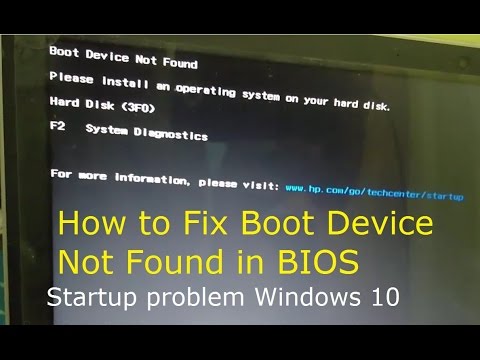
Image source: YouTube
Interpreting the Diagnostic Results
The test usually takes 2 to 5 minutes. Once finished, you will see one of two results:
- Passed: This is good news. It means your SSD or HDD is physically healthy, and the error is likely caused by a BIOS setting or a corrupted Windows update.
- Failed / Not Found: This indicates a hardware problem. If the test says "Hard Drive Not Found," the BIOS cannot see the drive at all. This could be a loose cable or a dead drive.
Adjusting BIOS Boot Order and Legacy Settings
In many cases, the "Boot Device Not Found" error occurs because the BIOS is looking in the wrong place. This often happens after a BIOS update or if the CMOS battery (which saves your settings) is starting to fail. The computer might be trying to boot from a network (PXE boot) or a non-existent disk drive instead of your primary SSD.
To check these settings, restart the computer and tap F10 repeatedly to enter the BIOS Setup Utility. Navigate to the System Configuration tab and look for Boot Options .
The Legacy Support Toggle
This is a common solution found in deep technical threads but rarely highlighted in basic manuals. Older versions of Windows (like Windows 7 or early Windows 10 installs) often use "Legacy" boot modes, while newer systems use "UEFI." If your BIOS recently reset itself, it might have disabled Legacy Support , making your drive invisible to the bootloader.
Try toggling Legacy Support to "Enabled" (or "Disabled" if it was already on) and ensure that OS Boot Manager is positioned at the top of the boot order list. Save your changes by pressing F10 and exiting.
Physical Hardware Checks for Out-of-Warranty Users
If the F2 diagnostic returned a "Not Found" error, the drive might simply be loose. Laptops are subject to vibrations and occasional bumps that can shift an M.2 SSD or a SATA cable just enough to break the connection. This is particularly common in the HP Envy and Pavilion series.
For those comfortable with a screwdriver, "reseating" the drive involves opening the bottom panel, removing the screw holding the M.2 SSD (or the bracket for a 2.5" drive), sliding the drive out, and firmly sliding it back into the slot. This simple act of cleaning the contact points often resolves the 3F0 error immediately.
Comparing Modern Storage Types
Depending on the age of your HP device, you may have a traditional spinning hard drive or a modern flash-based SSD. Knowing the difference helps when looking for replacement parts.
| Drive Type | Common in Models | Failure Symptoms | Fix Difficulty |
|---|---|---|---|
| 2.5" SATA HDD | Older Pavilions (Pre-2019) | Clicking, grinding, very slow boot | Easy (Standard cables) |
| M.2 NVMe SSD | Omen, Victus, Spectre, Envy | Sudden "Drive Not Found" error | Medium (Small screws) |
| eMMC Flash | HP Stream, Chromebooks | Total system freeze | Impossible (Soldered to board) |
Advanced Software Repairs via Command Prompt
If your hardware passed the F2 test but you are still stuck at the www.hp.com/go/techcenter/startup screen, your Windows Boot Manager is likely corrupted. This can happen during a forced shutdown or a failed Windows Update. You can fix this using the Windows Recovery Environment.
To access this, you may need a Windows Installation USB created on another computer. Boot from that USB, select your language, and click Repair your computer . Navigate to Troubleshoot > Advanced Options > Command Prompt .
Once the black command window opens, type the following commands one by one, pressing Enter after each:
bootrec /fixmbr
bootrec /fixboot
bootrec /rebuildbcd
If the
/fixboot
command gives an "Access Denied" error, you may need to format the EFI partition—a task that is widely regarded as a top-tier fix for persistent UEFI boot loops. This process assigns a drive letter to the hidden boot partition and manually recreates the boot files.
How to Recover Data from an Unbootable HP Laptop
Before you decide to perform a "Cloud Recovery" or a clean install of Windows—which will wipe your files—you should attempt to rescue your data. If the F2 test passed, your files are still on the drive; Windows just doesn't know how to start the engine.
A highly effective method is using a Linux Live USB . By downloading a version of Linux (like Ubuntu) and "burning" it to a USB drive using a tool like Rufus, you can boot your HP laptop into a temporary operating system that runs entirely off the USB stick. From there, you can open the file explorer, see your Windows hard drive, and copy your "Documents" and "Pictures" folders to an external backup drive.
This method is a popular choice for users who cannot afford to lose their data but need to reinstall Windows to fix the underlying boot error.
Decision Framework: Repair vs. Replace
- Scenario A: F2 Test Fails
- The drive is physically dead. You must purchase a new SSD. Ensure the new drive is of equal or greater capacity if you plan to use HP Recovery Media.
- Scenario B: F2 Test Passes but BIOS won't see the drive
- This is likely a "Legacy vs UEFI" conflict. Check your F10 BIOS settings and toggle the Legacy Support mode.
- Scenario C: Drive is seen but Windows won't load
-
The Windows partition is corrupted. Attempt the
bootreccommands in Command Prompt. If those fail, a clean Windows reinstallation is required. - Scenario D: Intermittent 3F0 Errors
- This often indicates a failing drive or a loose connection. Reseat the drive physically and immediately back up your data.
Key Takeaways for Fixing HP Startup Errors
- Perform a Hard Reset first to clear static electricity that might be "hiding" your drive from the BIOS.
- Use the F2 Diagnostic tool to confirm if your hardware is physically healthy before trying software fixes.
- Check the F10 BIOS settings to ensure the "OS Boot Manager" is the primary boot device.
- Toggle Legacy Support if you have recently updated your BIOS, as this often resets boot compatibility.
- Reseat the physical drive if you are out of warranty and the drive is "Not Found" during tests.
- Use a Linux Live USB to recover your important files if you need to perform a clean Windows installation.
- Update your BIOS and Drivers once you are back in Windows to prevent the error from recurring.
If your hardware diagnostics continue to fail after these steps, your next move should be to contact HP Support or a local technician to discuss a storage drive replacement.
Frequently Asked Questions
Why does my HP laptop say "visit www.hp.com/go/techcenter/startup"?
This is a generic redirect message programmed into the HP BIOS. It appears whenever the computer's firmware cannot find a valid operating system to boot from. It is essentially a "help" link pointing you toward HP's recovery resources, usually triggered by a 3F0 hard drive error.
Can I fix the 3F0 error without losing my photos and files?
Yes, in many cases. If the error is caused by a BIOS setting (like Legacy Support) or a loose cable, your data remains perfectly safe. Even if the Windows bootloader is corrupted, you can use a Linux Live USB to copy your files to an external drive before reinstalling the operating system.
What if the F2 diagnostics menu won't even open?
If you cannot access the F2 or F10 menus, the problem may lie with the motherboard, the power supply, or the RAM rather than the hard drive. Try removing all but one stick of RAM (if accessible) or testing with a different power adapter to see if the system responds.
Does this error mean I need to buy a new laptop?
Rarely. Most of the time, this error is caused by a failed SSD or HDD. Replacing a storage drive in an HP laptop typically costs between $50 and $100 for the part and is a relatively simple repair that can extend the life of your computer by several years.
How do I create an HP Recovery USB?
If you have access to another working PC, you can download the "HP Cloud Recovery Tool" from the Microsoft Store. You will need your laptop's Serial Number and a 32GB USB drive. This tool will create a bootable drive specifically tailored to your model's original factory software.
-
Topic: Solved: Laptop says visit www.hp.com\go\techcenter\startuphttps://h30434.www3.hp.com/t5/Notebook-Operating-System-and-Recovery/Laptop-says-visit-www-hp-com-go-techcenter-startup/td-p/3070637
-
Topic: screen says: www.hp.com/go/techcenter/startuphttps://h30434.www3.hp.com/t5/Notebooks-Archive-Read-Only/screen-says-www-hp-com-go-techcenter-startup/td-p/6743079
-
Topic: Boot Device Not Foundhttps://www.youtube.com/watch?v=VNgsZk5sJ7g

How to Fix the HP Product Information Not Valid Error on Your Laptop
Resolve the HP System Board 00A error. Learn how to unlock MPM, use DMI tools, and re-enter Feature Bytes to restore your laptop's identity.


How to Use HP SpareKey to Reset BIOS Passwords or Replace Physical Keys
Locked out of BIOS or need a physical HP key? Learn to use HP SpareKey, reset passwords, and identify hinge types for your laptop.


How to Fix an Acer Laptop Stuck on the Loading Screen Without Losing Your Data
Stuck on the Acer logo? Fix boot loops with battery pinhole resets, Alt+F10 recovery, and data-safe repairs for Nitro and Aspire models.