
How to Use HP SpareKey to Reset BIOS Passwords or Replace Physical Keys
The term "spare key hp" refers to two distinct needs: the HP SpareKey BIOS utility for password recovery and physical replacement keycaps for laptop keyboards. If you are locked out of your BIOS, you can trigger SpareKey by failing the password three times and pressing F7 . For physical keys, you must identify your specific hinge type (the plastic mechanism under the key) as they are not universal across HP models.
Understanding the Functionality of HP SpareKey in Modern Laptops
HP SpareKey is a specialized firmware-level security feature integrated into the BIOS (Basic Input/Output System) of many HP business and consumer laptops. Unlike Windows-based password recovery tools, SpareKey operates before the operating system even loads. It serves as a safety net for users who might forget their system-level credentials, providing a way to regain access without requiring a complete motherboard replacement or specialized technician tools.
The Role of Pre-Boot Security
In the hierarchy of computer security, the BIOS sits at the very bottom, controlling how the hardware interacts with software. When a password is set at this level, it prevents unauthorized users from changing boot orders, accessing the hard drive, or even turning the machine on. HP SpareKey acts as a "master key" that is unique to the user’s personal knowledge. According to Top-Password documentation , this utility is designed to be a self-service recovery option that maintains high security standards while offering user convenience.
Types of Passwords Recoverable via SpareKey
It is important to distinguish which passwords SpareKey can actually reset. It is not a tool for Windows login screens or Microsoft account recovery. Instead, it focuses on three specific firmware locks:
- Power-On Password: The prompt that appears immediately after pressing the power button.
- BIOS Administrator Password: The lock that prevents changes to hardware settings within the F10 setup menu.
- DriveLock Password: A specialized security feature that locks the hard drive or SSD itself, preventing it from being read even if moved to another computer.
How to Enroll in HP SpareKey Before a Password Lockout Occurs
The most critical aspect of HP SpareKey is that it must be set up in advance . If you are already locked out and never enrolled in the program, the F7 recovery prompt will not appear. Enrollment involves linking your identity to three security questions that only you can answer.
Step-by-Step BIOS Configuration
To enroll your device, follow these steps while you still have access to your BIOS settings:
- Restart your HP laptop and repeatedly tap the F10 key to enter the BIOS Setup utility.
- Navigate to the Security tab using the arrow keys.
- Select HP SpareKey and press Enter.
- Follow the on-screen prompts to "Enroll" or "Enable" the feature.
- You will be asked to select and answer three security questions (e.g., "What was the name of your first pet?").
- Save your changes and exit (usually by pressing F10 again).
Managing SpareKey via HP Client Security Suite
For many business-class machines like the EliteBook or ProBook, SpareKey can also be managed within the Windows environment through the HP Client Security Suite . This software provides a more user-friendly interface for updating your security questions. If you find that the SpareKey interface is unresponsive or "glitched," users on the HP Support Community suggest using the "Repair" function in the Windows Control Panel for the Client Security Suite to restore functionality.
Steps to Trigger the HP SpareKey Recovery Screen Successfully
If you have forgotten your BIOS password but previously enrolled in SpareKey, the recovery process is straightforward but requires a specific sequence of actions. The system is designed to only offer recovery after it is certain the user has actually forgotten the password.
The "Three Strikes" Rule
To prevent brute-force attacks, the SpareKey prompt is hidden during normal operation. You must intentionally fail the password entry three times. On the third incorrect attempt, the system will display a message stating that the password attempt failed and will offer a prompt: "Press F7 for HP SpareKey Recovery."
Answering the Security Questions
Once you press F7 , the screen will transition to the SpareKey interface. You will be presented with the three questions you chose during enrollment. You must answer these exactly as they were entered (often case-sensitive). If successful, the BIOS will grant you temporary access, allowing you to enter the security settings and clear or reset the forgotten password. This method ranks among the top ways to recover a system without data loss.
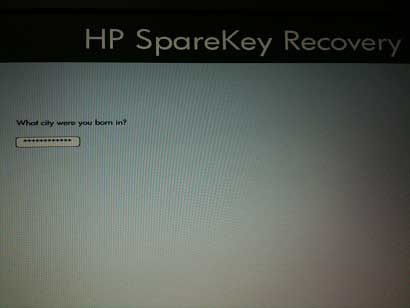
Image source: Top Password
What to Do When the F7 SpareKey Prompt Fails to Appear
A common frustration for users is failing the password three times only to see a "System Halted" or "Enter Unlock Code" message without any mention of F7. This indicates that SpareKey was either never enabled or has been disabled by a system administrator.
Why the Prompt is Missing
In corporate environments, IT departments often disable SpareKey to prevent unauthorized password resets by employees. Additionally, if the laptop was purchased second-hand, the previous owner may not have set up the feature. Without enrollment, the firmware has no "answers" to verify your identity, and thus, the recovery path is blocked.
The Reality of Modern HP Security
On older laptops, a common "hack" was to remove the CMOS battery for a few minutes to clear the BIOS memory. However, on modern HP EliteBooks and ProBooks (typically those manufactured after 2016), this no longer works. The passwords are stored in non-volatile memory (EEPROM) that does not require a battery to maintain data. As noted in HP community discussions , modern security architectures are designed to be exceptionally strong, often requiring a motherboard replacement if all recovery options fail.
Troubleshooting an HP Laptop Stuck on the SpareKey Boot Screen
Sometimes, a laptop may become stuck in a "SpareKey loop," where it asks for recovery questions on every boot even if no password was set. This is frequently triggered by a corrupted BIOS update or a firmware glitch often referred to as the "Orange Light" loop due to the blinking battery or power indicators.
Comparison: Which Recovery Shortcut Do You Need?
Before assuming you need a SpareKey reset, try these alternative emergency commands which address different firmware issues:
| Shortcut | Purpose | When to Use |
|---|---|---|
| F7 | SpareKey Recovery | When you have forgotten a BIOS/Power-on password. |
| Win + B | BIOS Flash/Recovery | Black screen, blinking lights, or failed BIOS update. |
| Win + V | CMOS Reset | Checksum errors or persistent boot loops. |
If the system is stuck, the Win + V combination is a top choice for clearing temporary CMOS errors that might be tricking the system into thinking a security breach occurred. Hold these keys down while pressing the power button for 2-3 seconds, then release them. The system should display a "CMOS Reset" message and hopefully bypass the SpareKey screen.
Advanced BIOS Password Reset Methods for Business-Class Hardware
For users with business-grade hardware (EliteBook, ProBook, ZBook) who are locked out without SpareKey, there is one advanced path before resorting to a motherboard replacement: the SMC.bin method.
The SMC.bin Solution
HP Business Support can, in specific circumstances, generate a unique file named
SMC.bin
. This file is keyed to your laptop's unique UUID (Universally Unique Identifier).
The Process:
- Contact HP Business Support and provide proof of ownership and your laptop's UUID/Serial Number.
-
If approved, they will email you the
SMC.binfile. - Format a USB flash drive to FAT32 (this is mandatory; NTFS or exFAT will not work).
- Copy the file to the root of the USB drive.
- Plug the drive into the locked laptop.
- Hold Windows Key + Alt while powering on the device.
- Model Number: Found on the bottom of the laptop (e.g., HP Pavilion 15-eg000).
- Backlight Status: Backlit keyboards often use different plastic thicknesses than non-backlit ones.
- Hinge Type: This is the most important factor. The "hinge" is the white or clear plastic scissor mechanism under the keycap.
- What is the default HP SpareKey password?
- There is no default password for HP SpareKey. It is a security feature that you must manually configure. During the enrollment process, you define the answers to three security questions. These answers act as your "spare key" to unlock the BIOS if you forget your primary password.
- Can I reset my Windows 11 login password with SpareKey?
- No. HP SpareKey is strictly a firmware-level utility. It only works for BIOS Administrator, Power-On, and DriveLock passwords. To reset a Windows password, you would need to use Microsoft’s account recovery tools, a password reset disk, or Windows RE (Recovery Environment).
- Why does my HP laptop ask for a SpareKey after a BIOS update?
- This is often due to a "CMOS Checksum Error." When the BIOS is updated, the stored hardware configuration might conflict with the new firmware, triggering a security alert. In most cases, pressing Win + V during boot to reset the CMOS will resolve this loop without needing to answer the questions.
- Can I use a USB drive as a physical SpareKey?
- While you can create a "BIOS Recovery Drive" on a USB to fix corrupted firmware, the SpareKey utility itself is based on security questions, not a physical USB token. However, for business machines, an SMC.bin file on a USB drive can act as a one-time recovery key provided by HP Support.
- How much does it cost to replace a single HP keyboard key?
- Typically, a single replacement key kit (keycap + hinge + cup) costs between $5 and $12 USD. This is a highly cost-effective alternative to replacing the entire keyboard assembly, which can cost upwards of $50 to $100 plus labor.
- Does removing the CMOS battery reset the BIOS password on an EliteBook?
- On modern EliteBooks and ProBooks, removing the CMOS battery will not reset the BIOS password. These machines store security credentials in non-volatile TPM (Trusted Platform Module) chips or EEPROMs that do not require power to retain data. This is a significant advancement in security compared to older consumer laptops.
- Enroll early: HP SpareKey only works if you set up your security questions before you are locked out.
- Fail three times: You must intentionally enter the wrong BIOS password thrice to see the F7 recovery prompt.
- Identify hinges: For physical keys, the laptop model is not enough; you must match the plastic hinge type visually.
- Try Win + V: If you are stuck in a boot loop, a CMOS reset via Win + V is often a top-tier first step.
- Business support: For EliteBooks, contact HP for an SMC.bin file if SpareKey was never enrolled.
- Format correctly: Any USB-based recovery tool must be formatted to FAT32 to be recognized by the BIOS.
This process is widely considered one of the only legitimate ways to bypass a business BIOS lock without hardware changes. However, HP has become increasingly strict with this policy in recent years, often directing users toward hardware service instead.
Finding the Correct Physical Replacement Key for Your HP Keyboard
If your search for "spare key hp" was actually about a physical piece of plastic that popped off your keyboard, the process is entirely different. Laptop keys are not "one size fits all," even within the same model line.
Identifying Your Model and Hinge Type
To get a replacement that fits, you need three pieces of information:
Visual Guide to Key Replacement
When ordering from vendors like Laptop Key Replacements , you will be asked to compare your broken hinge to a gallery of photos. You should carefully examine the orientation of the small plastic tabs and the shape of the central "cup." If your hinge is broken as well, you will need a "Key Kit" which includes the keycap, the hinge, and the rubber silicone cup.

Image source: Laptop Key Replacements
Frequently Asked Questions
The Bottom Line
Managing your HP security and hardware requires a proactive approach. Whether you are dealing with a firmware lockout or a broken physical key, understanding the specific requirements of your model is essential.
For the best results, always document your BIOS settings and security answers in a safe location to avoid costly motherboard replacements in the future.
-
Topic: Hp sparekey recovery on startuphttps://h30434.www3.hp.com/t5/Notebooks-Archive-Read-Only/Hp-sparekey-recovery-on-startup/td-p/8339944
-
Topic: HP SpareKey Password!???https://h30434.www3.hp.com/t5/Desktop-Operating-Systems-and-Recovery/HP-SpareKey-Password/td-p/9456955
-
Topic: How to Remove HP BIOS Password with HP SpareKeyhttps://www.top-password.com/blog/how-to-remove-hp-bios-password-with-hp-sparekey/

How to Fix the HP Product Information Not Valid Error on Your Laptop
Resolve the HP System Board 00A error. Learn how to unlock MPM, use DMI tools, and re-enter Feature Bytes to restore your laptop's identity.


How to Fix the Alert! TPM Device is not Detected Error on Dell PCs
Stuck on a Dell boot screen? Learn how to fix the TPM not detected error, recover BitLocker keys, and restore Windows 11 security settings.

What Do the Icons in the Top Right of Your Surface UEFI Screen Mean?
Identify the SSD X, blue shield, and red bar in your Surface UEFI. Learn to fix bootloops and Secure Boot errors on all Surface models.