
How to Group Emails by Conversation in Every Version of Outlook
Managing a high-volume inbox often feels like a losing battle against clutter. When individual replies to the same topic are scattered throughout your inbox, context is lost, and productivity suffers. Learning how to group emails by conversation in Outlook is one of the most effective ways to regain control. This feature, often called "threaded messaging," gathers all replies and forwards with the same subject line into a single, expandable entry.
As of 2026, Microsoft has significantly updated the navigation paths for this feature across its ecosystem. Whether you are using the robust Classic Outlook for Windows, the streamlined New Outlook, or the mobile app, the logic remains the same: reducing visual noise by nesting related messages. According to Microsoft Support , this view helps users track the history of a discussion without searching through hundreds of unrelated items.
How to Enable Conversation View in Classic Outlook for Windows
Classic Outlook remains a staple for power users who require deep integration and advanced sorting capabilities. In this version, the conversation view is highly customizable, allowing you to pull in messages from different folders to see a complete history of your interactions.
Step-by-Step Navigation for the Classic Ribbon
To activate this feature in the desktop application, follow these steps:
- Open Outlook and navigate to your Inbox or any specific folder you wish to organize.
- Locate the View tab on the top ribbon menu.
- In the Messages group, find the checkbox labeled Show as Conversations .
- Click the checkbox. A prompt will appear asking if you want to apply this view to "This folder" or "All mailboxes."
Choosing "All mailboxes" is generally recommended for consistency, though some users prefer to keep their "Sent Items" or "Archive" folders in a standard chronological list. Once enabled, you will notice a small white or grey triangle next to messages that are part of a thread. Clicking this triangle expands the conversation to show all underlying replies.
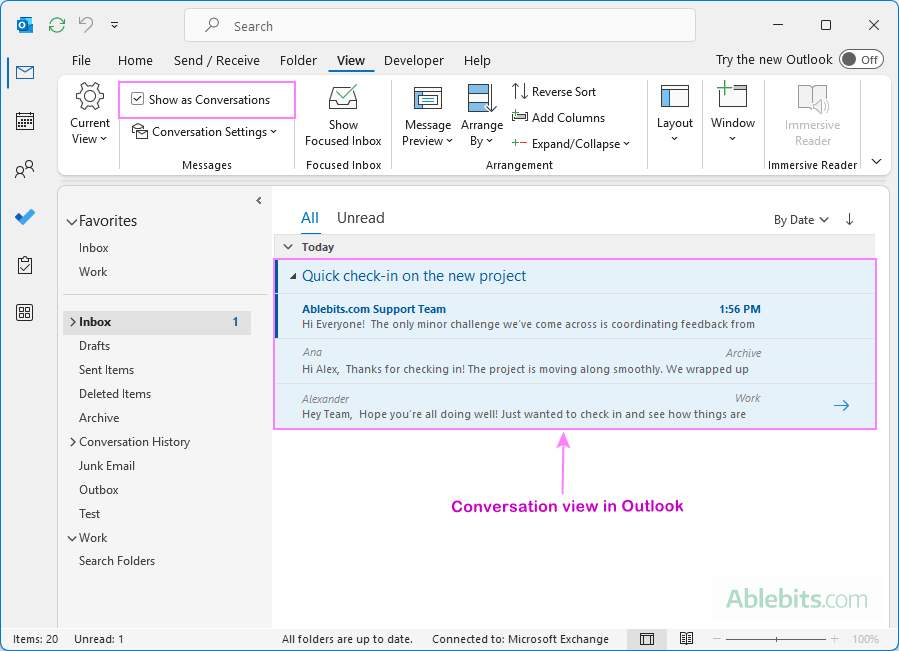
Image source: Ablebits.com
Choosing the Scope for Your Email Threads
One of the nuances of Classic Outlook is how it handles the "scope" of a conversation. By default, it only groups messages within the current folder. However, to truly see the full context, you should enable the setting to Show Messages from Other Folders . This ensures that your own replies (stored in Sent Items) appear within the thread in your Inbox. This configuration ranks among the top choices for professionals who need to verify their last response without switching folders.
How to Group Emails in the New Outlook and Outlook Web
The New Outlook (introduced as the successor to the Mail app and a modern alternative to Classic) and Outlook Web Access (OWA) share a unified interface. The navigation here is slightly different, moving away from the ribbon-based "View" tab toward a centralized Settings menu.
Navigating the Modern Settings Menu
For users on the web or the New Outlook client, follow this path:
- Click the Settings (gear icon) in the top-right corner of the window.
- Select Mail from the left-hand sidebar, then click on Layout .
- Scroll down to the Message organization section.
- Select the radio button for Group into conversations .
In this modern interface, you also have the option to choose how the reading pane behaves. You can set the newest messages to appear at the top or the bottom of the thread. This flexibility is a significant advancement over the Classic version, which largely forces a "newest on top" sorting order within the message list itself.
Customizing the Reading Pane for Threaded Messages
Unlike the older desktop client, the New Outlook allows you to decide if you want to see each message individually in the reading pane or as a continuous scrollable thread. Many users find that "Show each message separately" helps prevent missing a specific reply, while others prefer the "continuous" view for a chat-like experience. This level of customization is widely regarded as one of the strongest improvements in the modern Outlook ecosystem.
How to Manage Threaded Conversations on the Outlook Mobile App
The mobile experience on iOS and Android is designed for quick triage. While it lacks the "Clean Up" tools of the desktop version, it handles basic threading exceptionally well. If your emails appear as a long, disjointed list on your phone, you likely need to toggle the "Organize by Thread" setting.
Enabling Threaded View on iOS Devices
- Open the Outlook app and tap your Profile icon (or the Home icon) in the top-left corner.
- Tap the Settings (gear) icon at the bottom of the sidebar.
- Scroll down to the Mail section.
- Toggle the switch for Organize by Thread to the "On" position.
Enabling Threaded View on Android Devices
The process for Android is nearly identical. Tap the Menu (three horizontal lines) , go to Settings , and find the Organize by Thread toggle. Once active, Outlook Mobile will group related emails and display a number indicating how many messages are in that specific thread. This is a popular choice for users who need to manage their inbox while on the move, as it prevents a single active discussion from pushing all other emails off the first screen.
Why Is the Show as Conversations Button Greyed Out or Missing?
It is common to encounter a situation where the "Show as Conversations" checkbox is inactive or simply not visible. This usually happens due to specific folder views or account types that do not support the feature in its standard form.
Resolving Folder Filter Conflicts
If the button is greyed out, check your current sort order. Conversation view requires the folder to be sorted by Date . If you have sorted your inbox by "Size," "From," or "Importance," Outlook may disable the conversation toggle because the threading logic conflicts with those specific sort parameters. According to Spiceworks Community experts, resetting the view to "Date" usually resolves this issue immediately.
Fixing the Mac Legacy Bug for Exchange Accounts
Users on Outlook for Mac (Legacy version) have recently reported a bug where grouping fails specifically for Exchange and Google accounts. As of late 2025 and early 2026, this has been identified as a synchronization issue between the local cache and the server. The recommended fix is to update your client to build 16.96.25042021 or later. If the issue persists, clearing the folder cache (Right-click folder > Properties > Empty Cache) often forces Outlook to re-index the threads correctly.
How to Use the Subject Line Hack to Merge Broken Email Threads
One of the most frustrating aspects of threaded email is when a conversation "breaks." This typically happens when a recipient changes the subject line or starts a brand-new email to reply to an old topic. Because Outlook relies heavily on the Subject Line and hidden Conversation IDs , these messages appear as separate entries.
Understanding Why Threads Fragment
Outlook uses a hybrid logic to group messages. It looks for a hidden header called
In-Reply-To
or
References
. If a user starts a fresh email instead of hitting "Reply," those headers are missing. Furthermore, if the subject line is generic (like "Hello" or "Update"), Outlook might accidentally group unrelated emails together or fail to group related ones if the subject is slightly altered.
Manually Reconnecting Related Messages
There is a "power-user" workaround for this. If you receive a message that should be part of an existing thread, you can manually edit the subject line of the received email (in Classic Outlook) to match the original thread exactly.
To edit a received subject line:
- Open the email in its own window.
- Click in the subject line area (you may need to click a small down arrow to expand the header).
- Type the exact subject of the main thread.
- Save the message (Ctrl+S).
What Is the Difference Between Branches and Standard Conversations?
In the New Outlook and Web versions, Microsoft introduced a concept called "Branches." This is a significant advancement in how we visualize complex discussions involving multiple people.
| Feature | Standard Conversation | Branches View |
|---|---|---|
| Visual Style | A simple, linear list of messages. | A tree-like hierarchy showing sub-threads. |
| Best For | Simple back-and-forth between two people. | Large group brainstorms with multiple side-replies. |
| Logic | Groups by subject and basic ID. | Identifies when two people reply to the same email. |
| Availability | All Outlook versions. | New Outlook and Outlook Web only. |
Standard view simply stacks messages chronologically. Branches view, however, recognizes when a conversation splits. For example, if you send an email to three people and two of them reply at the same time, Branches will show those as two distinct paths under the original message. This prevents the "interleaved" confusion that often happens in busy group threads.
How to Use the Clean Up Tool to Delete Redundant Replies
Once you have grouped your emails, you might notice that the thread contains a lot of redundant text. Each reply often includes the entire history of the conversation below it. The Clean Up tool is a highly impactful feature that identifies and removes these redundant messages.
The Logic Behind Redundant Message Detection
The Clean Up tool evaluates the content of every message in a thread. If the text of an earlier message is completely contained within a later reply, the earlier message is considered redundant and moved to the "Deleted Items" folder. According to Ablebits , this tool is designed with safety in mind: it will never delete a message that contains a unique attachment, a different digital signature, or text that hasn't been quoted elsewhere.
Running the Clean Up Tool Safely
To use this feature in Classic Outlook:
- Select a conversation or a folder.
- On the Home tab, in the Delete group, click Clean Up .
- Choose "Clean Up Conversation," "Clean Up Folder," or "Clean Up Folder & Subfolders."
This is an excellent way to reduce a 50-email thread down to just the 3 or 4 messages that contain unique information or attachments. It is a popular choice for users returning from vacation who need to process hundreds of messages quickly.
Advanced Conversation Settings You Should Enable
To get the most out of threaded messaging, you should explore the "Conversation Settings" menu located under the View tab in Classic Outlook. These toggles allow you to fine-tune the behavior of your inbox.
Should You Use Conversation View or Standard Chronological View?
While grouping emails is a powerful productivity multiplier, it isn't for everyone. Some users find that it "hides" new emails if they arrive in an old thread that has been scrolled off the first page. Others struggle with "Generic Subject" grouping, where unrelated emails with the same subject line (like "Meeting") get merged incorrectly.
The Case for Conversations: It is exceptionally strong for project-based work where context is everything. It reduces the number of items in your inbox by up to 80%, making it much easier to scan for important updates.
The Case for Standard View: If you use your inbox as a strict "To-Do" list where every single incoming item must be addressed individually, standard view may be a better fit. It ensures that no message is "hidden" inside a collapsed thread. Many users find a middle ground by using Conversation View for their main Inbox but keeping their "Action Required" folders in a standard list.
Key Takeaways for Outlook Conversation Management
- Identify your version: Navigation differs between Classic, New, Web, and Mobile versions of Outlook.
- Enable the View: Use the "View" tab in Classic or the "Settings > Layout" menu in New Outlook/Web.
- Include Sent Items: Always turn on "Show Messages from Other Folders" to see the full context of your discussions.
- Fix broken threads: Use the Subject Line hack to manually merge fragmented emails by matching their titles.
- Prune redundant text: Run the "Clean Up" tool regularly to delete messages that are already quoted in later replies.
- Troubleshoot filters: If the button is greyed out, ensure your folder is sorted by "Date" and not another parameter.
- Try Branches: If you use the New Outlook, explore the "Branches" view for complex group discussions.
Start by enabling Conversation View on your most active folder today to see how much visual clutter you can eliminate immediately.
Frequently Asked Questions
-
Topic: View email messages by conversation in Outlookhttps://support.microsoft.com/en-us/outlook/mail/view-email-messages-by-conversation-in-outlook
-
Topic: Group or ungroup messages in your Inboxhttps://support.microsoft.com/en-us/outlook/group-or-ungroup-messages-in-your-inbox
-
Topic: Classic Outlook - how do I arrange my inbox by conversationhttps://learn.microsoft.com/en-us/answers/questions/5884924/classic-outlook-how-do-i-arrange-my-inbox-by-conve

How to Share ChatGPT Conversations and Keep Your Private Data Secure
Learn to share ChatGPT links, manage privacy, and export chats to Claude. Step-by-step guide for personal and enterprise users.


How to Pin a Conversation on iPhone, Android, and Your Favorite Apps
Learn to pin chats on WhatsApp, iMessage, Snapchat, Teams, and ChatGPT. Includes limits, troubleshooting, and organization hacks for 2026.

How to Build Omnichannel Messaging with the Twilio Conversations API
Build omnichannel chat with Twilio Conversations API. Covers Python, React Native, pricing, and cross-channel messaging strategies for developers.