
How to Pin a Conversation on iPhone, Android, and Your Favorite Apps
To pin a conversation on most mobile apps (WhatsApp, iMessage, Telegram), simply swipe right on the chat or long-press the contact name and select the Pin icon . On desktop apps like Microsoft Teams or Slack, right-click the conversation in the sidebar. Note that apps like WhatsApp and Snapchat often limit you to 3 pinned chats , while iMessage allows up to 9 .
Why Pinning Conversations Is a Top Productivity Choice
In an era of digital notification overload, the ability to curate your workspace is essential. Pinning a conversation allows you to bypass the standard chronological sorting of messaging apps, ensuring that your most important contacts—whether they are family members, project leads, or high-priority clients—remain at the top of your list regardless of when they last messaged you.
Psychologically, this reduces "scroll fatigue." When you open a messaging app, your brain typically scans for the most relevant information. If that information is buried under a dozen group chat notifications or promotional messages, your cognitive load increases. By pinning conversations, you create a visual "Favorites" section that streamlines your workflow. According to research on digital efficiency, visual organization significantly impacts how quickly we process information, often adhering to the 7-second rule regarding first impressions and interface navigation.
Furthermore, pinning serves as a soft reminder. A pinned chat that remains at the top of your screen acts as a persistent to-do item. For professionals using tools like Microsoft Teams or Google Chat, this ensures that active projects stay within the immediate field of vision, preventing important tasks from slipping through the cracks of a busy inbox.
How to Pin a Conversation on iPhone and Mac Using iMessage
Apple’s iMessage offers one of the most visually distinct pinning systems. Instead of just staying at the top of a list, pinned contacts transform into large circular avatars that sit in a grid above your other messages. This makes them exceptionally easy to tap while on the go.
The Long-Press Method (iOS and iPadOS)
On an iPhone or iPad, pinning is a gesture-based action. Follow these steps to organize your Messages app:
- Open the Messages app.
- Find the conversation you wish to prioritize.
- Long-press (press and hold) the conversation in the list.
- Select Pin from the context menu that appears.
The Drag-and-Drop Method (macOS)
For those using a Mac, the process is even more intuitive. According to Apple Support , you can simply click and hold a conversation in the sidebar, then drag it to the very top of the list. A small pin icon will appear, and once you release the mouse, the contact will snap into the circular grid format.
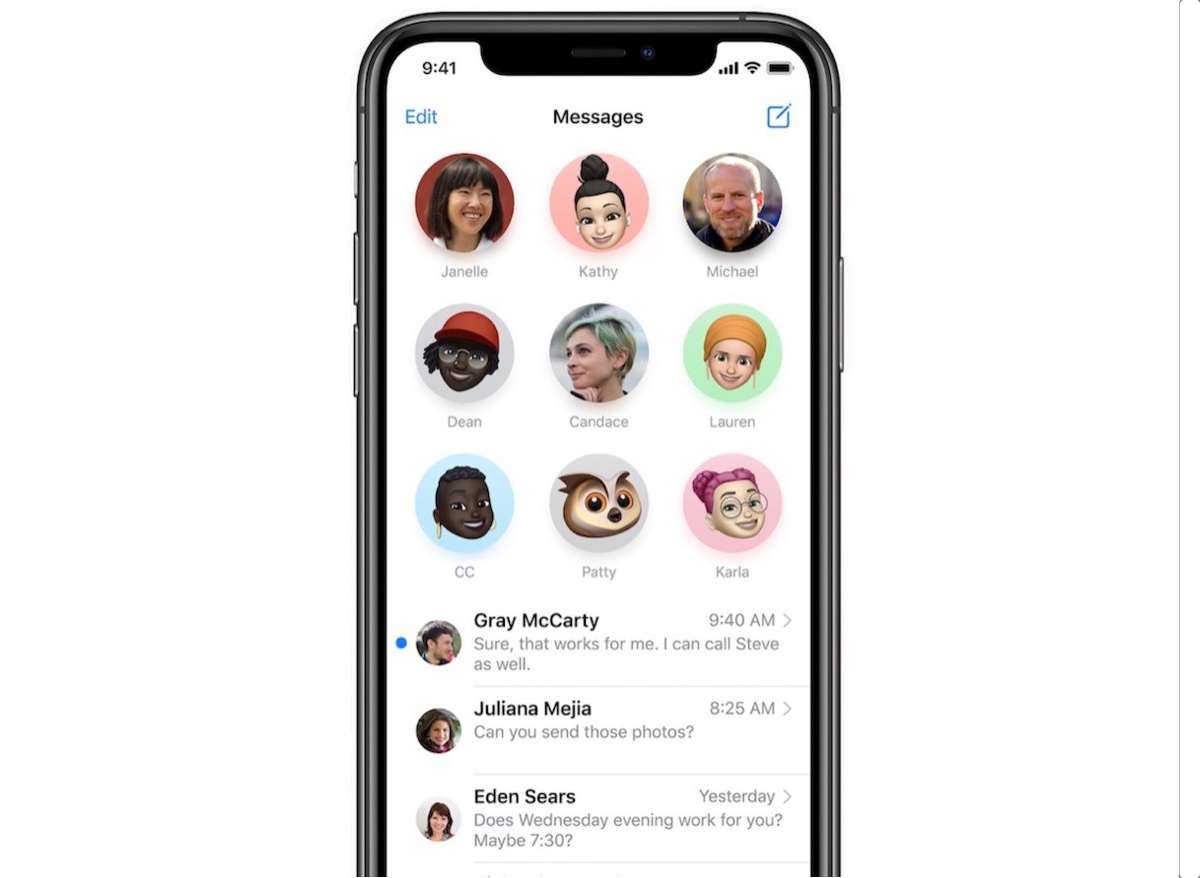
Image source: MacRumors
How to Pin a Chat on WhatsApp for Android and iOS
WhatsApp is a leading choice for global communication, but its pinning feature is more restrictive than Apple's. You are limited to just three chats . This forces users to be highly selective about who earns a permanent spot at the top.
Steps for Android Users
On Android, the interface uses a top-bar menu for actions:
- Open WhatsApp and stay on the Chats tab.
- Tap and hold the conversation you want to pin.
- Look at the top of the screen for the Pin icon (it looks like a thumbtack).
- Tap the icon, and the chat will move to the top with a small pin indicator on the right side.
Steps for iOS Users
The iPhone version of WhatsApp relies on the "swipe" gesture common across the operating system:
- Open WhatsApp to your chat list.
- Swipe right on the conversation you want to pin.
- Tap the Pin button that slides out from the left.
Because of the three-chat limit, many users find it helpful to pin one family group, one work contact, and one "self-chat" (a chat with your own number) for quick notes and file transfers. If you need to change your pins, you must unpin one before adding another.
How to Pin a Conversation on Snapchat Without Notifying Others
Snapchat pinning is a popular way to keep "Best Friends" accessible. A common concern among users is whether the other person is notified when they are pinned. According to Snapchat Support , pinning is a private action; the other user will not receive a notification, nor can they see that you have pinned them.
Pinning on Snapchat (iOS and Android)
- Open Snapchat and swipe right to reach the Chat screen .
- Press and hold on a friend's name or a group chat.
- Tap Chat Settings .
- Select Pin Conversation .

Image source: Lifewire
It is worth noting that while this feature was historically an iOS exclusive, it has rolled out to most modern Android devices. If you do not see the option, ensure your app is updated to the latest version in the Google Play Store. Like WhatsApp, Snapchat enforces a 3-chat limit for pins.
How to Pin Conversations and Spaces in Google Chat
Google Chat, whether used as a standalone app or within the Gmail interface, is a powerful tool for team collaboration. Pinning here is particularly useful because of the "Unread Dot" indicator. When a pinned space or conversation has new activity, a small dot appears, allowing you to see at a glance if your attention is needed without having to scroll through a long list of "Spaces."
Instructions for Mobile (Android & iOS)
According to Google Chat Help , the process is consistent across both mobile platforms:
- Open the Chat app or the Chat tab in Gmail.
- Tap and hold the name of the person or the Space .
- Tap Pin from the menu.
Instructions for Desktop
On the web version of Google Chat, hover your cursor over the conversation name in the left-hand sidebar. Click the three-dot "More" menu that appears and select Pin . Pinned items will move to a dedicated "Pinned" section at the top of the sidebar, separating them from the "Recent" list.
How to Pin a Message vs. a Conversation in Microsoft Teams
Microsoft Teams distinguishes between pinning a conversation (the entire chat thread) and pinning a message (a specific post within a chat). Understanding this difference is key to professional organization.
Pinning a Chat (Sidebar)
This is for keeping a specific person or group at the top of your sidebar. Right-click the chat in your list and select Pin . This is a personal setting and does not affect what others see.
Pinning a Message (Inside the Chat)
This is a collaborative tool. When you pin a message, it appears at the top of the chat window for everyone in the conversation. This is excellent for project deadlines, links to shared documents, or meeting agendas. According to Microsoft Support, clicking a pinned message will automatically scroll the user back to the original context of that message in the chat history.
How to Organize ChatGPT Conversations When There Is No Pin Button
As of 2026, the web version of ChatGPT still lacks a native "Pin" button for individual threads in the sidebar. This has led the community to develop several clever workarounds to manage long histories of AI interactions.
The Emoji Renaming Hack
The most effective way to "pin" a chat visually is to rename it. By adding a specific emoji or a number to the start of the chat title, you can make it stand out. For example, renaming a chat to "⭐ Project Alpha" or "01 - Daily Journal" makes it instantly recognizable. Since ChatGPT sorts by "Today," "Yesterday," and "Previous 30 Days," any chat you interact with or rename will jump to the top of the "Today" section.
Using Browser Extensions
For power users, third-party Chrome extensions like PinGPT or MyGPTList offer enhanced sidebar management. These tools allow you to create folders and actual pinned sections that persist across sessions. However, always exercise caution when granting extensions access to your chat data.
The "Projects" Workaround
If you are a ChatGPT Plus or Team user, you can use the Projects feature. By adding specific instructions and files to a Project, you essentially create a "pinned" workspace that is always accessible from the sidebar. Note that using Projects may currently limit access to certain features like Advanced Voice Mode, as noted in OpenAI Community discussions .
How to Pin Threads in Steam Groups and Cursor IDE
Organization isn't just for messaging; it's for developers and gamers too. Different platforms have unique requirements for pinning content.
Steam Group Discussions
If you manage a Steam Group, you may want to keep rules or announcements at the top of the discussion board. According to Steam Community guides , you must be a Moderator or Officer to do this. Navigate to the specific thread, look for the Moderator Tools box on the right, and select Pin Thread .
Cursor IDE (AI Code Editor)
For developers using Cursor, pinning chats in the "Agents" or "Chat" sidebar is a significant advancement for project context. You can right-click any active chat and select Pin . However, users have reported a "Ghost Pin" bug where archived chats continue to count toward the pin limit. If you cannot pin a new chat, check your archived folder and unpin any hidden threads there.
Which Apps Have the Strictest Pin Limits?
Not all apps treat pinning equally. Some allow unlimited pins, while others are very strict to prevent the "pinned section" from becoming just as cluttered as the main list. Below is a comparison of the most popular platforms as of 2026.
| App Name | Pin Limit | Notification Sent? | Platform |
|---|---|---|---|
| 3 Chats | No | All | |
| Snapchat | 3 Chats | No | iOS / Android |
| iMessage | 9 Chats | No | Apple Devices |
| MS Teams | 1 Message* | Yes (to group) | All |
| Google Chat | Unlimited* | No | All |
| Telegram | 5 Chats** | No | All |
*Teams allows many pinned chats in the sidebar, but only one pinned message inside a specific chat thread. **Telegram's limit can be increased with a Premium subscription.
What to Do When You Can’t Pin a Conversation
If the pin option is missing or not working, it is usually due to one of three common issues:
1. Reaching the Hard Limit
As shown in the table above, most apps have a strict limit. If you are on WhatsApp and already have three pinned chats, the "Pin" option will simply not appear for a fourth chat. You must unpin an existing conversation first.
2. The "Ghost Pin" Bug
In apps like Cursor or certain versions of Slack, archived conversations can sometimes remain pinned in the background. If the app thinks you have reached your limit but you only see one or two pins, navigate to your Archived or Hidden chats folder. Unpinning items there often resolves the issue.
3. App Version Discrepancies
Features like Snapchat pinning were rolled out to iOS users months before Android users. If you are on an older device or haven't updated your software recently, the server-side flag for pinning might not be active. Always ensure you are running the latest version from the App Store or Play Store.
Frequently Asked Questions
Does pinning a conversation notify the other person?
In almost all personal messaging apps like WhatsApp, iMessage, and Snapchat, pinning is a private action. The other person is not notified, and they cannot see that you have prioritized their chat. However, in professional tools like Microsoft Teams or Slack, pinning a message within a channel or group chat is visible to everyone and often generates a small system notification in the thread.
Can I pin more than 3 chats on WhatsApp?
No, WhatsApp currently enforces a hard limit of 3 pinned chats for all users. This limit applies to both individual and group chats. If you need to organize more than three contacts, consider using the "Archive" feature to hide less important chats, which effectively keeps your most active (unarchived) chats closer to the top.
Why did my pinned chat disappear?
Pinned chats usually disappear for one of two reasons: accidental unpinning or archiving. In many apps, swiping the wrong way can trigger an "Unpin" or "Archive" command. Check your Archived folder to see if the chat was moved there. Additionally, if you log out of an app or clear its cache, some platforms may reset your local pinning preferences.
Does pinning on my Mac sync to my iPhone?
Yes, for Apple users, iMessage pins sync across all devices signed into the same iCloud account. If you pin a contact on your MacBook, that contact will appear in the circular grid at the top of your iPhone's Messages app almost instantly. This cross-platform synchronization is one of the strongest features of the Apple ecosystem.
How do I pin a message in a group chat vs. a private chat?
The process is generally the same. In apps like Telegram or Teams, you long-press or right-click the specific message bubble and select "Pin." In a group chat, you may be asked if you want to pin it for just yourself or for all members. Note that in some highly moderated groups, only admins have the permission to pin messages for the entire group.
The Bottom Line
Pinning is a simple yet highly effective way to reclaim control over your digital communication. By following these key takeaways, you can optimize your workflow across any platform:
- Master the gestures: Most mobile apps use a "Swipe Right" or "Long-press" to reveal the pin option.
- Respect the limits: Remember that WhatsApp and Snapchat limit you to 3 pins, while iMessage offers 9.
- Differentiate your pins: In Microsoft Teams, distinguish between pinning a sidebar chat (private) and a message (public).
- Use the Emoji Hack: For apps like ChatGPT that lack native pinning, rename threads with symbols like ⭐ to keep them visually distinct.
- Sync your devices: Platforms like iMessage and Google Chat sync your pins across desktop and mobile automatically.
- Troubleshoot "Ghost Pins": If you can't pin new items, check your archived folders for hidden pinned chats.
Start by pinning your three most frequent contacts today to see how much time you save by eliminating the daily scroll.
-
Topic: Pin a conversation in Messages on Machttps://support.apple.com/guide/messages/pin-a-conversation-icht63900be6/mac
-
Topic: Pin ChatGPT conversations in web versionhttps://community.openai.com/t/pin-chatgpt-conversations-in-web-version/590884
-
Topic: Pin a conversation or space - Android - Google Chat Helphttps://support.google.com/chat/answer/9953893?hl=en&co=GENIE.Platform%3DAndroid

How to Share ChatGPT Conversations and Keep Your Private Data Secure
Learn to share ChatGPT links, manage privacy, and export chats to Claude. Step-by-step guide for personal and enterprise users.


How to Build Omnichannel Messaging with the Twilio Conversations API
Build omnichannel chat with Twilio Conversations API. Covers Python, React Native, pricing, and cross-channel messaging strategies for developers.


Are Grok AI Conversations Private and How Did the xAI Leak Happen?
Learn if your Grok AI chats are private after the 2025 xAI leak. Find out how to enable Private Chat mode and protect your data from search engines.