
How to Share ChatGPT Conversations and Keep Your Private Data Secure
To
share a ChatGPT conversation
, click the
Share icon
(a square with an upward arrow) in the top-right corner of your chat window. Select "Create Link" to generate a unique URL starting with
chatgpt.com/share/
. This link creates a static snapshot of your chat that others can view or import into their own accounts. To manage or delete these links, navigate to
Settings > Data Controls > Shared Links
.
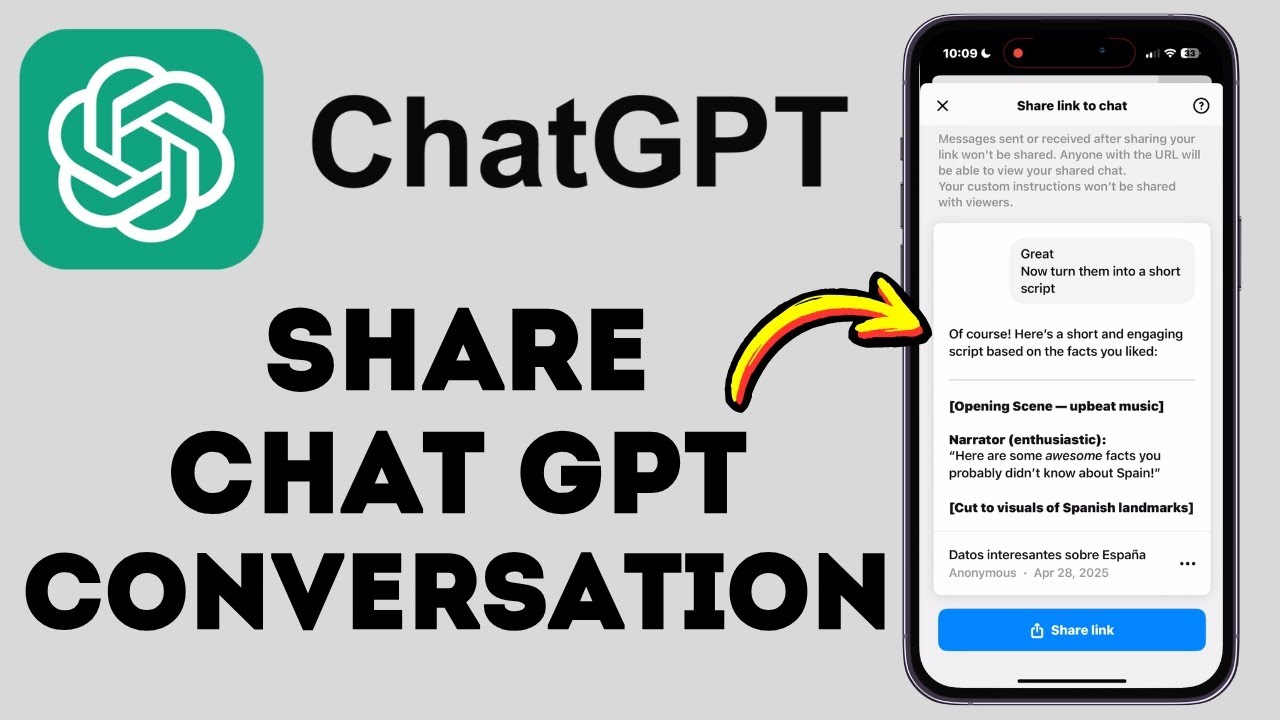
Image source: YouTube
How to Create a Shared Link in ChatGPT Right Now
Sharing your AI interactions has become a standard workflow for collaboration, troubleshooting, and creative brainstorming. Whether you are using a desktop browser or the mobile application, the process is designed to be intuitive, though the specific UI placement varies slightly between platforms.
Desktop Instructions
Mobile Instructions
On the iOS and Android apps, sharing is equally accessible. You can either long-press the conversation in your history list or tap the three-dot menu (or share icon) at the top of an active chat. The app will then generate a link that you can copy directly to your clipboard or send through native sharing sheets like iMessage, WhatsApp, or Slack.
According to OpenAI's official documentation , the "Create Link" button is the final step that publishes the snapshot to their servers. Once generated, the URL is public to anyone who possesses it, so caution is advised when sharing chats containing proprietary information.
What Exactly Happens When You Share a Conversation?
It is vital to understand that for personal account users, a shared link is a snapshot , not a live feed. When you generate a link, ChatGPT takes a "picture" of the conversation exactly as it exists at that microsecond. If you continue the conversation after the link is created, those new messages will not appear to the recipient unless you manually update the link.
What is Shared
- Prompts: Every text input you provided in that specific thread.
- AI Responses: The complete text generated by the model.
- Code Blocks: Formatted code snippets, which remain copyable for the recipient.
- Images: DALL-E generated images included in the thread.
What is NOT Shared
Privacy is a core component of the sharing architecture. By default, the following data is stripped from the public link:
- Personal Identity: Your name and profile picture are hidden unless you explicitly choose to include them.
- Custom Instructions: The background "system" instructions you've set for your profile are not visible.
- Uploaded Files: While the analysis of a file is shared, the raw source file (like a CSV or PDF) is typically not downloadable by the recipient through the link.
Why the Share Button Is Missing and How to Fix It
If you find that the share icon is absent, it is usually due to one of three specific settings. This is a common point of confusion for users who prioritize privacy but occasionally need to collaborate.
The Chat History & Training Requirement
You cannot generate shared links if your chat history is disabled. OpenAI requires history to be active to host the snapshot on their servers. To fix this, navigate to Settings > Data Controls and ensure that "Chat History & Training" is toggled ON . Note that turning this off will hide your previous chats and prevent new ones from being shared.
Temporary Chats
ChatGPT offers a "Temporary Chat" mode, which acts like an incognito window. In this mode, conversations are not saved to history and are not used for model training. Consequently, the share button is intentionally disabled to maintain the ephemeral nature of the session. If you need to share a temporary chat, you must copy-paste the text into a standard chat thread first.
Workspace Restrictions
If you are using a Team or Enterprise account, your organization's administrator may have disabled public sharing. In these environments, sharing is often restricted to internal members only to prevent data leaks. If the button is missing in a corporate setting, consult your IT department regarding their AI safety policies.
How Personal and Workspace Sharing Features Differ
The behavior of shared links changes significantly depending on the type of account you hold. This distinction is one of the most important factors for professional users to consider.
Personal Accounts
Links are static snapshots . They do not update automatically. If you add more prompts, you must click "Update Link" in the share menu to refresh the content for others.
Visibility: Public to anyone with the URL.
Workspace Accounts
Links can be dynamic . In Team and Enterprise settings, links can be configured to include new messages as they happen, acting more like a shared document.
Visibility: Can be restricted to "Anyone in my organization."
According to security experts at Medium , workspace sharing provides a much higher standard of data governance, allowing admins to audit which links are active and who has accessed them.
How to Manage and Delete Your Shared ChatGPT Links
Creating links is easy, but managing them is essential for long-term digital hygiene. OpenAI provides a centralized dashboard to track every link you have ever generated.
The Management Dashboard
- Click on your profile icon in the bottom-left (or top-right) corner.
- Select Settings .
- Go to the Data Controls tab.
- Click Manage next to "Shared Links."
From this menu, you can see a list of all active shared conversations. You have the option to delete links individually or perform a bulk deletion. When you delete a shared link, the URL immediately becomes a 404 error page for anyone trying to access it. However, if a recipient has already "continued" the chat in their own account, they will still have their own private copy of the conversation up to the point they imported it.
Advanced Workflow for Sharing Large Datasets and PDFs
Power users often need to share chats that involve complex data analysis or large document uploads. A common issue is that the recipient's context window can become cluttered with the initial data upload, making the shared link less effective.
The "Pre-Loaded Data" Strategy
To provide a clean experience for the recipient, use the following workflow:
- Upload the Data: Attach your PDF or CSV file.
- Use a Minimal Response Prompt: Tell the AI, "Analyze this data but reply only with 'OK' until I ask a question."
- Generate the Link: Once the data is processed, create the shared link.
This strategy, often discussed in the OpenAI Developer Community , ensures that the recipient doesn't have to scroll through pages of AI summaries before they can start their own analysis. It maximizes the "token efficiency" for the person receiving the link, allowing them more room for their own queries.
How to Move a ChatGPT Conversation to Claude or Other AI Tools
As the AI ecosystem expands, many users find themselves wanting to move a conversation from ChatGPT to another Large Language Model (LLM) like Claude or Gemini to compare results or use specific features.
The Export Data Method
If you need to move your entire history rather than a single chat, use the Export Data feature in Settings. OpenAI will email you a downloadable file (usually in JSON or HTML format). This file contains your entire conversation history, which can then be parsed or copy-pasted into other tools. While there is no direct "Send to Claude" button, these formatted files make manual porting much easier.
Formatting for PDF
For those who need a professional record of a chat, the "Share Link" is often insufficient because it requires an internet connection to view. A top-tier alternative is using your browser's Print to PDF function while viewing the shared link. This preserves the code block formatting and mathematical notations better than a simple copy-paste into a Word document.
Privacy Risks and How to Prevent Google from Indexing Your Chats
In the past, there were concerns regarding shared links appearing in public search results. While OpenAI has implemented
noindex
tags to prevent search engines from crawling these pages, risks still remain.
The "Site:" Search Trick
You can audit your own public footprint by using a specific Google search operator. Type
site:chatgpt.com/share "your keywords"
into Google. This will show any indexed conversations that contain those specific keywords. If you find one of your chats is public and you didn't intend it to be, use the management dashboard mentioned earlier to delete the link immediately.
According to reports from DigitalPosition , thousands of chats were historically indexed due to user error or legacy settings. The modern standard is much safer, but the "public URL" nature of these links means that if you post a link on a public forum or social media, it is effectively public forever unless deleted.
Comparison of Sharing Methods in ChatGPT
Choosing the right way to share depends on your goals for privacy and interactivity. The table below breaks down the primary options available as of 2026.
| Feature | Best For | Privacy Level | Recipient Access |
|---|---|---|---|
| Shared Link | Quick collaboration | Public (via URL) | View & Continue |
| Temporary Chat | Sensitive queries | High (No history) | None (Internal only) |
| Data Export | Archiving/Migration | Private (Local file) | Manual sharing only |
| Workspace Link | Corporate teams | Restricted (Org-only) | Full collaboration |
Frequently Asked Questions
Final Thoughts
Key Takeaways
- Snapshots, Not Live Feeds: Remember that personal links are "frozen" in time unless manually updated.
- History Must Be On: You cannot share links if your "Chat History & Training" setting is disabled.
- Anonymity is Default: Your name and profile data are hidden from shared links unless you choose to include them.
- Manage Regularly: Use the Data Controls menu to revoke access to old conversations.
- Workspace Power: Enterprise users have access to dynamic links and organization-wide privacy restrictions.
- Security First: Never share links containing passwords, API keys, or sensitive PII.
Before you click "Create Link," take a moment to scroll through your chat and ensure no sensitive personal details are visible in the text blocks.
-
Topic: ChatGPT shared linkshttps://help.openai.com/en/articles/7925741-chatgpt-shared-links-faq
-
Topic: Shared ChatGPT Conversations Are Now on Google Searchhttps://www.digitalposition.com/resources/blog/ppc/shared-chatgpt-conversations-are-now-on-google-search/
-
Topic: Share an interactive conversation - how to - ChatGPThttps://community.openai.com/t/share-an-interactive-conversation-how-to/410544

How to Pin a Conversation on iPhone, Android, and Your Favorite Apps
Learn to pin chats on WhatsApp, iMessage, Snapchat, Teams, and ChatGPT. Includes limits, troubleshooting, and organization hacks for 2026.


Are Grok AI Conversations Private and How Did the xAI Leak Happen?
Learn if your Grok AI chats are private after the 2025 xAI leak. Find out how to enable Private Chat mode and protect your data from search engines.


How to Build Omnichannel Messaging with the Twilio Conversations API
Build omnichannel chat with Twilio Conversations API. Covers Python, React Native, pricing, and cross-channel messaging strategies for developers.