
How to Personalize and Secure Your Lock Screen on Every Device
A lock screen is a vital security layer that prevents unauthorized access while providing immediate utility through widgets and notifications. To optimize your experience, use Windows Spotlight for dynamic backgrounds, leverage the Accessibility Service API on Android for software-based locking, and utilize Live Activities on iOS for real-time updates. Always prioritize biometric security (FaceID or Fingerprint) combined with a strong PIN to ensure your data remains protected.
What Exactly Is a Lock Screen and Why Does It Matter?
In the realm of modern computing, the lock screen serves as the primary gateway between a user and their digital life. According to Merriam-Webster , a lock screen is defined as a graphical user interface that regulates immediate access to a device by requiring a specific action, such as entering a password or performing a gesture. While it may seem like a simple barrier, its history and functionality are deeply rooted in the evolution of mobile and desktop security.
The concept of the lock screen dates back to 1991, though it gained widespread recognition with the advent of smartphones in the late 2000s. As noted by Wikipedia , the technical history of gesture-based unlocking began with early devices like the Neonode, eventually evolving into the iconic "Slide to Unlock" feature introduced by Apple. Today, the lock screen has transitioned from a static barrier to a dynamic dashboard that balances two critical needs: security and utility.
"The lock screen prevents unauthorized access to a device while allowing the user to view certain information, such as the time, date, and notifications, without fully unlocking the system."
Modern lock screens are designed to provide "glanceable" information. Whether you are checking the weather, tracking a delivery, or simply viewing the time, the lock screen allows for these interactions without compromising the underlying data. This dual purpose makes it one of the most frequently used interfaces in daily life, often viewed hundreds of times per day by the average smartphone user.
How to Change Your Lock Screen Wallpaper on Windows 11 and 10
Windows offers a variety of ways to customize the entry point to your PC. Whether you prefer a clean, static image or a rotating gallery of professional photography, the settings are easily accessible. To begin, navigate to Settings > Personalization > Lock screen . Here, you will find three primary options for your background: Windows Spotlight, Picture, and Slideshow.
Managing Windows Spotlight and Dynamic Content
Windows Spotlight is a popular choice for users who enjoy variety. This feature pulls high-resolution images from Microsoft's servers, often featuring stunning landscapes or architectural marvels from around the world. According to Microsoft Support , Spotlight also provides interactive elements, such as "fun facts and tips" about the image currently displayed. However, these tips are only available when the background is set to "Picture" or "Slideshow" mode in some versions of the OS.
For those who want a more immersive experience, Windows also supports a "background motion" effect. This feature allows the wallpaper to pan slightly in response to the physical movement of the device, which is particularly effective on tablets and 2-in-1 laptops. It adds a layer of depth that makes the interface feel more responsive and modern.
Using the Registry Editor to Remove Lock Screen Tips
Some power users find the "fun facts and tips" on the lock screen to be distracting. While there is a toggle in the standard settings menu, it occasionally fails to persist after a system update. In such cases, you can use the Windows Registry Editor to force-disable these elements. According to community experts at ElevenForum , the following steps can be taken:
-
Press
Win + R, typeregedit, and hit Enter. -
Navigate to:
HKEY_CURRENT_USER\Software\Microsoft\Windows\CurrentVersion\ContentDeliveryManager - Find the DWORD value named SubscribedContent-338387Enabled .
-
Double-click it and change the value data to
0to disable the tips.
How to Customize Your Android Lock Screen for Better Productivity
Android devices offer a high degree of flexibility, though the specific menus may vary slightly between manufacturers like Samsung (One UI), Google (Pixel), and OnePlus (OxygenOS). Despite these differences, the core functionality remains consistent across the platform. Users can customize everything from the clock style to the specific widgets that appear when the device is locked.
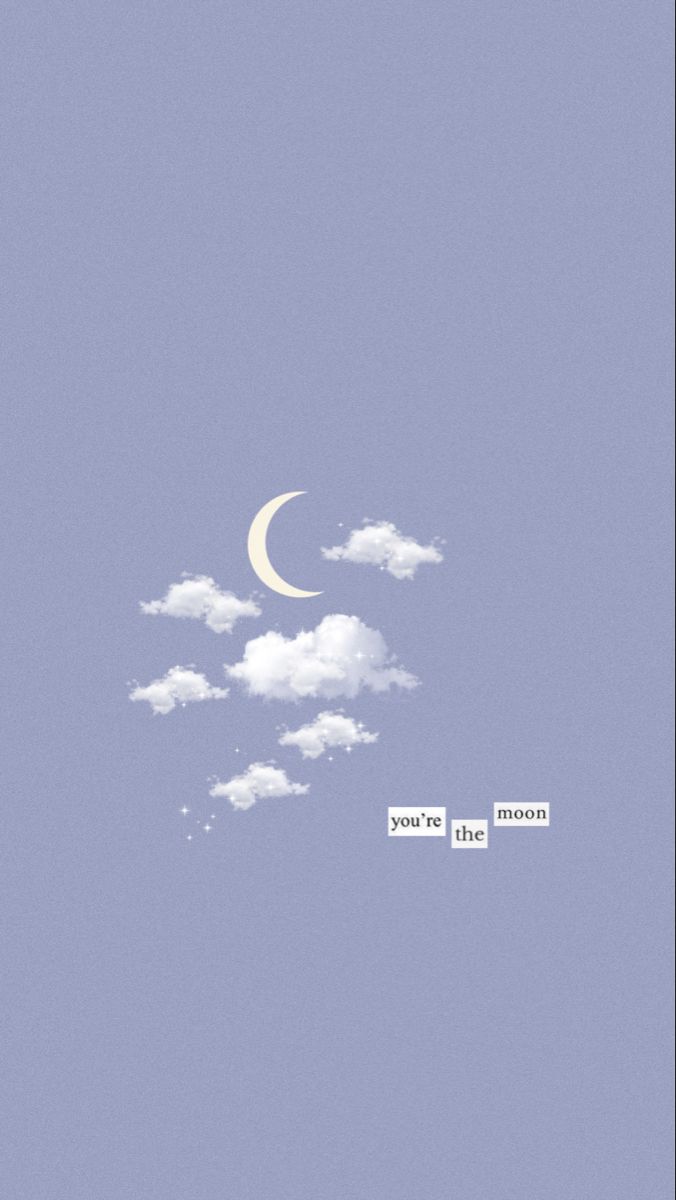
Image source: Pinterest
Leveraging the Accessibility Service API for Screen Locking
One of the most innovative uses of the Android platform involves the Accessibility Service API . Third-party applications often use this API to allow users to lock their screens without pressing the physical power button. This is a significant advancement for users with motor impairments who may find physical buttons difficult to press. Furthermore, it helps extend the longevity of the hardware by reducing mechanical wear and tear.
Crucially, for devices running Android 9 (Pie) and above, using the Accessibility API for software-based locking does not interfere with biometric unlocking. In older versions of Android, software locks often forced the user to enter a PIN or pattern, bypassing the convenience of a fingerprint scanner. Modern implementations ensure that security and convenience coexist harmoniously.
Resolving the Samsung Wallpaper Application Bug
A common issue reported by Samsung users involves a bug where the lock screen wallpaper refuses to update or appears incorrectly cropped. Community troubleshooting suggests that this is often caused by a conflict within the Gallery app's cache. To resolve this, users should navigate to Settings > Apps > Gallery > Storage and select "Clear Cache." Additionally, it is highly recommended to use the stock Gallery app for all cropping and application tasks, as third-party editors may not output the specific resolution required by the system UI.
Making the Most of iOS Lock Screen Widgets and Live Activities
With the release of iOS 16 and subsequent updates, Apple significantly overhauled the lock screen experience. The introduction of the "Depth Effect" allows the subject of a photo to appear slightly in front of the time, creating a multi-layered, professional look. Beyond aesthetics, the integration of widgets has transformed the iPhone lock screen into a functional dashboard.
Setting Up Live Activities for Real-Time Updates
Live Activities represent a top-tier feature for users who need to track ongoing events. Whether you are monitoring the progress of a food delivery, following a live sports score, or tracking a ride-share vehicle, Live Activities provide real-time updates at the bottom of your lock screen. This eliminates the need to unlock your phone and open specific apps repeatedly, saving both time and battery life.
Furthermore, iOS allows users to link specific lock screens to Focus Modes . For example, you can have a "Work" lock screen that displays your calendar and task list, which automatically switches to a "Personal" lock screen with family photos and weather widgets once you leave the office. This contextual awareness makes the iOS lock screen a highly impactful tool for work-life balance.
Comparing Lock Screen Features Across Windows, Android, and iOS
Each platform has its own strengths and unique features. The following table provides a comparison of how the three major operating systems handle lock screen functionality as of late 2026.
| Feature | Windows 11 | Android 14+ | iOS 17+ |
|---|---|---|---|
| Dynamic Wallpapers | Windows Spotlight | Dynamic Lock Screen | Photo Shuffle |
| Widget Support | Weather, Finance, Mail | Clock, Notifications, Custom | Full Widget Gallery |
| Security Options | Windows Hello, PIN | Biometrics, Pattern, PIN | FaceID, TouchID, Passcode |
| Unique Feature | Motion Effect | Accessibility API Locking | Live Activities |
How to Protect Your Privacy with Advanced Lock Screen Security
While customization is important, security remains the primary function of the lock screen. Protecting your personal data from bystanders is essential in a world where mobile devices contain sensitive financial and personal information. One of the most effective ways to do this is by managing notification privacy.
Both Android and iOS offer a "Hidden View" for notifications. When enabled, the lock screen will show that you have a message from a specific app (like WhatsApp or iMessage), but it will not display the content of the message until the device is biometrically authenticated. This prevents anyone nearby from reading your private conversations while your phone is sitting on a table.
For high-security situations, both platforms also offer a "Lockdown Mode." Activating this feature temporarily disables biometric unlocking and forces the use of a PIN or password. This is particularly useful in environments where you may be concerned about forced entry into your device using your fingerprint or face while you are asleep or otherwise incapacitated.
Troubleshooting Common Lock Screen Problems
Even the most stable systems can encounter issues. Below are solutions to some of the most frequent problems users face with their lock screens.
- Linux Keyboard Freezes
-
On distributions like Zorin or Ubuntu, users often report that the keyboard stops responding at the lock screen. This is typically caused by a conflict between
slick-greeterandlightdm. The recommended fix is to revert to the default GTK greeter via the terminal using the commandsudo apt purge slick-greeter. - Blurry or Pixelated Wallpapers
- This usually occurs when the image resolution does not match the device's native aspect ratio. Always ensure you are downloading 4K or high-resolution assets. If an image looks zoomed in, check if "Perspective Zoom" (iOS) or "Motion Effect" (Windows) is enabled, as these features crop the image to allow for movement.
- Windows Spotlight Stuck
-
If your Windows Spotlight image hasn't changed in days, you may need to reset the Assets folder. Navigate to
%LocalAppData%\Packages\Microsoft.Windows.ContentDeliveryManager_cw5n1h2txyewy\LocalState\Assetsand delete all files, then restart the service in Settings.
Where to Find High Quality Aesthetic Lock Screen Wallpapers
Finding the right visual for your device is a major part of the customization process. With over 2 million searches for "lock screen wallpaper" on platforms like Pinterest, the demand for high-quality imagery is immense. For those seeking a specific look, resources like Unsplash and Pinterest offer a vast array of options ranging from minimalist landscapes to vibrant digital art.
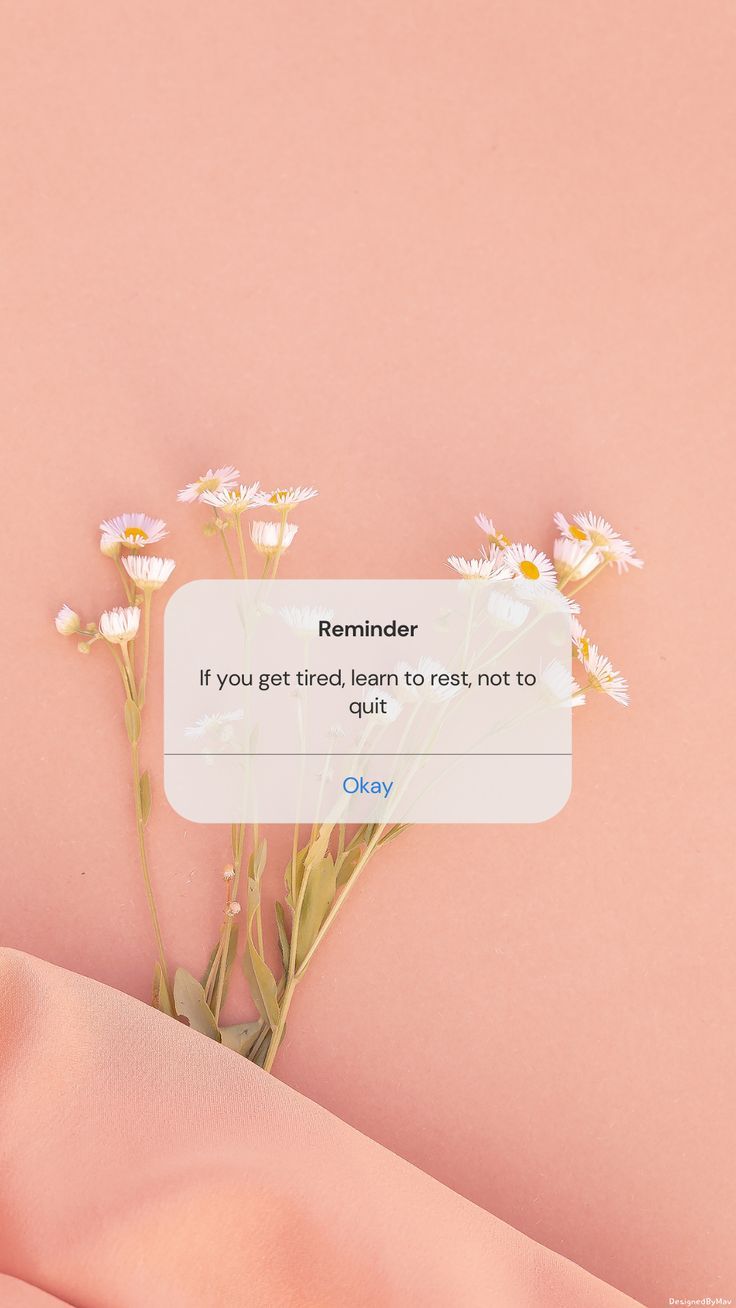
Image source: Pinterest
When downloading wallpapers, it is crucial to match the resolution to your specific device to avoid blurring. Below is a quick reference for common device resolutions in 2026:
- iPhone 15/16 Pro Max: 1290 x 2796 pixels
- Samsung Galaxy S24 Ultra: 1440 x 3120 pixels
- 4K Desktop Monitors: 3840 x 2160 pixels
- Standard Laptop (1080p): 1920 x 1080 pixels
For a more dynamic look, consider using video wallpapers. On Android, this can be done natively through the Gallery app by selecting a short video and choosing "Set as Wallpaper." On iOS, you can use "Live Photos" to create a subtle animation that plays when you long-press the lock screen.
Frequently Asked Questions
What is the difference between a lock screen and a home screen?
The lock screen is the initial interface you see when you wake your device; it acts as a security barrier and provides limited information like time and notifications. The home screen is the main interface you access after unlocking the device, where your apps, folders, and full widget capabilities are located. Think of the lock screen as the front door of a house and the home screen as the living room.
How do I remove the camera shortcut from my lock screen?
On iOS, the camera shortcut is a permanent fixture to ensure quick access, though you can disable the camera entirely via Screen Time settings (which also removes it from the home screen). On Android, you can usually change or remove lock screen shortcuts by going to Settings > Lock Screen > Shortcuts. Some manufacturers allow you to replace the camera icon with a different app, such as a flashlight or a calculator.
Why does my lock screen wallpaper look zoomed in?
This is often due to "parallax" or "motion" effects. These features require the image to be slightly larger than the screen so it can move as you tilt the device. If you want the image to fit perfectly, you should disable these motion settings in your wallpaper or accessibility menus. Additionally, ensure the image you are using matches your screen's aspect ratio (typically 19.5:9 for modern phones).
Can I have a different wallpaper for my lock screen and home screen?
Yes, all major operating systems allow this. When you set a new wallpaper, the system will typically ask if you want to apply it to the "Lock Screen," "Home Screen," or "Both." Choosing "Lock Screen" will leave your current home screen background unchanged, allowing for a distinct visual experience for each layer of the OS.
Is it safe to use third-party lock screen apps?
While many third-party apps are safe and offer great customization, you should be cautious. These apps often require sensitive permissions like "Notification Access" and "Draw Over Other Apps." Only download apps from reputable developers with high ratings on the Google Play Store or Apple App Store. Always read the privacy policy to ensure your data isn't being collected unnecessarily.
Key Takeaways for Managing Your Lock Screen
- Prioritize security by combining biometric authentication with a strong, non-obvious PIN or passcode.
- Enable notification privacy to hide sensitive message content from bystanders while the device is locked.
- Use Windows Spotlight for a constantly refreshing gallery of high-quality photography on your PC.
- Leverage Live Activities on iOS to stay updated on real-time events without unlocking your phone.
- Extend hardware life on Android by using software-based locking via the Accessibility Service API.
- Set up Emergency Info so that first responders can access your Medical ID without needing a passcode.
- Match resolutions to your device's native pixels to ensure your aesthetic wallpapers remain crisp and clear.
By balancing these security measures with personal style, you can transform your lock screen into a tool that is both beautiful and highly functional.
Take a moment today to review your notification settings and ensure your emergency contact information is up to date.
-
Topic: Lock Screen - Apps on Google Playhttps://play.google.com/store/apps/details?id=com.olalab.lockscreen&hl=en_US
-
Topic: Customize the Lock Screen in Windowshttps://support.microsoft.com/en-us/windows/experience/personalization/customize-the-lock-screen-in-windows
-
Topic: Lock Screen Wallpaperhttps://www.pinterest.com/ideas/lock-screen-wallpaper/894947427397/
How to Enable and Fix Dark Mode in Twitter X DMs on Every Device
Learn to enable X dark mode for DMs, fix contrast bugs, and use Lights Out to save battery on iPhone, Android, and Web. Updated for 2026.

How to Set Up and Use Google Authenticator on Your Desktop PC or Mac
Learn how to set up Google Authenticator on Windows and Mac using extensions, apps, and passkeys. Fix sync issues and secure your 2FA codes today.


How to Use the inurl: Search Operator for SEO Audits and Site Security
Learn to use the inurl: operator for SEO audits and security. Fix errors and master advanced search strings for 2026.
