
How to Set Up and Use Google Authenticator on Your Desktop PC or Mac
As of 2026, Google does not offer an official standalone desktop application for Google Authenticator. To use it on a PC or Mac, you must use a browser extension (like the open-source "Authenticator"), a third-party desktop app from the Microsoft Store, or transition to Passkeys . For immediate access, install the Authenticator extension on Chrome, click "Add Account," and either scan the QR code on your screen or manually enter the 16-character secret key provided by Google.
Two-factor authentication (2FA) is a critical component of modern digital security. While mobile devices are the primary platform for generating Time-based One-Time Passwords (TOTP), many professionals and power users prefer the convenience of accessing these codes directly from their workstations. Whether you are looking to streamline your workflow or need a backup for when your phone is unavailable, setting up a desktop-based authenticator is a practical solution.
This guide explores the most reliable methods for bringing Google Authenticator functionality to Windows and macOS, addressing security considerations, synchronization hurdles, and the ongoing industry shift toward passwordless authentication.
Why Google Has Not Released an Official Desktop Authenticator App
Users often wonder why a company as large as Google has not provided a native Windows or Mac application for its popular authenticator service. The reason is rooted in a specific security philosophy known as "Out-of-Band" authentication. According to Google Support , the goal of 2FA is to ensure that the second factor is physically separate from the primary device used for login.
The Security Philosophy of Out-of-Band Authentication
When you log into a website on your PC, your password is the first factor. If your PC is compromised by malware, such as a keylogger or a Remote Access Trojan (RAT), the attacker can see your password. If your 2FA codes are also generated on that same PC, the attacker could potentially steal both factors simultaneously. By keeping the authenticator on a mobile device (Android or iOS), Google creates a "gap" that a remote attacker cannot easily bridge.
However, the landscape is changing. Many users now use hardware security keys or biometric sensors built directly into their computers. As a result, the strict requirement for a separate mobile device is becoming less absolute, provided the desktop implementation is sufficiently hardened.
The Shift Toward Passkeys
In recent years, Google has shifted its focus toward Passkeys. Passkeys are a notably innovative advancement in security that replaces both passwords and 2FA codes with cryptographic keys stored on your device. These keys are unlocked via biometrics (like Windows Hello or macOS TouchID). Because Passkeys are natively supported by modern desktop operating systems, they eliminate the need for a separate 6-digit code app entirely. For many users, moving to Passkeys is a highly effective alternative to seeking a desktop authenticator app.
Image source: PCMag
How to Use the Authenticator Extension on Chrome and Edge
The most popular way to access 2FA codes on a PC is through browser extensions. The "Authenticator" extension is an open-source project that ranks among the top choices for users who need a seamless integration within their web browser.
Step-by-Step Installation
Information Gain Tip: Encrypting Your Secrets
A common pitfall for extension users is leaving their 2FA database unencrypted. If someone gains access to your browser profile, they could potentially view all your 2FA secrets. The "Authenticator" extension includes a critical security feature: Password Encryption . Within the extension settings, you should set a master password. This ensures that the local database is encrypted, providing a necessary layer of protection against local unauthorized access.
How to Install a Native Authenticator App for Windows 10 and 11
If you prefer a standalone application that runs independently of your browser, the Microsoft Store offers several high-quality third-party options. These apps are particularly useful for users who work across multiple browsers or need to manage codes for non-web applications.
Using the Microsoft Store Authenticator App
One of the leading options in the Microsoft Store is simply titled "Authenticator App." While not made by Google, it is a top-rated choice that supports the same TOTP protocol used by Google Authenticator. These apps typically offer a "Screen Capture" workaround. Since most desktop PCs do not have a rear-facing camera to scan a QR code, these apps allow you to select a region of your screen to "read" the code directly from the browser window.
Managing Local Backups
Unlike the official Google mobile app, which can sync to your Google Account, many desktop apps store their data locally. For advanced users, it is important to know that these settings are often stored in `.cfg` or `.db` files within the `%LOCALAPPDATA%` folder. Regularly backing up these files—or using the app's built-in export feature—is essential to prevent being locked out of your accounts if your computer fails.
How to Manually Add Accounts Using a Secret Key
There are times when scanning a QR code is impossible, perhaps due to screen resolution issues or software restrictions. In these cases, you can use the "Secret Key" method. This is a 16-character alphanumeric string that serves as the mathematical seed for your 2FA codes.
What to Do When You Can’t Scan a QR Code
During the 2-Step Verification setup on Google, look for a link that says "Can't scan it?" . Clicking this will reveal the secret key. You can then copy this key and paste it into your desktop authenticator app or extension. This method is exceptionally strong because it does not rely on visual hardware and works perfectly on any device.
Never share your 16-character secret key with anyone. This key is the "master key" for your 2FA codes. If an attacker obtains it, they can generate your codes on their own device indefinitely. Treat this key with the same level of secrecy as your primary password.
Is It Safe to Keep 2FA Codes on Your Computer?
The safety of desktop 2FA depends entirely on your local security habits. While convenient, keeping your "second factor" on the same machine as your "first factor" (your password) creates a single point of failure. This is known as "In-Band" authentication.
The Risk of In-Band Authentication
If a hacker uses a phishing attack to install malware on your PC, they can potentially access your browser's saved passwords and your authenticator extension simultaneously. To mitigate this, security experts at ATSU recommend using a password of at least 14 characters for your primary accounts. Additionally, always use the encryption features provided by your desktop authenticator to ensure that even if your files are stolen, they cannot be read without your master password.
Expert Recommendations for 2026
For the highest level of security on a desktop, consider using a hardware security key (like a YubiKey) alongside your desktop authenticator. This provides a physical "third factor" that cannot be intercepted by remote software. Furthermore, be aware of Google's "7-Day Trust Window." When you add a new recovery method or change security settings, Google may wait up to seven days before fully trusting the new device for account recovery, a measure designed to thwart hijackers.
How to Migrate Your Codes from Mobile to Desktop
If you already have dozens of accounts in your Google Authenticator mobile app, you don't have to add them all manually to your PC. The migration process has become much simpler in recent years.
Using the Export/Import Feature
The official Google Authenticator app on Google Play and the iOS App Store includes a "Transfer Accounts" feature. This generates a large QR code containing all your account data. Many desktop extensions, such as the "Authenticator" extension for Chrome, can read these export codes. Simply display the export QR code on your phone and use the desktop extension's scan tool to import everything at once.
Cloud Syncing Pros and Cons
Google now allows you to sync your authenticator codes to your Google Account. This is a major improvement for convenience, as it allows your codes to follow you to any mobile device where you are logged in. However, this sync does not currently extend to an official desktop app. For desktop users, this means you still rely on third-party tools to bridge the gap, which requires a manual import/export step to keep your desktop and mobile codes in sync.
Comparing the Best Desktop 2FA Solutions
Choosing the right tool depends on your specific needs for security, cross-platform sync, and ease of use. The following table compares the leading options available in 2026.
| Tool Name | Platform | Sync Capability | Security Level | Best For |
|---|---|---|---|---|
| Authenticator Extension | Chrome, Edge, Firefox | Browser Sync | High (with password) | Quick browser-based logins |
| WinAuth | Windows (Portable) | None (Local only) | Very High | Gaming & Offline use |
| Bitwarden | Windows, Mac, Linux | Full Cloud Sync | High | Integrated password management |
| 2FA Authenticator (Store) | Windows 10/11 | OneDrive Sync | Medium | Native Windows experience |
The 2025 Microsoft Authenticator Warning
It is important to note that as of late 2025, Microsoft began deprecating certain desktop-specific features of its Authenticator app, focusing instead on mobile-to-PC "Phone Link" integrations. According to Microsoft Support , users should ensure their system clocks are perfectly synchronized to avoid "Invalid Code" errors, as desktop time drift is a leading cause of 2FA failure.
Troubleshooting Common Desktop Authenticator Errors
Desktop users face unique challenges that mobile users rarely encounter. Understanding how to fix these issues can save you from being locked out of your accounts.
Fixing "Invalid Code" Errors (Time Synchronization)
TOTP codes are generated based on the current time. If your PC's clock is off by even 30 seconds, the code you enter will be rejected. On Windows 11, go to Settings > Time & Language > Date & Time and click "Sync now" under the Additional Settings section. This ensures your system clock matches the atomic time used by Google's servers.
Recovering Lost Codes from Local Config Files
If your authenticator app stops working after a Windows update, your data might still be intact. Many apps store their configuration in the `%APPDATA%` or `%LOCALAPPDATA%` directories. Look for folders named after your specific app and search for `.json` or `.sqlite` files. These can often be imported into a fresh installation of the app to recover your accounts.
The Future of Desktop Login: Switching to Passkeys
While desktop authenticators are a strong bridge technology, the industry is moving toward a more secure, app-free future. Passkeys represent a significant step forward in phishing resistance.
What Are Passkeys?
Passkeys use the FIDO2 standard to create a unique cryptographic pair between your device and the website. Unlike a 6-digit code, a Passkey cannot be intercepted by a phishing site because the key is only valid for the specific domain it was created for. Google's Safety Center highlights that Passkeys are notably more secure than traditional 2FA because they eliminate the human element of typing in a code.
How to Enable Passkeys on Windows and Mac
To start using Passkeys on your desktop, visit your Google Account security settings and look for the "Passkeys" section. You can register your computer's biometric sensor (Windows Hello or TouchID) as a Passkey. Once set up, you can log in simply by scanning your fingerprint or face, bypassing the need for both your password and your Google Authenticator code.
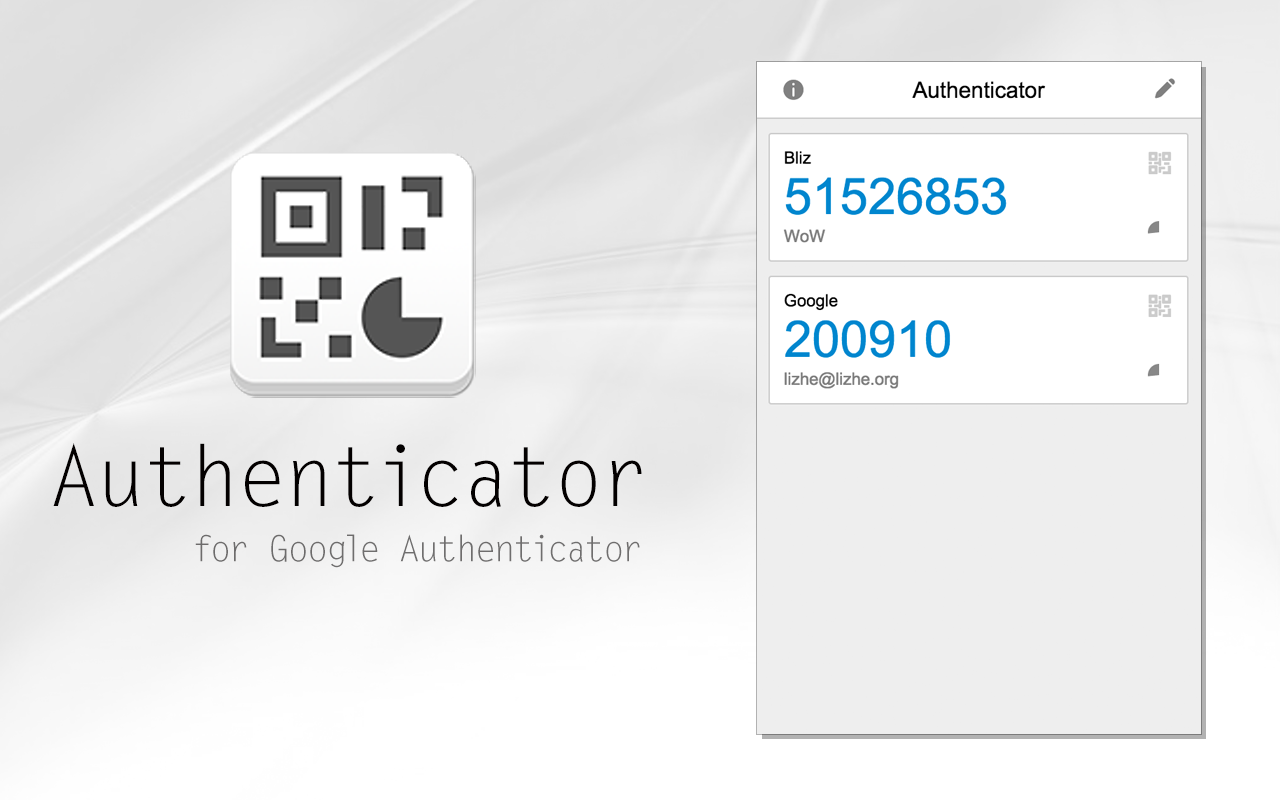
Image source: Chrome Web Store - Google
Frequently Asked Questions
Yes. While you typically need a phone to set up 2-Step Verification initially, you can choose the "Can't scan it?" option during setup to get a manual secret key. You can then enter this key into a desktop extension or app, allowing you to generate codes entirely on your PC without ever needing a mobile device.
No. Google does not provide an official .exe or .msi installer for Windows. You should be extremely cautious of any website claiming to offer a "Google Authenticator for Desktop" download, as these are frequently used to distribute malware. Only use trusted browser extensions or apps from the official Microsoft and Mac App Stores.
Most desktop authenticator tools include a "Screen Capture" or "Scan" tool. When you click this, your cursor will turn into a crosshair. You then click and drag a box over the QR code displayed in your web browser. The software will analyze the pixels within that box to extract the 2FA secret key.
If you lose your computer and haven't backed up your 2FA secrets, you could be locked out of your accounts. This is why it is critical to save your "Backup Codes" (provided by Google during 2FA setup) in a safe, physical location. Alternatively, use an authenticator that supports encrypted cloud sync, such as Bitwarden or the synced version of the Authenticator extension.
Yes. The TOTP algorithm (Time-based One-Time Password) is purely mathematical and does not require an internet connection to generate codes. As long as your computer's internal clock is accurate, the extension will generate valid codes even if you are completely offline.
Final Thoughts
Using Google Authenticator on a desktop PC or Mac is a highly effective way to balance security and convenience. By following these key steps, you can ensure a smooth and secure experience:
- Confirm no official app exists and avoid downloading third-party .exe files from untrusted sources.
- Choose a reputable extension like "Authenticator" for Chrome or a native Store app for Windows/Mac.
- Always set an encryption password within your desktop tool to protect your local 2FA database.
- Sync your system clock regularly to prevent "Invalid Code" errors caused by time drift.
- Keep physical backup codes in a secure location in case your primary device is lost or fails.
- Transition to Passkeys where possible for a more secure, phishing-resistant login experience.
Start by auditing your most critical accounts today and ensuring your 2FA secrets are backed up and encrypted.
-
Topic: Authenticator - Chrome Web Store - Googlehttps://chromewebstore.google.com/detail/authenticator/bhghoamapcdpbohphigoooaddinpkbai?hl=en
-
Topic: Google Authenticator - Apps on Google Playhttps://play.google.com/store/apps/details?id=com.google.android.apps.authenticator2&hl=en_US
-
Topic: Turn on 2-Step Verification - Computerhttps://support.google.com/accounts/answer/185839?hl=en&co=GENIE.Platform%3DDesktop

How to Use the inurl: Search Operator for SEO Audits and Site Security
Learn to use the inurl: operator for SEO audits and security. Fix errors and master advanced search strings for 2026.


How to Personalize and Secure Your Lock Screen on Every Device
Learn to customize your lock screen with 4K wallpapers and widgets while keeping data secure on Windows, Android, and iOS devices.

How to Set Up and Use the NYU VPN on Any Device
Learn how to install Cisco Secure Client, solve the NYU VPN second password mystery, and access library resources from anywhere in the world.