
How to Set Up and Use the NYU VPN on Any Device
To connect to the NYU VPN, you need the
Cisco Secure Client
(formerly AnyConnect). Download it from the NYU IT software portal and use the server address
vpn.nyu.edu
. When prompted for a "Second Password," type
push
to receive a Duo notification on your phone. This connection is essential for accessing library databases, campus printers, and internal network drives from off-campus.
Understanding the Role of the NYU Virtual Private Network
The NYU Virtual Private Network (VPN) acts as a secure, encrypted tunnel between your personal device and the university's internal network. In an era where digital security is paramount, the VPN ensures that your data remains protected, especially when using unsecured public Wi-Fi networks at cafes or airports. According to NYU Law IT guidelines , the VPN is a primary requirement for accessing sensitive university systems.
Beyond security, the VPN provides you with an NYU-affiliated IP address. This is critical for several academic and administrative tasks:
- Library Research: Many academic journals and databases require an on-campus connection to grant access. The VPN allows you to browse these resources as if you were sitting in Bobst Library.
- Network Drives: Accessing your personal H: drive or departmental F: drive requires a secure connection to the NYU-NET.
- Remote Printing: If you need to send a document to a Pharos printer from your apartment, the VPN facilitates that connection.
- Administrative Tools: Certain HR and financial systems are restricted to the university network for compliance and security reasons.
Decoding the NYU VPN Second Password Prompt
The most frequent point of confusion for new users is the "Second Password" field in the Cisco login box. Contrary to what the name suggests, this is not a traditional alphanumeric password. Instead, it is a command field for Duo Security Multi-Factor Authentication (MFA) .
When you see this prompt, you must tell the system how you want to verify your identity. If you leave it blank or enter your NetID password again, the login will fail. This mechanism is a top-tier security feature that prevents unauthorized access even if your primary password is compromised.
Common Duo Security Commands for Authentication
Use the following commands in the Second Password field to complete your login. These commands are widely considered the standard method for interacting with NYU's authentication gateway.
| Command | Action Performed | Best For... |
|---|---|---|
push
|
Sends a notification to your Duo Mobile app. | Fastest, most convenient option. |
phone1
|
Calls your primary registered phone number. | Users without a smartphone or reliable data. |
sms
|
Texts a batch of codes to your phone. | Low-signal areas where apps won't load. |
[6-digit code]
|
Enter the code generated by your Duo app. | Offline use or when notifications are delayed. |
push2
or
phone2
to target your secondary device.
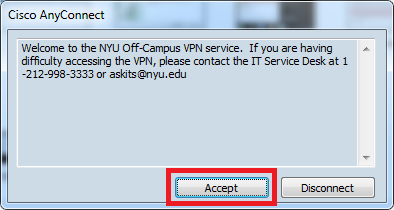
Image source: NYU School of Law
Transitioning from Cisco AnyConnect to Cisco Secure Client
As of late 2024 and moving into 2026, NYU has transitioned its primary VPN software. While many older guides still refer to "Cisco AnyConnect," the software has been rebranded as the Cisco Secure Client . This is a significant advancement in how Cisco manages security modules, integrating the VPN with other protection tools.
If you are searching for the download and only see "Cisco Secure Client," do not be concerned. It is the updated version of AnyConnect and functions identically for the end-user. According to NYU Psych/CNS IT documentation , the new client offers improved stability on modern operating systems like Windows 11 and macOS Sonoma/Sequoia.
Installation Steps for Windows and macOS Users
Setting up the VPN on a laptop is a straightforward process, but it requires administrative privileges on your machine. Follow this timeline to ensure a clean installation.
Visit the NYU IT software portal and log in with your NetID. Locate the Cisco Secure Client for your specific operating system (Windows or macOS).
Open the downloaded file. On Windows, this is an
.exe
or
.msi
; on Mac, it is a
.dmg
. Follow the prompts, ensuring that the "VPN" module is checked for installation.
macOS users may need to go to System Settings > Privacy & Security to "Allow" the Cisco system extension. This is a standard requirement for networking software.
Launch the application. In the text box, type
vpn.nyu.edu
and click Connect. Enter your credentials and the Duo command as discussed earlier.
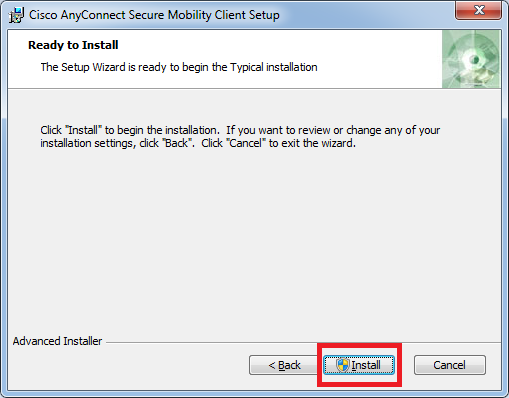
Image source: NYU School of Law
Advanced Configuration for Linux Systems Using OpenConnect
While official support for Linux is often limited, power users can connect to the NYU VPN using OpenConnect , an open-source client that is exceptionally strong and often more stable than the official Cisco client on Linux distributions. This is a popular choice for students in Computer Science or Data Science who rely on Ubuntu, Fedora, or Arch Linux.
To get started, you will need to install the necessary packages. On Debian-based systems (like Ubuntu), run:
sudo apt install openconnect network-manager-openconnect-gnomeOnce installed, you can connect via the command line using the following syntax:
sudo openconnect --authgroup="NYU VPN: All Traffic" vpn.nyu.edu
The
--authgroup
flag is essential as it tells the server which tunneling mode to use. According to
community-maintained Linux guides
, this method bypasses many of the UI bugs found in the official Cisco Linux client.
Comparing All Traffic and NYU-NET Traffic Only Modes
When you log in, you will often be presented with a dropdown menu to choose your connection profile. Understanding the difference between these two modes is key to optimizing your internet speed and access.
| Mode | How it Works (Tunneling) | Recommended Use Case |
|---|---|---|
| All Traffic | Every single byte of data you send/receive goes through NYU's servers. | Accessing library journals, maximum security on public Wi-Fi, bypassing regional blocks. |
| NYU-NET Only | Only traffic destined for NYU sites goes through the VPN; other traffic (like Netflix) uses your local ISP. | Accessing F/H drives while maintaining high speeds for gaming or video streaming. |
For most students doing research, All Traffic is the preferred choice. If you use "NYU-NET Only," you may find that library databases still ask you to pay for articles because the database provider doesn't recognize your local IP address as belonging to NYU.
Regional Configurations for NYU Shanghai and Abu Dhabi
NYU's global network requires specific considerations for students at the Shanghai and Abu Dhabi campuses. For students at NYU Shanghai , the VPN is a vital tool for maintaining "unlimited internet access." Because of regional internet restrictions, the VPN allows students to access global resources like Google Workspace, YouTube, and Facebook, which are necessary for the NYU curriculum.
According to the NYU Shanghai IT portal , students can also access support via a dedicated WeChat channel, which is often faster for troubleshooting regional connectivity issues. In NYU Abu Dhabi , the VPN is frequently used by researchers to access High-Performance Computing (HPC) clusters. These users should ensure they are using the "All Traffic" profile to maintain a stable handshake with the cluster nodes.
Accessing NYU Library Resources from Off-Campus Locations
The primary reason many students use the VPN is to access the vast digital collection of the NYU Libraries . While the library uses a service called EZProxy for some links, the VPN provides a more seamless experience.
Ensure your VPN client is active and set to the "All Traffic" profile. This ensures the library's authentication system sees you as an on-campus user.
Go to library.nyu.edu. You should see a banner or indicator that you are recognized as an NYU user.
Search for your desired journal or book. When you click the "Full Text Available" link, you should be granted immediate access without a secondary login prompt.
Resolving Common Technical Issues and Errors
Even with a correct setup, you may encounter technical hurdles. Here are the most effective fixes for common NYU VPN problems.
Fixing Installation Failures on macOS
If you try to reinstall the client and receive an error stating a version is already installed (even if you deleted the app), you may have a "ghost" package receipt. Open the Terminal and run:
sudo pkgutil --forget com.cisco.pkg.anyconnect.vpnThis command clears the system's memory of the previous installation, allowing the new installer to run successfully.
Addressing Connection Subsystem Errors on Windows
Windows users sometimes see an error: "The VPN connection failed due to unsuccessful domain name resolution." This often happens if the Cisco service has stalled. To fix this:
-
Press
Win + R, typeservices.msc, and hit Enter. - Find Cisco AnyConnect Secure Mobility Agent .
- Right-click it and select Restart .
Frequently Asked Questions About NYU VPN
The official server address is vpn.nyu.edu . You must enter this manually into the Cisco Secure Client the first time you use it. The software will usually remember this address for future sessions, but if you ever lose your settings, this is the URL to return to.
This is almost always due to the "Second Password" field. Remember that this field requires a Duo command like
push
or a 6-digit code from your Duo app. If you enter your NetID password in both fields, the system will reject the attempt as a security precaution.
Yes, the Cisco Secure Client is available for both iOS and Android. You can download it from the Apple App Store or Google Play Store. The setup is identical: use
vpn.nyu.edu
as the server and authenticate using your NetID and Duo.
Generally, no. If you are connected to the "nyu" or "nyu-guest" Wi-Fi networks on campus, you are already inside the university's trusted network. However, using the VPN on the "nyu-guest" network can provide an extra layer of encryption for your personal data.
Yes, the NYU VPN is a primary tool for students traveling or living abroad in regions with restricted internet access. By connecting to the NYU network, you can access the global internet as if you were in New York, which is essential for completing coursework and staying connected.
Key Takeaways for Using the NYU VPN Effectively
-
Always use the correct server:
Ensure
vpn.nyu.eduis entered in your client. -
Master the Duo commands:
Use
pushin the second password field for the fastest login. - Choose the right profile: Use "All Traffic" for library research and "NYU-NET Only" for local speed.
- Keep software updated: Transition to the Cisco Secure Client for the best compatibility with modern OS versions.
- Troubleshoot with services: Restart the Cisco agent in Windows Services if you encounter connection errors.
- Global access: Use the VPN to bypass regional restrictions when studying at global sites like Shanghai.
By following these steps, you can maintain a secure and productive connection to NYU's digital resources from anywhere in the world.
-
Topic: NYU VPN (Virtual Private Network)https://www.nyu.edu/life/information-technology/infrastructure/network-services/vpn.html
-
Topic: NYU VPN Installationhttps://www.law.nyu.edu/technology/helpdesk/vpn
-
Topic: Install & Connect to NYU VPN (Cisco AnyConnect)https://psychcns.freshdesk.com/support/solutions/articles/43000185797-install-connect-to-nyu-vpn-cisco-anyconnect-

How to Set Up and Use Google Authenticator on Your Desktop PC or Mac
Learn how to set up Google Authenticator on Windows and Mac using extensions, apps, and passkeys. Fix sync issues and secure your 2FA codes today.


What is acvpnui.exe and How Do You Use the Cisco Secure Client?
Learn what acvpnui.exe is, how to fix Cisco Secure Client errors, and why AnyConnect rebranded. Includes Windows 11 and macOS Sequoia fixes.


How to Use the inurl: Search Operator for SEO Audits and Site Security
Learn to use the inurl: operator for SEO audits and security. Fix errors and master advanced search strings for 2026.