What is acvpnui.exe and How Do You Use the Cisco Secure Client?
acvpnui.exe is the executable file for the AnyConnect VPN User Interface . It serves as the graphical front-end for the Cisco Secure Client (formerly AnyConnect), allowing users to enter server addresses, authenticate, and manage their secure remote connections. As of version 5.0, Cisco has rebranded this suite to Cisco Secure Client , transitioning it from a standalone VPN tool into a modular security endpoint. If you see this process in your Task Manager, it is a legitimate component of your corporate or university VPN software.
What Exactly Does the acvpnui Process Do?
Understanding the role of
acvpnui.exe
requires a look at how modern VPNs are architected. In the Cisco ecosystem, the software is split between the "Control Plane" and the "Data Plane." The
acvpnui
process handles the Control Plane. This includes the visual elements you interact with: the login box, the status notifications, and the settings menu. According to
Cisco Live technical documentation
, while the UI process manages your interaction, a separate background service called
acvpnagent.exe
handles the heavy lifting of the Data Plane, such as encrypting traffic and maintaining the tunnel.
When you launch the Cisco Secure Client,
acvpnui.exe
initializes and attempts to communicate with the local agent service. If the agent isn't running, the UI will often hang or display an error. This separation of duties is a security feature; it ensures that even if the user interface crashes, the secure tunnel can remain active in the background, protecting your data until the UI is restarted.
Is it malware? In almost all cases, no. However, security-conscious users should always verify the file's digital signature. A genuine
acvpnui.exe
will be digitally signed by
Cisco Systems, Inc.
and located within the official Cisco program folders. If you find a file with this name in a temporary folder or the
System32
directory, it may be a malicious process masquerading as legitimate software.
Why Did Cisco AnyConnect Change to Cisco Secure Client?
For over a decade, "AnyConnect" was the standard name for Cisco's remote access solution. However, starting with version 5.0 , Cisco implemented a significant rebranding strategy. The tool is now officially known as the Cisco Secure Client . This change isn't just cosmetic; it reflects a shift in how Cisco views endpoint security. Rather than being a simple VPN client, the software is now a modular platform that can host various security services.
acvpnui.exe
.
One of the most noticeable changes for users is the authentication method. As noted by Berkeley Lab's IT department , newer versions often redirect users to their system's default web browser for SAML or Single Sign-On (SSO) logins. This is a top-tier security practice that allows organizations to use modern multi-factor authentication (MFA) like Duo or Microsoft Authenticator more seamlessly than the old embedded pop-up windows allowed.
| Feature | AnyConnect (Legacy 4.x) | Cisco Secure Client (Modern 5.x) |
|---|---|---|
| Primary Branding | AnyConnect Secure Mobility | Cisco Secure Client |
| Authentication | Embedded Pop-up Window | System Browser (SAML/SSO) |
| Architecture | Monolithic VPN Client | Modular Security Platform |
| Default Path | ...\Cisco AnyConnect Secure... | ...\Cisco Secure Client\ |
Where to Find the acvpnui File on Your Computer
If you need to create a desktop shortcut or troubleshoot a path error, knowing where
acvpnui.exe
lives is essential. The location changed slightly during the rebranding, which often confuses users who are following older IT guides. On Windows, the software is typically installed in the 32-bit program files directory, even on 64-bit systems.
C:\Program Files (x86)\Cisco\Cisco Secure Client\
C:\Program Files (x86)\Cisco\Cisco AnyConnect Secure Mobility Client\
/Applications/Cisco/
If you cannot find the application after an update, it is often because the installer removed the old "AnyConnect" shortcut but failed to place a new "Cisco Secure Client" shortcut on your desktop. You can manually navigate to the paths above, right-click
acvpnui.exe
, and select "Send to > Desktop (create shortcut)" to restore easy access.
How to Install Cisco Secure Client Without Performance Issues
A common mistake during installation is selecting every available module. Cisco Secure Client is designed to be modular, but many of these modules are only necessary for specific corporate environments. Installing unnecessary components can lead to what IT professionals call "Module Bloat," which may degrade your system performance or cause network conflicts.
According to UNC Kenan-Flagler IT guidelines , users should be selective during the installation process. If your IT department provides a custom installer, these choices might be pre-set, but if you are performing a manual installation, keep the following in mind:
- Core VPN: Mandatory. This is the heart of the client.
- DART (Diagnostic and Reporting Tool): Highly recommended. This helps IT troubleshoot your connection issues.
- AnyConnect Posture: Often required by universities to ensure your OS is up to date.
- Umbrella / Web Security: Avoid unless explicitly instructed. These can conflict with home DNS settings or local firewalls.
Fixing Common acvpnui.exe Errors and Crashes
Even though Cisco Secure Client ranks among the top enterprise VPN solutions, it is not immune to software conflicts. Most issues arise from interactions with the operating system's security features or third-party antivirus software.
How to Fix the Windows 11 Reputation-Based Protection Conflict
In recent months, a specific conflict has emerged between Windows 11 and the Cisco Secure Client. Users report that
acvpnui.exe
fails to launch or the service is blocked from initializing. This is frequently caused by the "Reputation-Based Protection" feature in Windows Security, which may flag the VPN's background communication as suspicious.
To resolve this, follow these steps:
- Open Windows Security from your Start menu.
- Navigate to App & browser control .
- Click on Reputation-based protection settings .
- Locate the toggle for Check apps and files and turn it off temporarily to see if the VPN launches.
- If the VPN works, you can add an exclusion for the Cisco folder rather than leaving the protection off entirely.
Solving the "User Interface Has Stopped Working" Error
This error usually indicates a crash in the
vpnui.exe
or
acvpnui.exe
process, often linked to a corrupted
vpnapi.dll
file. This typically happens after a partial update or a system crash. The most effective fix is to restart the underlying service that the UI relies on.
Press
Win + R
, type
services.msc
, and hit Enter. Look for the
Cisco Secure Client - AnyConnect VPN Agent
. Right-click it and select
Restart
. Once the service has cycled, try launching the UI again. If the problem persists, a clean reinstall is usually the next step.
Troubleshooting Socket Transport Errors (0xFE1E0021)
The error code
0xFE1E0021
is a common headache for remote workers. It signifies a "Socket Transport Error," which essentially means the
acvpnui
interface cannot talk to the VPN gateway because something is blocking the network path. This is rarely a problem with the Cisco software itself and is usually caused by a local firewall, a third-party antivirus (like Sophos or Norton), or an aggressive home router setting.
How to Enable the Cisco Socket Filter on macOS Sequoia
Mac users face a unique challenge with newer versions of macOS, such as Sequoia. Apple has tightened security around network extensions, meaning that even if you install the VPN correctly, it may fail to connect without a specific manual permission. This is one of the most common reasons for "Connection Failed" errors on macOS despite having the correct credentials.
As detailed by UCI's Office of Information Technology , you must manually enable the Socket Filter . Without this, the VPN cannot intercept and encrypt your network traffic. Follow this path to fix the issue:
- Open System Settings on your Mac.
- Go to Login Items & Extensions .
- Scroll down to Network Extensions and click the info (i) icon.
- Find Cisco Secure Client - Socket Filter.app and toggle it to the ON position.
- Restart the Cisco Secure Client application.
Using OpenConnect as an acvpnui Alternative for Linux
While Cisco provides a Linux version of the Secure Client, many users find the graphical
acvpnui
interface to be less reliable on distributions like Ubuntu, Fedora, or Arch. In the Linux community, a popular choice is
OpenConnect
, an open-source client that is compatible with Cisco's AnyConnect gateways.
OpenConnect is often preferred because it integrates directly into the system's Network Manager, allowing you to manage your VPN just like a Wi-Fi connection. To connect via the terminal, you would typically use a command like:
sudo openconnect [Your-VPN-Gateway-URL]
One notable tip for Linux users: if your connection hangs during the "DTLS handshake," you may need to use the
--no-dtls
argument. This forces the connection to stay on the standard TLS path, which is often more stable on certain network configurations. While this might slightly increase latency, it is a significant advancement in stability for users on restricted networks.
Advanced Settings for a More Stable VPN Connection
For power users and IT admins, the default settings of the Cisco Secure Client are not always optimal for every environment. Adjusting how the client handles network drops can significantly improve the user experience, especially for those who move between Wi-Fi and cellular connections.
Dead Peer Detection (DPD) Optimization: DPD is the mechanism the VPN uses to check if the connection is still alive. If the intervals are too short, the VPN might disconnect during a brief Wi-Fi hiccup. Cisco TAC (Technical Assistance Center) often recommends setting the Client DPD to 30 seconds and the Server DPD to 300 seconds . This allows the client to enter a "Waiting to Resume" state rather than dropping the tunnel entirely when you switch networks.
MTU Adjustment: If you can connect to the VPN but cannot load any websites or access internal servers, you might be experiencing an MTU (Maximum Transmission Unit) mismatch. Lowering the MTU in the Cisco profile settings (often to 1200 or 1300) can prevent packet fragmentation, which is a frequent cause of "connected but no traffic" issues on home fiber connections.
How to Read DART Logs to Solve Complex Issues
When basic troubleshooting fails, the
Diagnostic and Reporting Tool (DART)
is your best resource. DART bundles all the logs from
acvpnui.exe
, the background agent, and the system event viewer into a single zip file. While these logs are intended for IT professionals, knowing how to spot a few key error codes can save you hours of frustration.
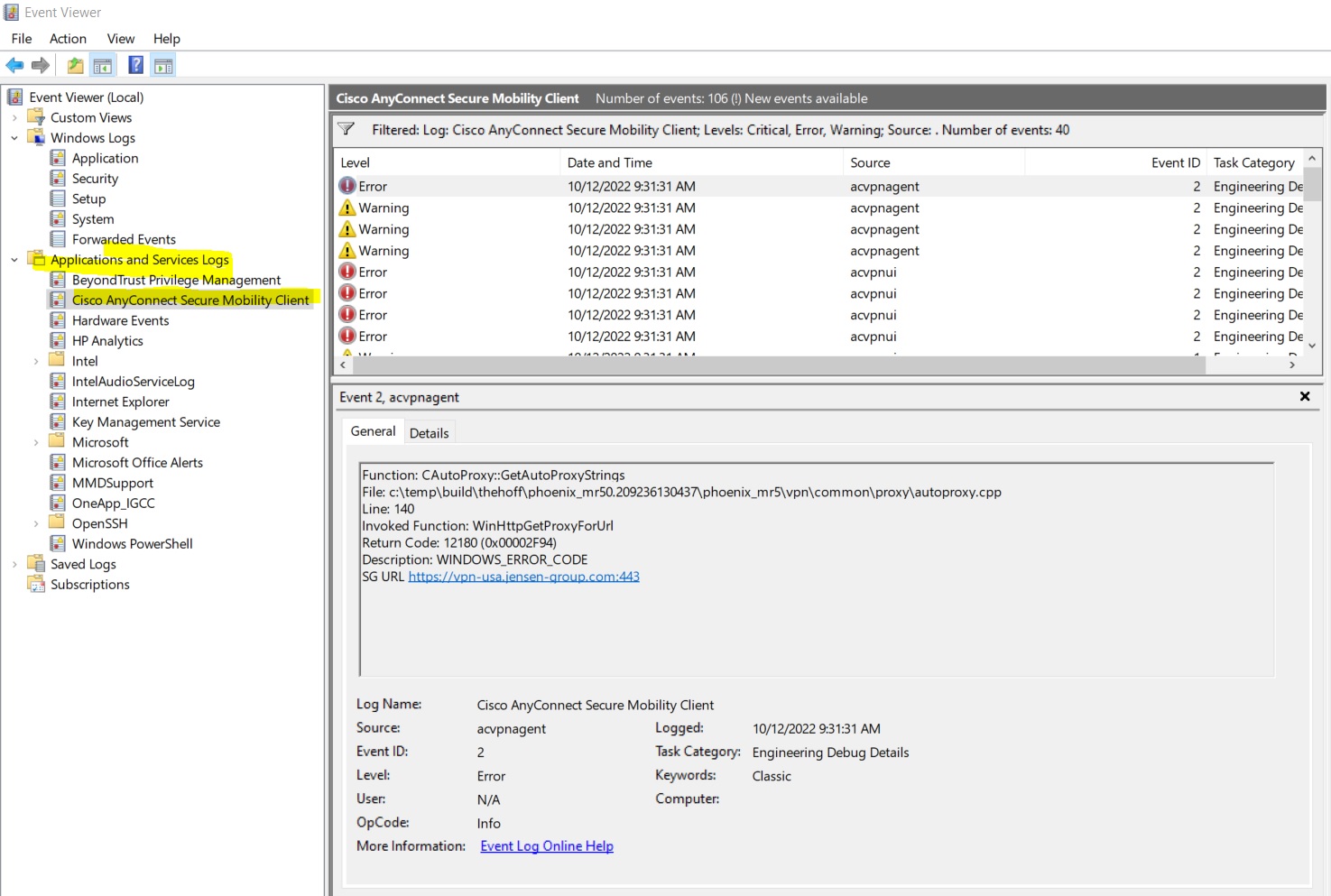
Image source: Cisco Community
Common error codes found in DART logs include:
- 0x800B010A: This indicates a certificate chain error. It usually means your computer's clock is wrong or the VPN server's security certificate has expired.
-
10061:
This is a "Connection Refused" error. It almost always means the
acvpnagentservice is not running on your local machine. - 0xFE1E0021: As mentioned earlier, this is a socket transport error, pointing toward a local firewall or antivirus block.
Frequently Asked Questions
acvpnui.exe
is a legitimate component of the Cisco Secure Client (formerly AnyConnect). It is the user interface that allows you to connect to your organization's private network. However, you should always ensure the file is located in the
C:\Program Files (x86)\Cisco\
directory and is digitally signed by Cisco Systems, Inc. to ensure it hasn't been replaced by a malicious file.
Ctrl + Shift + Esc
, go to the
Startup
tab, find "Cisco Secure Client," and select
Disable
. Note that while this stops the UI from appearing, the background agent service may still run to support "Always-On" VPN features if your IT department has configured them.
vpnui.exe
was the filename used in older versions of AnyConnect (3.x and earlier).
acvpnui.exe
is the modern filename used in versions 4.x and the new 5.x Secure Client. If you see both, you likely have a messy installation that requires a clean removal and reinstall.
services.msc
. If that fails, check your Windows Security settings to ensure the app isn't being blocked by the "Check apps and files" feature.
The Bottom Line
Managing the
acvpnui.exe
process and the transition to Cisco Secure Client doesn't have to be complicated. Here are the key takeaways to keep your connection stable:
- Verify the Rebrand: Ensure you are using Cisco Secure Client (v5.0+) for the latest security updates and compatibility.
- Check Permissions: If you are on macOS, remember to manually enable the Socket Filter in System Settings.
- Fix Windows Blocks: Disable Reputation-Based Protection if the UI fails to launch on Windows 11.
- Minimize Modules: Only install the VPN and DART modules to prevent home network and performance issues.
-
Restart the Agent:
Most "UI stopped working" errors are solved by restarting the
acvpnagent
service in
services.msc. - Use DART: When all else fails, generate a DART bundle to provide your IT team with the specific error codes they need.
By following these steps, you can ensure that your remote access remains secure and your system performance stays high. For the most stable experience, always check for software updates through your organization's official portal.
-
Topic: Secure Client (including AnyConnect)https://www.cisco.com/site/us/en/products/security/secure-client/index.html
-
Topic: Secure Client (AnyConnect VPN Client Software) Pre ... - IUwarehttps://iuware.iu.edu/Mac/List/7/Titles/75
-
Topic: Windows updates for windows 11 and 10 affecting Cisco ...https://learn.microsoft.com/en-us/answers/questions/1194464/windows-updates-for-windows-11-and-10-affecting-ci

How to Set Up and Use the NYU VPN on Any Device
Learn how to install Cisco Secure Client, solve the NYU VPN second password mystery, and access library resources from anywhere in the world.


How to Fix the Google Our Systems Have Detected Unusual Traffic Error
Stuck on the Google unusual traffic error? Learn how to bypass the CAPTCHA, fix VPN issues, and remove ClickFix malware on iPhone and Desktop.


How to Understand and Use More Options in Language and Technology
Learn the meaning of more options, find professional synonyms, identify UI icons like the kebab menu, and fix Windows 11 menu bugs.