How to Set Up and Use the New Tab Redirect Extension Safely
The
new tab redirect extension
allows you to replace the default browser new tab page with any URL or local file. To set it up, install the official version by Jim Schubert, navigate to the extension options, and enter your desired destination. For local files, you must manually enable "Allow access to file URLs" in your browser's extension settings. While it doesn't automatically focus the address bar due to security restrictions, using
CTRL + L
provides a fast workaround for power users.
Modern web browsers often clutter the new tab page with sponsored content, news feeds, and tracking scripts. For users seeking a minimalist or highly customized browsing experience, the
new tab redirect extension
stands out as a top choice. It serves as a utility to bypass these default distractions, allowing you to land exactly where you want—whether that is a clean
about:blank
page, a work dashboard, or a custom-coded local HTML file.
In this guide, we will explore the technical nuances of setting up this tool safely, addressing common pitfalls like address bar focus limitations and the "trust gap" between different browser stores. With over 700,000 users and an open-source MIT license, the official extension by Jim Schubert remains a highly regarded solution for browser customization in 2026.
How to Install the Official New Tab Redirect Extension
Finding the correct version of the extension is the first step toward a secure setup. Because "New Tab Redirect" is a generic name, several clones exist across different stores, some of which may include unwanted telemetry or "AI Search" features that compromise privacy.
Finding the Right Version for Chrome and Edge
For Chrome users, the official New Tab Redirect extension is developed by Jim Schubert. It is lightweight (approximately 1.52MiB) and requires minimal permissions. When installing, ensure the developer name matches to avoid third-party forks that might track your browsing habits.
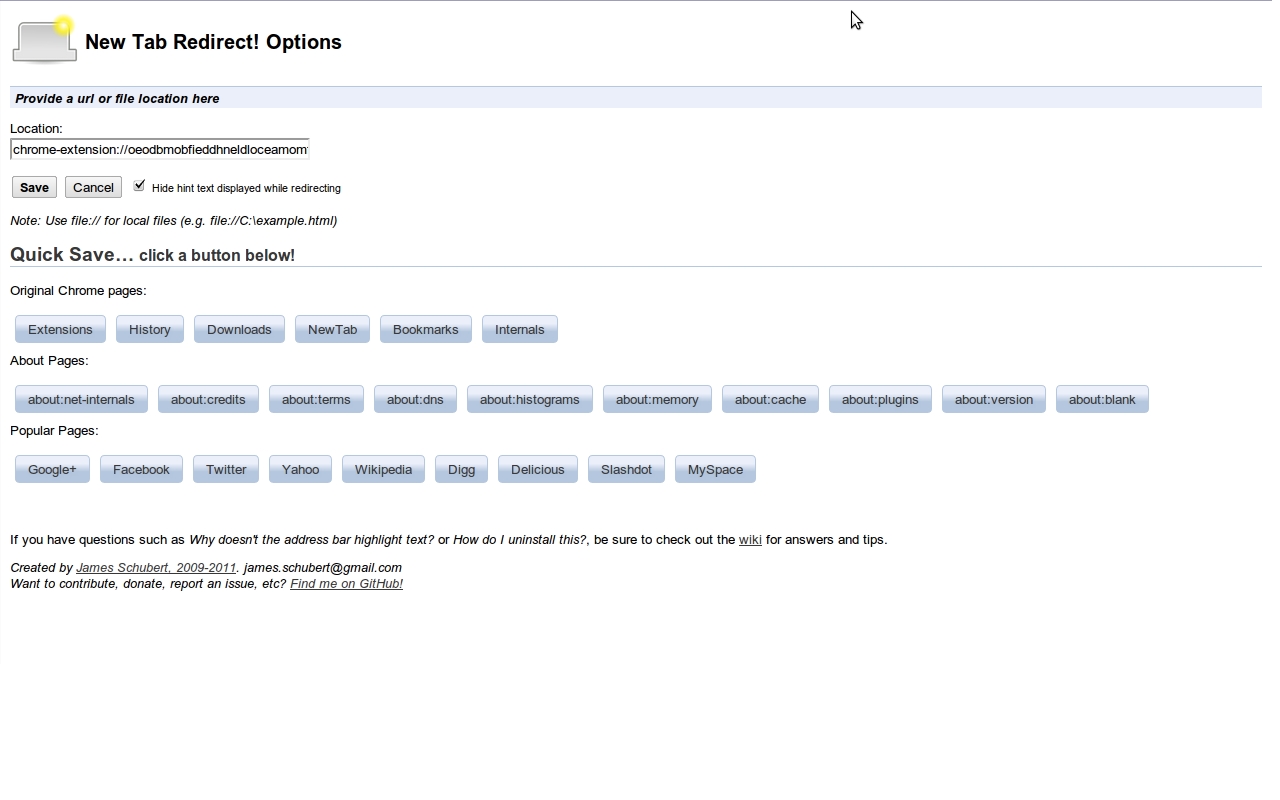
Image source: New Tab Redirect - Chrome Web Store
Setting Up Your First Redirect URL
Once installed, the extension will not work until you provide a destination. Follow these steps to configure your first redirect:
- Click the Extensions icon (puzzle piece) in your browser toolbar and select "New Tab Redirect."
- Choose Options from the menu.
-
In the "Redirect URL" field, enter your desired address. This can be a full website (e.g.,
https://www.google.com) or a browser internal page likeabout:blank. - Click the Save button. This is a crucial step; many users navigate away without saving, causing the extension to fail on the next new tab.
Why Does the Address Bar Not Focus Automatically?
One of the most frequent complaints from new users is that the cursor does not automatically appear in the address bar (Omnibar) when a new tab opens. This is often perceived as a bug, but it is actually a deliberate security feature implemented by browser developers.
Understanding the Chrome API Limitation
Google Chrome and other Chromium-based browsers restrict extensions from programmatically focusing the address bar when a custom URL is loaded. According to developer Jim Schubert, this is a security measure designed to prevent URL spoofing and phishing attacks. If an extension could force focus and manipulate the address bar content, it could trick users into entering credentials on a malicious site that looks like a legitimate one.
The Expert Workaround for Faster Browsing
While the extension cannot bypass this browser-level restriction, power users can maintain their speed by using keyboard shortcuts. Instead of reaching for the mouse, use these commands immediately after opening a new tab:
-
Windows/Linux:
CTRL + LorF6 -
Mac:
CMD + L
These shortcuts instantly highlight the address bar, allowing you to start typing a new search or URL without delay. While not as seamless as an automatic focus, it is the most efficient way to navigate while maintaining browser security.
How to Create a Private Offline Dashboard Using Local Files
For those who prioritize privacy and speed, using a local HTML file as a new tab page is an excellent choice. This method allows you to build a custom dashboard that works offline and does not send data to any third-party servers.
Why Use a Local File Instead of a Website?
Redirecting to a live website introduces a slight delay as the browser fetches data. A local file, however, loads almost instantaneously. Furthermore, many "productivity" extensions that offer custom dashboards collect telemetry on your browsing habits. By coding your own simple HTML file, you retain 100% control over your data.
Step-by-Step: Enabling File URL Access
This is the primary point of failure for advanced users. By default, browsers block extensions from interacting with local files for security reasons. You must manually grant this permission:
-
Type
chrome://extensionsin your address bar and press Enter. - Locate the New Tab Redirect extension card.
- Click the Details button.
- Scroll down to find the toggle labeled "Allow access to file URLs" and switch it to ON .
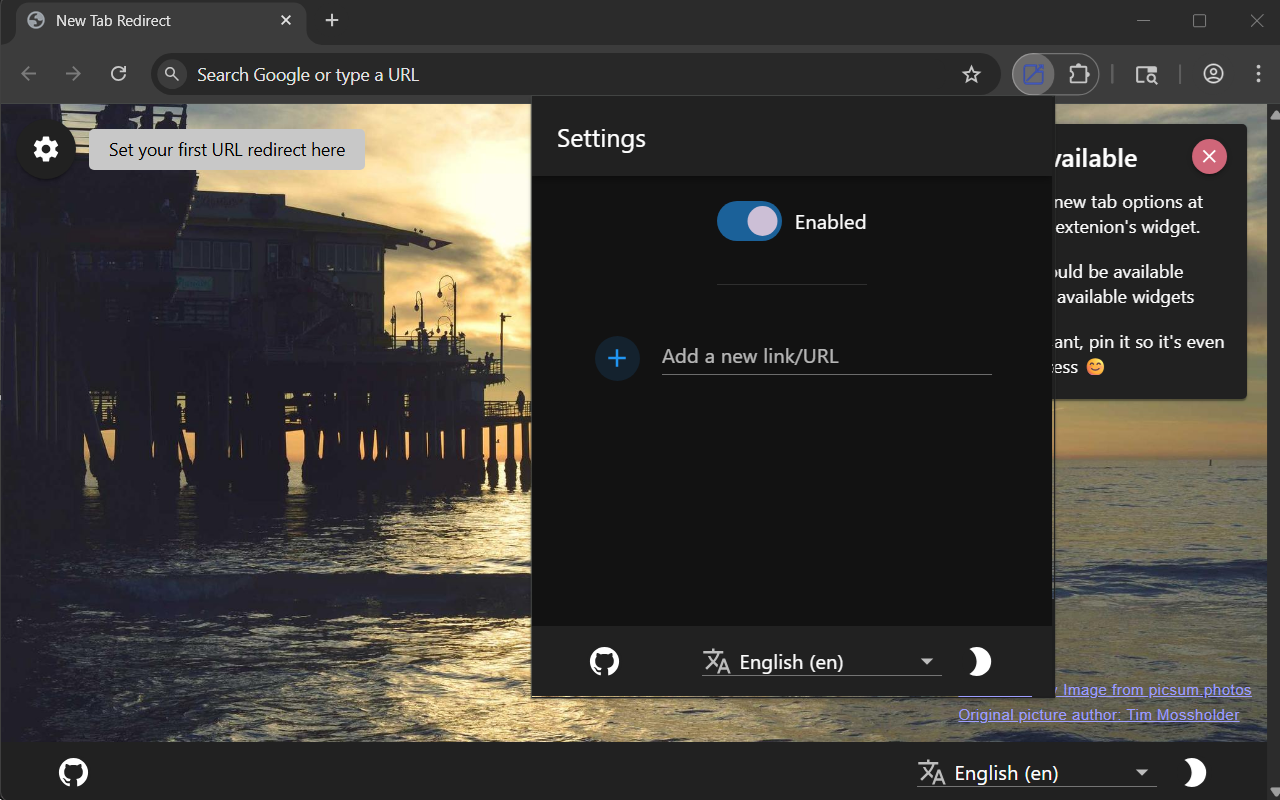
Image source: New Tab Redirect - Chrome Web Store
Formatting the File Path Correctly
When entering the path in the extension options, you must use the correct prefix. A common mistake is using standard folder paths like
C:\Users\Name\index.html
. Instead, use the file URI scheme:
- Windows Path Example
-
file:///C:/Users/YourName/Documents/dashboard.html - Mac/Linux Path Example
-
file:///Users/YourName/Documents/dashboard.html
How to Fix the Extension Not Working in Incognito Mode
Many users report that the extension "stops working" when they open a private or Incognito window. This is not a bug in the extension but a standard privacy protection feature of modern browsers.
The Privacy Default
To prevent extensions from tracking your private browsing sessions, browsers disable all extensions by default in Incognito mode. If you want your custom new tab to persist in private windows, you must opt-in manually.
Enabling Incognito Support
To enable the redirect in private mode, return to the
chrome://extensions
page and click
Details
on the New Tab Redirect extension. Look for the toggle labeled
"Allow in Incognito"
and turn it on. Be aware that once enabled, the extension can see the URLs you visit in Incognito mode if those pages are part of the redirect logic.
Why Microsoft Edge Flags New Tab Extensions as Malware
Users of Microsoft Edge often encounter aggressive warnings when trying to change their new tab page. Edge may flag the extension as "potentially harmful" or automatically disable it, claiming it is protecting your settings.
The "Competitive Tactic" vs. Real Threats
While security is the stated reason, many in the tech community view these warnings as a competitive tactic. Microsoft Edge's default new tab page is heavily integrated with Bing and Microsoft News, which generates significant ad revenue. By making it difficult to switch to a clean page, Microsoft encourages users to stay within their ecosystem. As of Edge Version 103 and later, these warnings have become more frequent, even for well-established, safe extensions.
| Feature | Native New Tab (Edge/Chrome) | Redirected New Tab |
|---|---|---|
| Ads & Sponsored Content | High | None |
| Tracking Scripts | Present | None (if using local/clean URL) |
| Load Speed | Variable (depends on feed) | Instant (if local or about:blank) |
| Customization | Limited | Unlimited |
The Security Story Behind the Extension
In an era where browser extensions are frequently bought by advertising firms to inject malware, the history of New Tab Redirect is a significant advancement in developer ethics.
The $50,000 Refusal
Developer Jim Schubert has publicly shared that he has received numerous offers to buy the extension, with some reaching as high as $50,000 . He has consistently refused these offers. The reason is simple: buyers typically want to acquire the massive user base (700,000+) to silently push updates that include data trackers or affiliate link injectors. By maintaining ownership and keeping the project open-source on GitHub , Schubert ensures the tool remains a safe utility for the community.
How to Spot a "Redirect Virus" vs. a Utility
It is important to distinguish between a legitimate utility and a "redirect virus." A redirect virus is malware that changes your search engine and new tab page without your consent, often sending you to suspicious sites like "Search Marquis" or "Yahoo" clones. A legitimate utility like New Tab Redirect:
- Requires explicit installation by the user.
- Provides a clear options page to set the destination.
- Does not change your default search engine.
- Is open-source and transparent about its code.
Frequently Asked Questions
Can I redirect to a specific "about:" page?
about:blank
for a perfectly white page,
chrome://history
to see your recent sites, or
chrome://downloads
for quick access to files. These internal pages load extremely fast because they are built directly into the browser.
Does this extension slow down my browser?
Will my settings sync across my laptop and desktop?
Can I use this on Firefox for Android?
What happens if I set the redirect to my homepage?
Final Thoughts
The New Tab Redirect extension remains a top-tier choice for users who value a clean, distraction-free browsing environment. By following the security best practices outlined in this guide, you can enjoy a fully customized experience without compromising your privacy.
- Install the official version by Jim Schubert to ensure you are using a safe, open-source tool.
- Enable "File URL" access in the extension details if you plan to use a local HTML dashboard.
- Manually toggle "Allow in Incognito" to maintain your custom settings during private browsing.
-
Use keyboard shortcuts
like
CTRL + Lto quickly focus the address bar and overcome browser API limits. - Verify the developer when using Edge to avoid third-party clones that may include unwanted AI features.
- Save your settings explicitly in the options menu to ensure your redirect persists.
To get started, download the extension from your browser's official store and try setting your redirect to
about:blank
for an immediate speed boost.
-
Topic: New tab Redirect - Edge Add-ons - Microsofthttps://microsoftedge.microsoft.com/addons/detail/new-tab-redirect/dggcmncjbhkegejpinbolgbnjkggdogf
-
Topic: NewTab Redirect! is an extension for Google Chrome ...https://github.com/jimschubert/newtab-redirect
-
Topic: New Tab Redirect Add On...https://www.reddit.com/r/edge/comments/m1iyo3/new_tab_redirect_add_on/

How to Use the New Tab Shortcut in Every Major Web Browser and App
Learn the new tab shortcut for Chrome, Safari, and Edge. Master keyboard commands to open links, restore tabs, and manage workflows on Mac and PC.


How to Fix a Chrome New Tab Page That Changed Without Your Permission
Is your Chrome new tab page redirecting to Yahoo or Bing? Learn how to fix search hijackers, remove extensions, and reset your default settings.


Where Is the URL Box and How Do You Use It on Every Device?
Locate the address bar on Chrome, Safari, iPhone, and Android. Fix a missing URL box and learn keyboard shortcuts for faster browsing.