How to Use the Google inurl Search Operator to Find Specific Pages and Subdirectories
inurl:keyword
directly into the search bar without spaces.
In the evolving landscape of search in 2026, mastering advanced syntax is more critical than ever for professionals who need to cut through the noise of AI-generated content and massive web indexes. While basic keyword searches serve general queries, the
inurl:
operator provides a surgical level of precision. Whether you are an SEO specialist auditing a legacy site or a researcher looking for localized government data, understanding the nuances of this operator ranks among the most valuable skills in digital information retrieval.
What Is the inurl Operator and How Does It Work?
The
inurl:
operator is a search syntax that instructs Google to filter its index for pages where the specified string appears anywhere in the Uniform Resource Locator (URL). This includes the domain name, the subdirectory folders, and the final page slug. According to
Marketing Miner
, this operator is a foundational tool for understanding how a website's architecture is indexed.
The Subdirectory Advantage
One of the primary reasons professionals prefer
inurl:
over the more common
site:
operator is its ability to penetrate deep folder structures. While
site:example.com
limits results to a specific domain, it often struggles to isolate specific paths within that domain if the site is large or complex.
For example, if you are searching for content within an old web archive or a site with a complex hierarchy (like the historical GeoCities structures),
inurl:
is often the only way to successfully isolate those paths. As noted by
O'Reilly Media
,
inurl:
is superior for searching subdirectories where the
site:
command might return too much irrelevant data from the root domain.
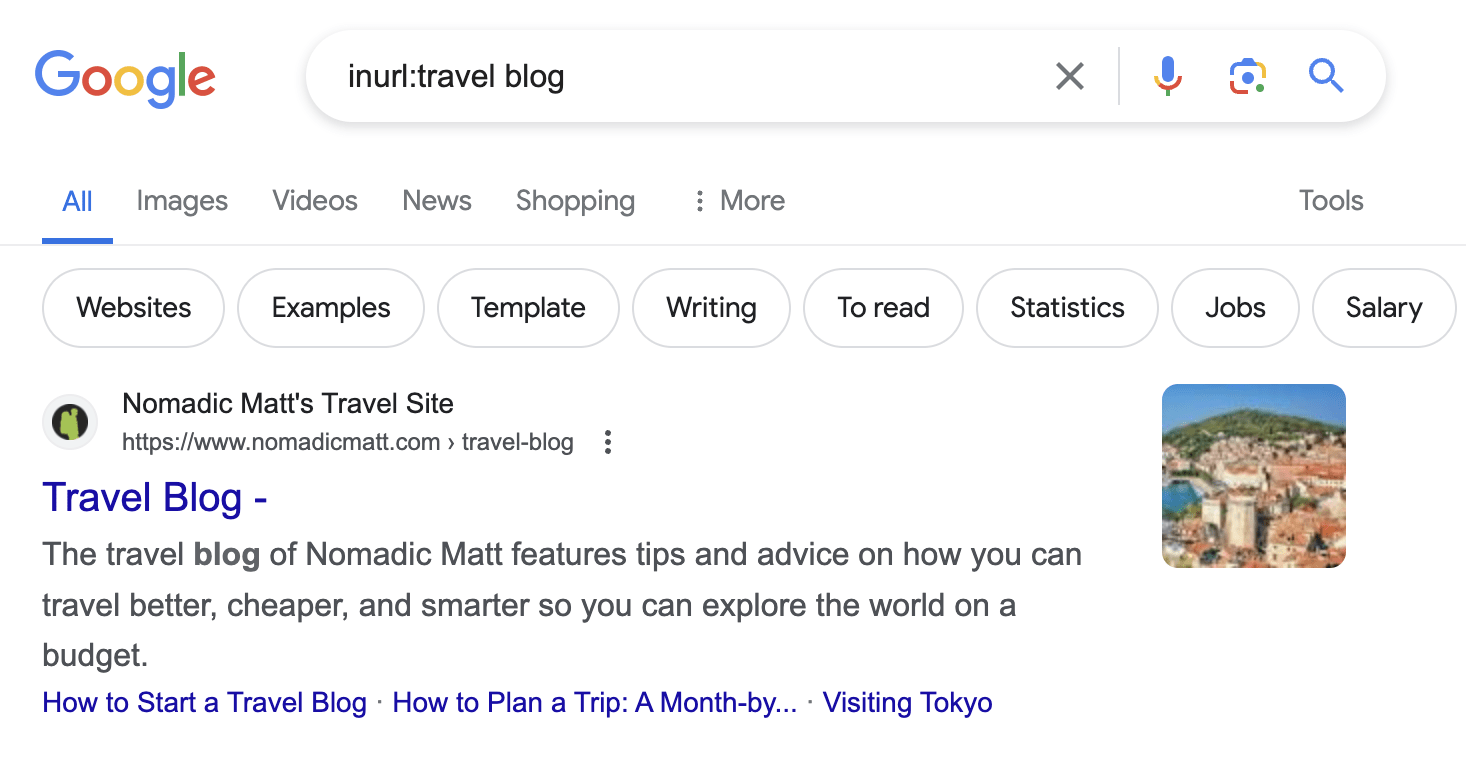
Image source: SEO PowerSuite
How to Format Your inurl Search Queries Correctly
Precision is the hallmark of effective search operators. Even a single misplaced character can cause the query to fail or return standard keyword results instead of filtered URL results.
The No-Space Rule
The most common mistake users make is adding a space after the colon.
❌
Incorrect:
inurl: blog
✅
Correct:
inurl:blog
When you add a space, Google treats "inurl:" as a standalone (and often invalid) command and "blog" as a standard keyword. To ensure the filter applies, the colon must be immediately followed by the target string.
Case Sensitivity and Substrings
The
inurl:
operator is case-insensitive. Searching for
inurl:Blog
will yield the same results as
inurl:blog
. Furthermore, it matches substrings. If you search for
inurl:port
, Google will return URLs containing "port", "portfolio", "report", and "airport". This makes it a highly flexible tool for finding related content categories.
http://
or
https://
in your
inurl:
queries. Including the protocol often breaks the operator's logic, as Google’s indexer treats the protocol as a separate metadata layer rather than a searchable part of the URL string in many contexts.
What Is the Difference Between inurl and allinurl?
Understanding the distinction between
inurl:
and
allinurl:
is essential for narrowing down results effectively. While they sound similar, their logical application differs significantly.
| Operator | Requirement | Best Use Case |
|---|---|---|
inurl:apple pie
|
"apple" must be in the URL; "pie" can be anywhere on the page. | Broad topical research where you want a specific category. |
allinurl:apple pie
|
Both "apple" and "pie" must appear within the URL string. | Finding specific product paths or highly targeted subfolders. |
site:example.com
|
Limits results to a specific domain or TLD. | Domain-wide audits and competitor site mapping. |
intitle:
|
Limits results to the page title tag. | Finding descriptive content that matches a specific headline. |
As a rule of thumb, use
inurl:
when you want to combine a URL requirement with other keywords or operators. Use
allinurl:
only when you are certain that every word in your query must exist within the URL path itself.
How to Use the inurl:greater Query for Specific Results
The specific query
inurl:greater
is a top choice for researchers looking for administrative, regional, or comparative data. Because the word "greater" is frequently used in specific contexts, this operator helps filter out generic mentions.
Finding Regional Subdirectories
Many government and news organizations organize their sites by metropolitan regions. Using
inurl:greater-london
or
inurl:greater-houston
allows you to bypass national news and jump straight to localized hubs. This is particularly useful for finding regional planning documents or local council records that are not always linked prominently from a homepage.
Mathematical and Programming Documentation
For developers,
inurl:greater-than-operator
is a highly effective way to find documentation for specific coding syntax. Since "greater than" is a common phrase in text, limiting the search to the URL ensures you find technical guides or API references rather than blog posts that happen to use the phrase in a sentence.
Comparison Content
SEO professionals often use this to find comparison articles. A URL containing
is-greater-than
or
greater-vs-lesser
often indicates a head-to-head review or a data-driven analysis. This is a strong contender for competitive research when you want to see how others are positioning similar products or concepts.
Advanced SEO Power Moves Using inurl
Beyond simple searches,
inurl:
is widely regarded as one of the most versatile tools for technical SEO and link building. By stacking it with other operators, you can uncover data that is otherwise hidden.
Link Building and Guest Posting
Finding high-quality guest posting opportunities is a cornerstone of link building. Instead of searching for "guest post" generally, use:
"marketing" inurl:write-for-us
This ensures the page you find is specifically the guidelines page for contributors, saving you hours of manual filtering.
Indexing Audits and Zombie Pages
Technical SEOs use
inurl:
to find "zombie pages"—pages that should not be indexed but are. For example, searching
site:yourdomain.com inurl:dev
or
site:yourdomain.com inurl:staging
can reveal development environments that were accidentally left open to Google's crawlers. Identifying these is a significant step forward in maintaining a clean site index.
Date-Specific Searching
Google's built-in date filters can sometimes be unreliable, especially for content that has been updated recently but originally published years ago. As suggested by
ResearchBuzz
, using
inurl:2025
or
inurl:2026
can help you find content that was specifically created within those directory structures, providing a more accurate chronological view of a site's output.

Image source: Marketing Miner
Why Is My inurl Search Not Working?
Even experienced users occasionally encounter issues where the
inurl:
operator seems to fail. In 2026, this is often due to the way Google's AI-driven search engine interprets intent.
http://
. These remain the most common reasons for operator failure.
If you are getting too many results, the best approach is to layer your operators. Instead of just
inurl:solubility
, try
inurl:solubility filetype:pdf site:edu
. This narrows the field significantly and forces the engine to adhere more strictly to your requirements.
Using inurl for Security and Google Dorking
In the world of cybersecurity and Open Source Intelligence (OSINT),
inurl:
is a foundational element of "Google Dorking." This practice involves using advanced operators to find sensitive information that was inadvertently made public.
Security researchers often look for exposed directories by combining
inurl:admin
with specific file types like
filetype:log
or
filetype:env
. While this is a top-tier method for identifying vulnerabilities, it also highlights the importance of proper site security. If your administrative folders are appearing in an
inurl:admin
search, it is a clear sign that your
robots.txt
or
noindex
tags are not configured correctly.
inurl:~
. Many older academic systems use the tilde character to denote user directories (e.g.,
university.edu/~jsmith
). This is a notably innovative way to find primary source research or personal portfolios that aren't indexed by standard keyword searches.
Final Thoughts
The
inurl:
operator remains a top-performing tool for anyone serious about search precision. By mastering its syntax, you can navigate the web with a level of efficiency that standard queries cannot match.
-
Omit the protocol:
Never include
http://in your query to avoid breaking the operator logic. - Eliminate spaces: Ensure there is no space between the colon and your search term.
-
Target subdirectories:
Use
inurl:to find content in specific folders where thesite:operator is too broad. -
Audit your own site:
Regularly search for
site:yourdomain.com inurl:devto find and remove unwanted indexed pages. -
Combine for power:
Layer
inurl:withfiletype:andintitle:for the most precise results possible. - Use allinurl: sparingly: Only use the "all" variant when every single word must be present in the URL path.
Start by auditing your own website's subdirectories today to see exactly how Google is perceiving your URL architecture.
Frequently Asked Questions
No, Google treats the
inurl:
operator as case-insensitive. Searching for
inurl:BLOG
,
inurl:Blog
, or
inurl:blog
will return the exact same set of results. This makes it easier to use, as you don't need to worry about how a site owner has capitalized their URL slugs.
Yes, you can stack multiple
inurl:
commands to create a logical "AND" search. For example,
inurl:blog inurl:2026
will only return pages that have both "blog" and "2026" somewhere in the URL. This is an exceptionally strong method for filtering down to very specific content categories or timeframes.
The
site:
operator is designed to limit results to a specific domain or top-level domain (like
.gov
or
.edu
). The
inurl:
operator is much more specific, looking for a string anywhere in the URL path, including subfolders and slugs. While
site:
is better for domain-wide searches,
inurl:
ranks among the top choices for finding specific directory patterns.
This typically happens if the page has not been indexed yet, or if the site owner has used a
noindex
tag or
robots.txt
to block Google's crawlers. Additionally, if you included
https://
in your
inurl:
query, Google might fail to match the string correctly, leading to a "no results" message even if the page is indexed.
Yes, all Google search operators, including
inurl:
, work identically across desktop and mobile platforms. As long as you are using the standard Google search bar, the syntax rules remain the same. However, typing complex queries on a mobile keyboard can be more prone to the "space after colon" error, so double-check your formatting.
-
Topic: Google Hacks - inurl: Versus sitehttps://www.oreilly.com/library/view/google-hacks/0596004478/ch01s20.html
-
Topic: 8 Powerful Ways to Use "inurl" in Ahrefs' Content Explorerhttps://www.youtube.com/watch?v=jrI6t4Y-9GY
-
Topic: Understanding the Power of the Google inURL: Search ...https://www.marketingminer.com/en/blog/inurl-search-operator

How to Use the inurl: Search Operator for SEO Audits and Site Security
Learn to use the inurl: operator for SEO audits and security. Fix errors and master advanced search strings for 2026.


How to Use the inurl: Search Operator to Find Competitor Insights and Hidden Content
Learn how to use the inurl: search operator to find competitor comparison pages, subdomains, and hidden content footprints for better SEO strategy.

How to Use the inurl:modified Operator and Manage URL Modifications Effectively
Learn how to use inurl:modified for OSINT, pre-populate forms, and fix URL errors in WhatsApp, NetSuite, and ArcGIS. Expert guide for developers.