
Spotify - Web Player: Music for Everyone and How to Stream Anywhere
To access the Spotify Web Player immediately, navigate to open.spotify.com in any modern web browser. You can log in using your existing credentials or create a free account to start streaming millions of songs, podcasts, and audiobooks without downloading any software. This interface is widely considered a top choice for users on shared computers, restricted office networks, or devices with limited storage.
In the modern digital landscape, accessibility is the cornerstone of media consumption. The "Music for Everyone" philosophy is not just a marketing slogan; it is a technical commitment to ensuring that high-quality audio is available regardless of the hardware a user owns. Whether you are using a high-end workstation, a decade-old laptop, or a smart refrigerator, the web player serves as the universal bridge to the world's audio library.
How to Access the Spotify Web Player Right Now
Accessing your music through a browser is a straightforward process that bypasses the need for administrative privileges or local installations. This is particularly useful in professional environments where software installation is restricted. According to iProVPN's resource guide , the web player is a primary entry point for millions of users globally.
-
Visit the Portal:
Open your preferred browser and type
open.spotify.cominto the address bar. - Choose Your Login Method: You can authenticate using your email address, or via third-party integrations including Google, Facebook, and Apple ID.
- Sync Your Library: Once logged in, your entire library—including saved songs, custom playlists, and followed artists—will synchronize automatically across all your devices.
The web interface is compatible with all major browsers, including Google Chrome, Mozilla Firefox, Microsoft Edge, and Apple Safari. For the most stable experience, ensure your browser is updated to its most recent version to support the necessary DRM (Digital Rights Management) protocols required for playback.
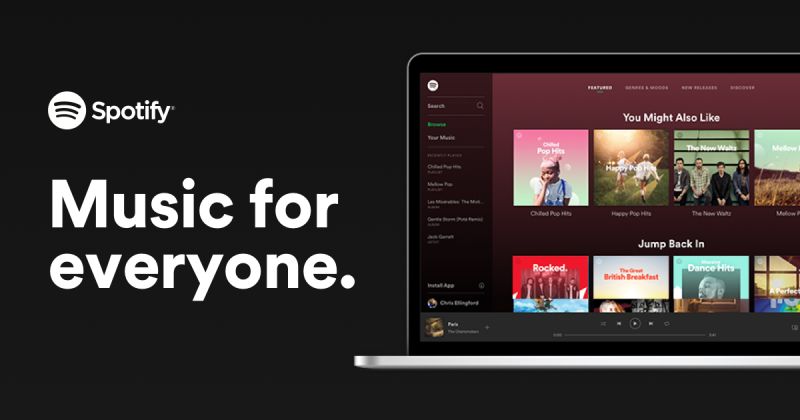
Image source: LinkedIn
What Is the Spotify Web Player and Who Is It For?
The web player is a cloud-based version of the Spotify application that runs entirely within a browser environment. It was designed to remove the friction of software management, making it a leading option for diverse user groups. As of 2026, the platform supports over 74 languages and includes robust Right-to-Left (RTL) text support, ensuring a localized experience for a global audience.
This platform is specifically tailored for:
- Office Workers: Users who cannot install third-party apps on company-issued hardware.
- Students: Those using school library computers or Chromebooks where local storage is limited.
- Privacy-Conscious Users: Individuals who prefer not to have persistent background processes running on their operating system.
- Multi-Device Owners: People who switch between various operating systems (Linux, Windows, macOS) and want a consistent UI.
Beyond just music, the web player has evolved into a comprehensive media hub. It now hosts millions of podcast titles and a growing library of audiobooks. According to recent platform data, Spotify supports over 2,000 different devices, ranging from smart TVs to wearable tech, with the web player often acting as the underlying framework for these integrations.
How to Use Advanced Search Operators to Find Music Faster
While most users simply type an artist's name into the search bar, the web player supports a sophisticated set of search operators that allow for surgical precision. Mastering these can significantly improve your discovery process.
Mastering the Quick Search Shortcut
One of the most efficient features for power users is the
Quick Search
tool. By pressing
Ctrl + K
(Windows/Linux) or
Command + K
(macOS), you can trigger a floating search bar that allows you to jump to any artist, album, or playlist without leaving your current view. This is a significant advancement in UI efficiency that many casual listeners overlook.
Filtering by Year and Era
If you are looking for music from a specific time period, you can use the
year:
operator. This is exceptionally useful for finding original recordings rather than modern remasters.
-
year:1969— Finds tracks released specifically in 1969. -
year:1989-2013— Searches for music within a specific date range. -
tag:new— Displays the most popular hits released within the last two weeks.
Narrowing Results by Genre and Label
For those who follow specific record labels or niche genres, the
genre:
and
label:
operators are indispensable. For example, searching
label:domino
will bring up the entire catalog of Domino Recording Company, while
genre:synthwave
will filter out unrelated tracks. You can even combine these:
artist: "David Bowie" year:1970-1980
.
How to Install the Spotify Web Player as a Progressive Web App
If you enjoy the browser experience but want the convenience of a dedicated icon on your taskbar, you should consider installing the Progressive Web App (PWA) . This provides a standalone window experience without the heavy resource consumption of the full desktop application.
-
Open Chrome or Edge:
Navigate to
open.spotify.com. - Locate the Install Icon: In the address bar (URL bar), look for a small icon that looks like a computer screen with a downward arrow or a plus (+) sign.
- Confirm Installation: Click "Install." The web player will now open in its own window, free from browser tabs and bookmarks.
- Pin to Taskbar: Right-click the new icon in your taskbar and select "Pin to taskbar" for one-click access.
The PWA version is highly impactful for users with older hardware. Because it relies on the browser's existing engine, it typically uses less RAM and CPU power than the standard desktop client, which often runs multiple background telemetry services.
How to Access the Spotify Web Player on a Mobile Browser
By default, Spotify attempts to redirect mobile browser users to the App Store or Google Play Store. However, there are many reasons you might want to avoid the app—perhaps you have no storage space, or you are using a temporary device. You can bypass this redirect using a simple workaround.
The Safari Workaround (iOS)
Open Safari and go to
open.spotify.com
. When the "Get App" screen appears, tap the
"Aa"
icon in the address bar and select
"Request Desktop Website."
The page will reload, and you will be able to log in and play music directly in the browser.
The Chrome Workaround (Android)
In Chrome, tap the three vertical dots in the top-right corner and check the box for "Desktop site." This tricks the server into thinking you are on a laptop, allowing the web player to load fully. This is a vital technique for users who prefer to keep their app count low for privacy or performance reasons.
Spotify Web Player vs. Desktop App Comparison
Choosing between the web player and the desktop app depends on your priorities regarding audio fidelity and system resources. While the web player is more portable, the desktop app offers features for audiophiles and power users.
| Feature | Web Player | Desktop App |
|---|---|---|
| Max Audio Quality | 256 kbps (AAC) | 320 kbps (Ogg Vorbis) |
| Offline Listening | Not Supported | Supported (Premium) |
| System Resource Usage | Low (Browser-dependent) | Moderate to High |
| Keyboard Media Keys | Limited Support | Full Support |
| Equalizer Settings | No | Yes |
According to technical feature reviews , the 256kbps AAC stream provided by the web player is virtually indistinguishable from the 320kbps desktop stream for the majority of listeners using standard headphones. However, if you require offline access for travel, the desktop application remains a necessary tool.
How to Fix Common Spotify Web Player Problems and Errors
Despite its stability, the web player can occasionally encounter technical hurdles. Most of these are related to browser security settings or audio driver conflicts rather than the service itself.
Resolving the Silent Playback Bug
A common issue reported in the Spotify Community is the "Silent Playback" bug. This occurs when the play button is active and the timer is moving, but no sound is produced. This is often caused by APO (Audio Processing Object) software or third-party DAC drivers like Amanero. Disabling "Hardware Acceleration" in your browser settings (found under System/Performance) often resolves these hangs immediately.
Enabling Protected Content for DRM
If the player refuses to start any song, your browser may be blocking "Protected Content." This is a security feature that prevents the playback of copyrighted material unless specifically allowed.
-
Go to
chrome://settings/content/protectedContent. - Ensure "Sites can play protected content" is toggled ON .
- Restart your browser and reload the Spotify page.
For Safari users, ensure that "Prevent Cross-Site Tracking" is disabled in your Privacy settings if you experience persistent login loops. Clearing your browser cache is also a highly recommended first step for any UI glitches, as "stuck" scripts can often interfere with the player's loading sequence.
Artist Tools and the Web Interface
The web interface isn't just for listeners; it is a critical portal for the over 9 million artists who distribute their work on the platform. Through the Spotify for Artists web portal, creators can manage their public profiles, view real-time streaming analytics, and engage with their audience.
One of the most significant features for independent musicians is the ability to pitch unreleased music for playlist consideration. This process must be done via the web interface at least three weeks before a release. By providing metadata about the genre, mood, and instruments used, artists can increase their chances of being featured on editorial playlists like "New Music Friday."
"The web portal democratizes the pitching process, allowing an artist in a home studio to have the same visibility as a major label act."
Key Takeaways for Using the Spotify Web Player
The Spotify Web Player remains a top-tier solution for flexible, high-quality audio streaming. Here is a summary of how to maximize your experience:
-
Instant Access:
Use
open.spotify.comto bypass software installations on any device. - PWA Installation: Install the player as a Progressive Web App for a cleaner, standalone desktop experience.
-
Advanced Search:
Utilize operators like
year:andgenre:to find specific tracks faster. - Mobile Workaround: Use the "Request Desktop Site" feature to stream in mobile browsers without the app.
- Audio Quality: Premium users enjoy a 256kbps AAC stream, which offers excellent fidelity for most setups.
- Troubleshooting: Enable "Protected Content" in browser settings if music fails to play.
-
Quick Navigation:
Memorize
Ctrl + Kto search and switch tracks instantly.
For the best results, ensure your browser is updated and your audio drivers are configured correctly to enjoy uninterrupted music anywhere in the world.
Frequently Asked Questions
Is the Spotify Web Player free to use?
Yes, the web player is available to both Free and Premium users. Free users will experience occasional advertisements between tracks and have limited skip capabilities, similar to the mobile app experience. Premium subscribers enjoy an ad-free experience, higher audio quality (256kbps), and the ability to play any specific track on demand. There is no additional cost to use the web interface over the desktop or mobile applications.
Why is my Spotify Web Player not working on Safari?
Safari users often encounter issues due to strict privacy settings. If the player won't load, go to Safari Preferences > Privacy and uncheck "Prevent Cross-Site Tracking." Additionally, ensure that you have allowed the site to play "Protected Content." If you are on a Mac, check that your macOS is updated, as Safari updates are tied to system updates and older versions may lack the necessary codecs for modern web streaming.
Can I download music for offline listening on the Web Player?
No, the offline download feature is currently exclusive to the Spotify Desktop App (Windows/macOS) and the Mobile App (iOS/Android). The web player requires an active internet connection to stream data from Spotify's servers. If you anticipate being without internet, such as during a flight, you should use the dedicated application to download your playlists in advance.
How do I change the audio quality on the web?
On the web player, audio quality is managed automatically based on your subscription status. Free users stream at 128kbps, while Premium users receive 256kbps. Unlike the desktop app, there is no manual "Low/Normal/High" toggle in the web settings menu. However, you can ensure you are getting the best possible sound by keeping your browser's volume at 100% and adjusting the output through your operating system or external speakers.
Does the Web Player support lyrics?
Yes, the web player includes a full-screen lyrics feature. While a song is playing, look for the microphone icon in the "Now Playing" bar at the bottom of the screen. Clicking this will display the lyrics in real-time, synchronized with the music. This feature is available for the vast majority of popular tracks and is powered by Musixmatch integration, providing a consistent experience across all platforms.

How to Listen to Free Music Online Without Downloading Any Apps or Software
Stream free music online without apps or sign-ups. Compare top ad-free sites like Jango and AccuRadio for any device.


How to Find a Song When You Only Know the Melody or Lyrics
Stuck with an earworm? Use Google Hum to Search, Shazam, or Reddit to identify songs by melody, whistling, or lyrics. Find your music now.

How to Find a Song by Humming Even If You Do Not Know the Lyrics
Identify earworms instantly. Compare Google, YouTube, and AHA Music tools to find songs by humming, even without lyrics or perfect pitch.